

Windows sees one ultrawide as one display, so PowerPoint can fill its whole width. Use Picture by Picture (PBP) and two video outputs from the same PC to give Presenter View and the audience slides separate halves.
An owner confirmed this setup on a 49-inch, 5120 x 1440 Samsung monitor. It works only when the monitor can split two inputs and the computer can drive both. Snapping windows into halves doesn't create those separate displays.
In this guide
1. Check for Picture by Picture before changing PowerPoint
Open your monitor's own menu using its physical controls. Look for PBP or Picture by Picture, and check the manual for the supported input combinations. This mode shows the picture from each of two video inputs side by side.
Don't confuse it with Picture in Picture (PIP), which places a smaller image over a larger one. For this setup, the useful result is two separate side-by-side inputs, each fed by your computer.
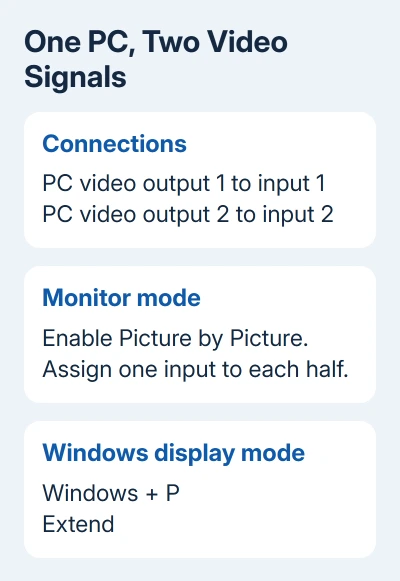
The owner in the ultrawide PowerPoint discussion used a Samsung CRG90. They connected two cables to the same PC and used PBP to make the system see two 2560 x 1440 displays.
Those dimensions describe that owner's 5120 x 1440 setup, rather than a required resolution for every monitor. Check your model's supported PBP sizes, refresh rates and connections before buying an adapter.
If PBP isn't available, skip to the windowed-show alternative. A monitor with several input sockets doesn't necessarily support displaying two of them at once.
2. Connect two independent video outputs from the PC
Run two video cables from the computer or a compatible dock to two inputs on the ultrawide. Use a DisplayPort and HDMI combination listed in the monitor's manual, or another combination your equipment supports.
Both video connections must come from the computer running PowerPoint. Many monitor examples show two different computers in PBP, but PowerPoint needs the same computer to send a separate picture to each half.
A simple HDMI splitter duplicates one signal. That doesn't supply the two independent desktops needed for private presenter controls and a separate audience view. Check that the PC or dock supports two simultaneous external displays.
Enable PBP in the monitor menu and assign the connected inputs to the two halves. The exact button sequence and input names depend on the monitor, so follow its manual rather than copying another brand's menu path.
You should now have a signal on each side. If one side is blank, check its assigned input and reconnect its cable before changing the presentation. Windows needs to recognize that display before you can select it in PowerPoint.
For laptops with limited video outputs, ask the manufacturer which dock supports your laptop and two displays at the required resolution. Your laptop must support both outputs at once; spare dock sockets aren't enough.
3. Make Windows extend across the two detected displays
Press Windows+P and select Extend. Duplicate puts the same content on both detected displays, so it can't keep the audience slides separate from your presenter controls. Extend gives PowerPoint separate places for its two views.
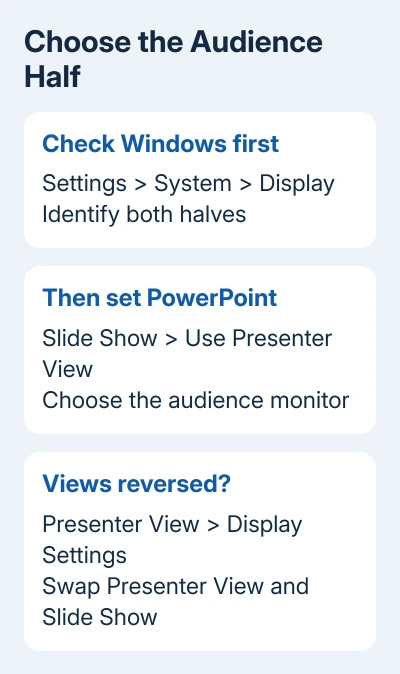
On Windows 10 or 11, open Settings > System > Display. Use Identify to see which display number belongs to each half, then arrange their numbered boxes to match the physical left and right positions.
Microsoft's multiple-monitor instructions explain arranging detected screens and applying the layout. A laptop's built-in panel can appear as an additional display, so don't assume the monitor halves are numbered 1 and 2.
If a connected half is missing, expand Multiple displays and use Detect where offered. Then check the monitor's PBP input selection and the dock's display support if it still doesn't appear.
For a wider connection problem, the second-monitor checks cover the Windows side. Get both halves working in Extend mode first. PowerPoint's Monitors list can then offer them as separate displays.
Drag a normal window from one half to the other. It should move between desktop areas rather than appear identically on both. This checks the extended desktop before the slide show starts.
4. Assign the show and Presenter View to the right halves
Open the deck in desktop PowerPoint for Windows. On Slide Show, enable Use Presenter View. In the Monitors controls, select the display intended for the full-screen audience slides, using the numbers you checked in Windows.
Start the presentation with From Beginning. Check that one half shows only the current slide while the other contains your notes, navigation and next-slide preview.
If they are reversed, open Display Settings in Presenter View and choose Swap Presenter View and Slide Show. The Presenter View guide covers that control and the ordinary private-notes setup.
For webcasting, share only the audience display through the meeting app. Check the preview or have a participant verify the shared content before opening private notes. Entire-desktop sharing can expose both halves.
I'd rehearse with a slide containing harmless sample notes first. That makes a swapped display easy to catch without revealing the real script or another window during a live session.
The confirmed setup used Windows. A Mac must also support two independent video outputs. Check that model's external-display limit before assuming it can drive both PBP inputs.
5. Use a windowed show when PBP isn't an option
In Windows PowerPoint, choose Slide Show > Set Up Slide Show. Under Show type, select Browsed by an individual (window), then select OK and start the show.
Size that show window on one side and share it through the meeting app. The original owner tried this but still lacked the private presenter workspace, so it doesn't provide the separate presenter workspace that PBP allows.
Use printed or separately displayed speaking prompts if that is enough for the session. When you need full Presenter View and a separate full-screen show, a second real display is the straightforward alternative to PBP.
Ask for help with the display setup that actually fails
If Windows sees only one display, give the monitor or dock maker the model numbers, cable types and chosen PBP inputs. Ask whether that exact PC can provide two independent video signals in this mode.
If Windows extends correctly but PowerPoint selects the wrong screen, send the app build and screen layout to Microsoft Support. Mention any laptop panel as well as the two ultrawide halves.
The Short Version
Use PBP and two independent video connections from the same PC, then choose Extend in Windows. Assign PowerPoint's slide show to one detected half and keep Presenter View on the other. Without PBP, use a windowed show or a second display.
Checked November 22, 2026.
 If you have any business, I can build it online






