
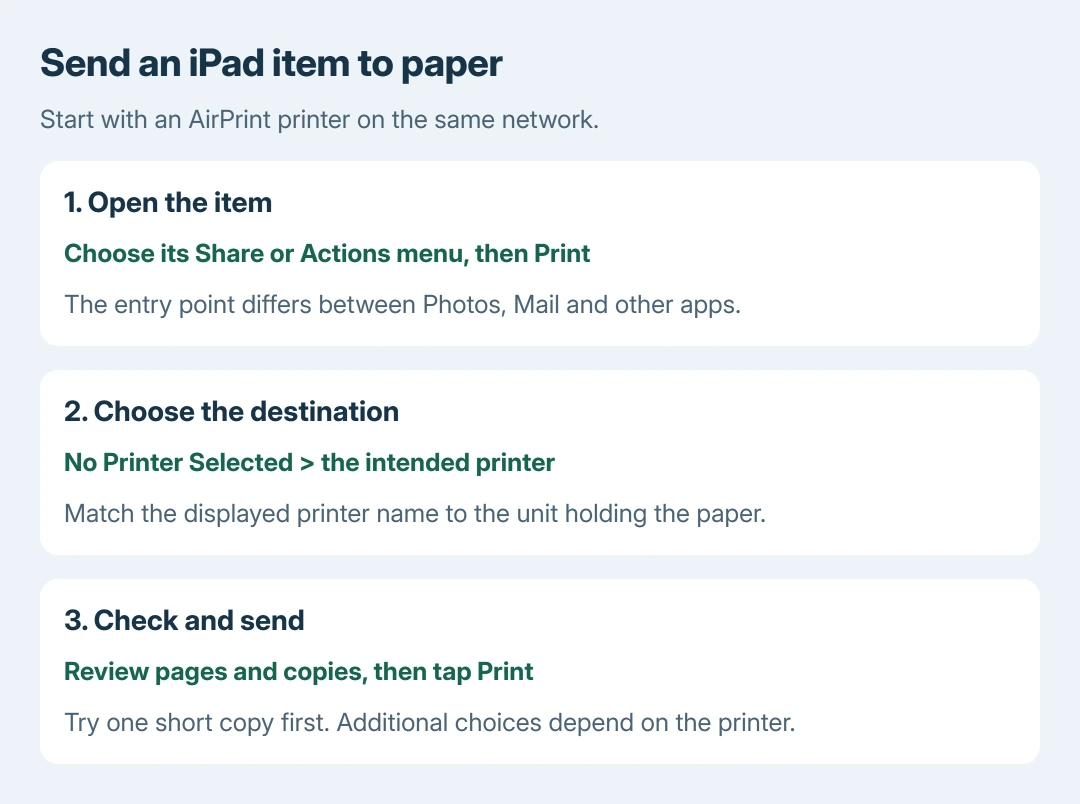
Printing from an iPad uses an AirPrint-compatible printer on the same network. Open the item, choose Share > Print or the app's printing action, select the printer, check the page and copy options, then tap Print.
There is no Windows-style printer-driver installation for this AirPrint procedure. The printer must already support AirPrint and have a working network connection before the iPad can select it.
1. Open the item and its Print action
Turn on the printer, load its supported paper and check its display for errors. Confirm AirPrint support in the exact model's documentation. Connect the iPad and printer to the same local network.
Apple documents these requirements in its AirPrint printing instructions. A printer can use the router's wired network connection while the iPad uses Wi-Fi; Bluetooth pairing is not this setup.
Status: iPad AirPrint, Photos, Mail and print-job controls checked against Apple's guides on October 28, 2026. No printer or iPad was tested.
Open the actual photo, message or document before looking for Print. The menu can belong to the open item rather than the app's file list.
| Item | Where to begin |
|---|---|
| One photo | In Photos, open it, tap Share and choose Print. |
| Several photos | Select the photos together, then use Share and Print. |
| An email | Open the message in Mail, tap More Actions and choose Print. |
| A Mail attachment | Open the attachment itself, then use its Share and Print action. |
Scroll through the action list if Print is not immediately visible. Apple says some apps do not support printing; their help instructions determine whether another print or export route exists.
For a printer that is not yet connected to the router, complete its wireless network setup first. Installing Windows software does not enroll a printer for the iPad.
2. Select the printer, pages and copies
Tap No Printer Selected and choose the intended AirPrint printer. In a room with several printers, compare its name with the unit that holds the paper before sending anything.
Set the number of copies and the offered page range. Review the document preview. Additional choices depend on the printer and app, so a missing two-sided or paper option is not automatically an iPad fault.
Tap Print at the upper right when the selected output is correct. Wait for the job rather than repeatedly pressing the button; repeated submissions can become multiple copies later.
The first-page check is ours: use one copy of a short item before submitting a large document. Check its physical result before choosing more copies or a longer page range.
3. Check or cancel a queued document
Apple's current iPad printing guide calls the open-app overview Exposé. Open that overview and select Print Center to inspect an active job.
Swipe upward from the lower edge and pause near the middle to open the overview. If the iPad has a Home button, double-click it instead.
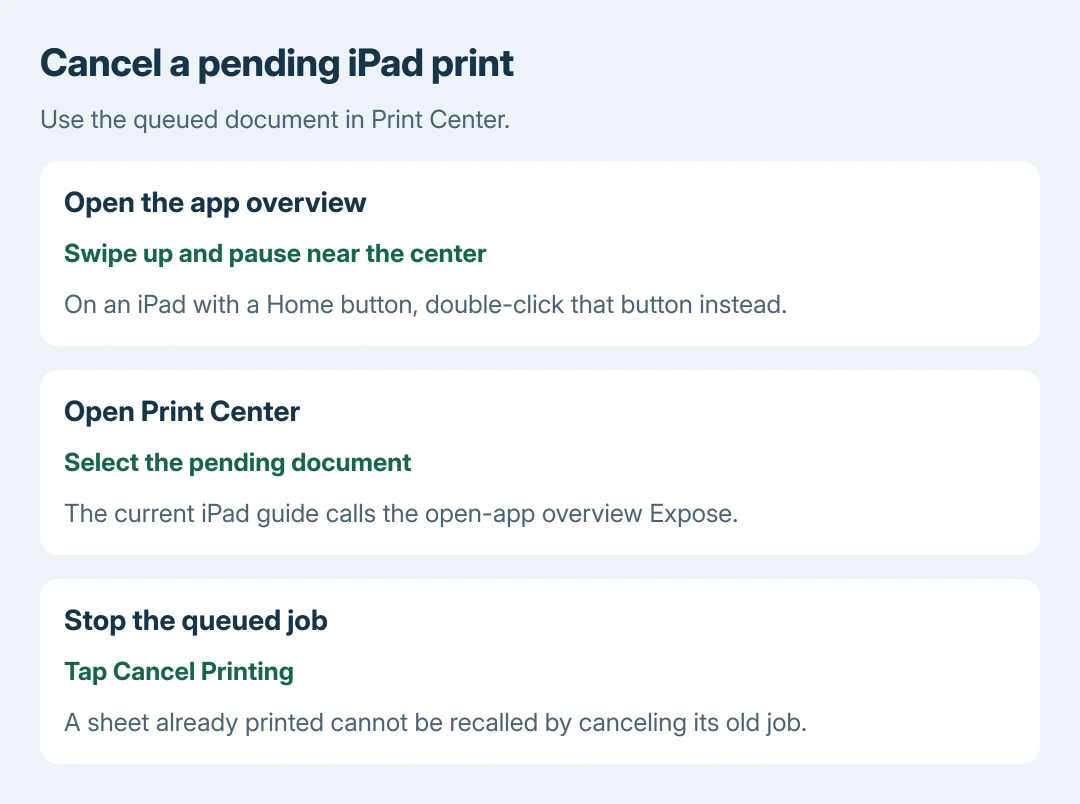
Choose the document in Print Center and tap Cancel Printing if it should stop. A job already completed is no longer a pending item that the iPad can recall from the printer.
Why is the printer missing from the list?
Check AirPrint support and the two devices' network connection before changing document options. A guest network can prevent local discovery even when both devices have internet access.
The AirPrint discovery checks cover that separate failure. AirPrint's network requirement applies to iPad as well as iPhone; those checks do not require pairing the printer over Bluetooth.
For a printer without AirPrint, use only the manufacturer's documented iPad app or supported alternative for that exact model. A generic computer driver cannot add AirPrint support.
If no supported route works, give the printer manufacturer its model, network method and displayed error. For an office printer with restricted access, ask the administrator which iPad printing method is permitted.
The Short Version
Open the item, choose Print, select an AirPrint printer and review copies and pages before submitting. Use Print Center for a pending job. Missing printers need compatibility and network checks before document changes.

Isaac Smith is the founder and editor of PC Glance, a website that covers computers, laptops, and technology. He is a tech enthusiast and a computer geek who loves to share his insights and help his readers make smart choices when buying tech gadgets or laptops. He is always curious and updated about the latest tech trends.