Ready or Not can receive silence while Discord hears you because each app can choose a different recording device. Set your actual microphone as the default input, reconnect to the session, and check the game's voice controls.
If chat goes silent after you join a lobby, selecting the audio device again can also help. If Windows itself records nothing, start with the microphone connection and permissions instead of reinstalling the game.
In this guide
1. Select the microphone before launching the game
Close Ready or Not, connect your headset or microphone, and check its physical mute switch. A headset's speaker connection doesn't necessarily mean its microphone is connected or unmuted, especially with separate audio plugs.
On Windows 11, open Settings > System > Sound. Find Input and choose your connected microphone. On Windows 10, open the same settings page and choose it under Choose your input device.
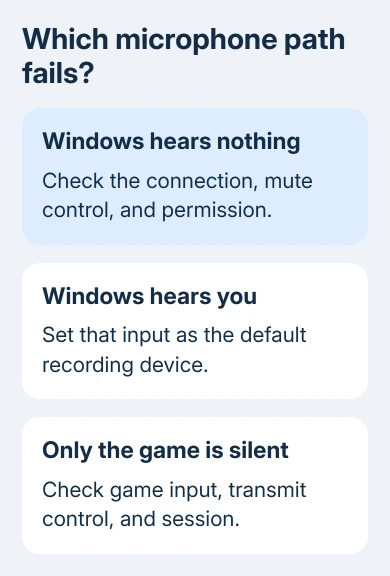
Speak into that microphone and use the input test or meter available on your Windows version. A moving level or a recorded test shows that Windows can hear you through the selected input. A device name alone doesn't confirm that.
If the meter stays still, check the cable, mute control, and input selection before continuing. For a broader Windows failure, the Windows microphone repairs cover that part of the problem.
If Windows hears you, keep that microphone connected and continue with the default-device check. I'd do this before reinstalling Ready or Not; reinstalling doesn't choose the correct recording device for Windows.
2. Make that microphone the Windows default
Press Windows + R, enter mmsys.cpl, and press Enter. In the Sound dialog, open Recording. Select the working microphone and choose Set Default or right-click it and choose Set as Default Device.
If Set as Default Communication Device is offered, select the same microphone for that role too. This keeps a webcam or a disconnected headset from remaining the default for communication while another device handles ordinary recording.
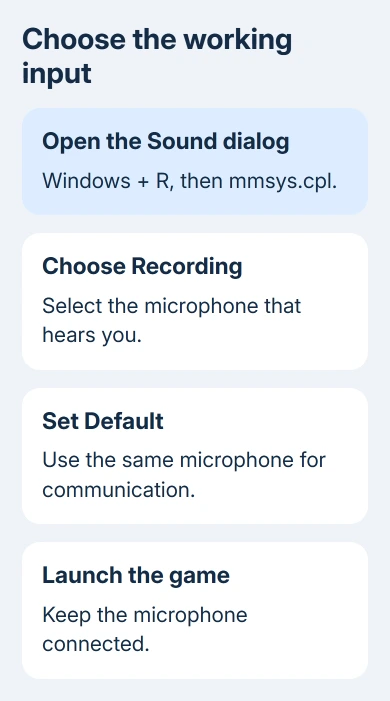
Speak again and look for activity beside the intended device. Select OK, launch the game, and ask a teammate whether they can hear a short message while you use the voice-transmit control assigned in your settings.
One owner in a Ready or Not Steam discussion fixed chat by making their headset microphone the Windows default. Another owner confirmed it worked. Their other voice apps had been working already.
Those owners were using an older game build. Try the device-selection repair, then continue if the default microphone records correctly while game chat remains silent.
If several unused inputs remain, note their names before disabling any. Keep your working microphone enabled. Disabling a webcam microphone is reversible, but disabling the input you actually use will make it harder to tell what's wrong.
3. Give desktop games permission to record
On Windows 11, open Settings > Privacy & security > Microphone. Enable these available controls:
- Microphone access
- Let apps access your microphone
- Let desktop apps access your microphone
On Windows 10, use Settings > Privacy > Microphone. Check these three access controls:
- Allow access to the microphone on this device
- Allow apps to access your microphone
- Allow desktop apps to access your microphone
The microphone troubleshooting instructions explain the separate microphone-access setting for desktop apps. Don't expect a separate Ready or Not switch among the Store apps.
Restart the game after correcting access, then test in the same kind of multiplayer session. If a managed PC locks these controls, ask IT to check the policy controlling microphone access.
If the input still works in Windows and other desktop voice apps, move to the game's settings. Since those apps can hear you, check the game's input, transmit setting, and session next rather than the microphone connection.
4. Check the game's input and voice-transmit controls
Open Ready or Not's settings and check the audio input selection. When Input Audio Device is available, choose the microphone you just tested instead of a webcam, virtual audio cable, or old headset entry.
Check Microphone Gain for a minimum setting. Increase it to a usable level and ask a teammate to listen. Turning up the game's sound-effects volume won't increase what your microphone transmits.
Open the controls list and inspect your current voice-chat binding. The listed PC defaults are V for push-to-talk and L to cycle channels. Use your displayed bindings if you remapped them, and hold the transmit control while speaking.
Check the selected voice channel too. Local voice and radio communication serve different ranges, so test with a nearby teammate first and then with the channel intended for the squad.
A chat indicator without audible speech doesn't confirm the microphone input is correct. It can show that the transmit control is being pressed while the game receives silence from the selected device.
These checks apply to PCs. A console controller or platform-party setting handles voice separately; Windows input settings won't change it. When playing cross-platform, have the other person confirm which chat system they're listening to.
5. Reselect the audio device after joining
If voice worked before joining or failed immediately after entering a session, reopen the audio settings and reselect the intended device. Then return to the session and try the same short voice message.
The game's published known-issues thread gives device reselection as a workaround for muted PC audio. It also notes occasional voice problems after a microphone is unplugged and reconnected.
Keep the headset connected during the next test. If a cable was just changed, quit and relaunch the game with the intended microphone already present. The microphone will then be connected when the next session starts.
For a session where voice loops or fails for several players, leave and start another session. Compare whether the fault follows your microphone or stays with that lobby before changing more Windows settings.
For a mixed-platform group, check Ready or Not crossplay separately from the microphone. A working Windows recording test doesn't confirm the other player joined the intended voice session.
6. Send support the session and device results
For persistent game-only silence, send a report to support@voidinteractive.net, the address listed through Steam Support. Include the game build, Windows version, microphone model, selected input, and the fresh-session result.
Also say whether it starts on joining, after reconnecting the headset, or only in cross-platform sessions. Those details help support try the same device and session conditions that trigger the problem.
The Short Version
Make the working input your Windows default. Check desktop recording permission and game voice controls, then reselect the device in the session. Send support the device and lobby details if chat stays silent.
Checked November 15, 2026.
 If you have any business, I can build it online