A locked Brother HL-L3220CDW needs the correct password before its normal factory reset. The panel's four-digit Setting Lock code differs from the web administration password. Unlock the settings first, then choose the reset you need.
The printer has separate machine, network, and factory reset functions. A toner counter reset is another procedure entirely. Opening the cover and trying a cartridge-reset button sequence isn't a documented way to remove Setting Lock.
In this guide
Identify the lock before erasing settings
Check where the password request appears. A prompt while changing settings on the printer's control panel points to Setting Lock. A login page opened at the printer's IP address uses the web administration password instead.
The HL-L3220CDW has a small LCD with physical menu buttons. Instructions that start with tapping Settings > All Settings belong to touchscreen models in the same manual, not this model's control panel.
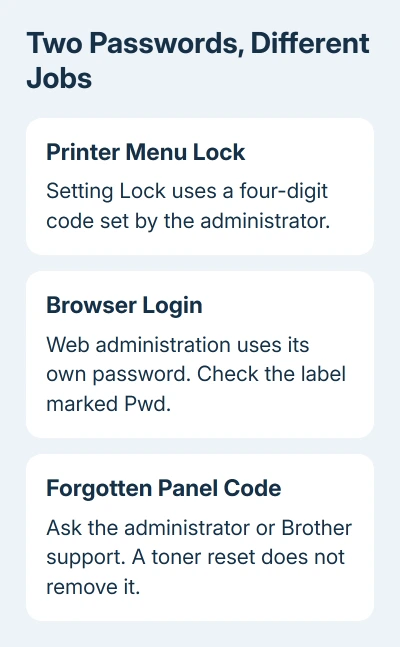
Brother's Setting Lock overview says that forgotten Setting Lock passwords require the administrator or Brother customer service to reset the stored passwords. Those instructions don't give a universal reset code you can enter yourself.
For an office or secondhand printer, ask the administrator or previous owner whether they set a four-digit panel code. Give them the exact screen message. That avoids changing the network when the problem is a locked control-panel menu.
If the screen reports a cartridge or drum warning instead, use the procedure for that part. Resetting a Brother toner counter doesn't erase the printer's passwords or Wi-Fi setup.
Use the known code at the panel prompt
Enter the existing four-digit Setting Lock code when the panel requests it. Use the physical selection buttons for each digit and confirm with OK. Use the code you or the administrator chose when turning on Setting Lock.
After the printer accepts the code, check access to Initial Setup > Reset. Once you can open that menu, choose the reset you need. If the printer continues requesting a code, ask the administrator to unlock it.
Don't substitute the password printed on the rear label for this four-digit code. The label password is for managing the machine over the network. Trying the web password here won't recover a forgotten panel code.
If the code isn't accepted, stop and ask your printer administrator. For a personal machine with no known administrator, contact Brother support with the model, serial number, and the words on the display.
Ask specifically for help with a forgotten Setting Lock password on the HL-L3220CDW. That tells support which password you've lost. Asking for a total reset could send them toward network settings or a toner or drum counter instead.
Recover web access without confusing it with the panel lock
For the web settings (Web Based Management), check the rear or bottom label for Pwd. If the factory login hasn't been changed, use the password printed there. Keep that label private when sending photos to a forum or repair shop.
Brother's password guidance says that a forgotten custom web password requires resetting the network settings to their factory defaults. That is a different recovery route from a forgotten four-digit Setting Lock code.
A network reset clears connection settings, so have the Wi-Fi details ready. For a shared printer, agree on the change with its administrator first. Computers can't reach the printer over its old connection until you reconnect it.
With panel access available, select Network, press OK, select Network Reset, and press OK. Complete the displayed confirmation and restart prompts. If that menu is locked, you'll need to recover its password first.
Reconnect the printer and open its current IP address in a browser. Use the factory web password for this particular machine. If you can sign in, web access is working again. That doesn't mean every printer setting has been erased.
Choose Factory Reset on the physical control panel
Use a factory reset when you want to restore the printer's settings, such as preparing it for a new owner once you can access its menus. Note the connection details and any settings you need to recreate before starting.
Disconnect the interface cables before the factory reset. Keep the power connected so the printer can complete its restart. The model's factory reset instructions give this LCD-menu sequence:
- Use the menu selection buttons to display Initial Setup, then press OK.
- Select Reset, then press OK.
- Select Factory Reset, then press OK.
- Select Reset at the confirmation prompt.
- Confirm the restart when the printer asks.
Let the printer finish restarting before reconnecting it. The printer needs that restart to finish the reset. Leaving the confirmation screen without restarting won't finish it.
If Factory Reset isn't accessible because of Setting Lock, this sequence doesn't bypass it. Return to the password recovery route. I'd resolve that access problem before changing any settings that still happen to be available.
Reconnect and check what the reset actually changed
Set up the network again if its settings were cleared. Match the computer and printer to the intended network before testing a wireless print. A computer can still show an old printer entry even when the printer now has a different address.
Print a short document after reconnecting. A Windows printing check helps separate a computer connection problem from the panel reset.
If it stays queued, check the selected printer and connection instead of resetting again. The computer's saved printer entry is separate from the printer's reset.
A drum replacement warning needs its own counter procedure after replacing the drum. The Brother drum replacement guide explains why clearing settings isn't a substitute for maintaining the part.
If the buttons still don't respond or an error light stays on, use the model's Warranty and Service route. Report whether the menus could be opened, whether the reset restarted the machine, and what changed afterward.
The Short Version
Separate the four-digit panel lock from the web password. Recover Setting Lock through the administrator or Brother if its code is forgotten. With panel access restored, use Initial Setup > Reset > Factory Reset and complete the restart.
Checked November 12, 2026.