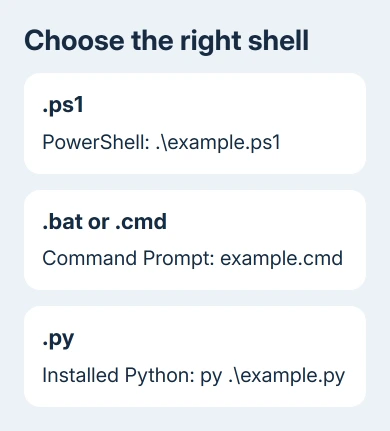
Match Windows 11 scripts to their tools by extension: PowerShell for .ps1, Command Prompt for .bat or .cmd, and installed Python for .py. For a PowerShell script in your current folder, enter .\example.ps1 rather than just its filename.
Opening a script in Notepad doesn't run it. Start from a terminal so any result or error stays visible, and read downloaded code before giving it permission to change your files or settings.
In this guide
1. Read the filename extension
In File Explorer, find your script folder, then select View > Show > File name extensions. Read the final extension, including anything after the name you expected. A file called example.ps1.txt is still a text file.
For a script you've written in Notepad, use Save as, choose All files as the file type, and enter the full filename with its intended extension. Don't rename an unfamiliar downloaded file just to make Windows run it.
The terminal is the window; the shell inside it reads your commands. Windows Terminal can host PowerShell or Command Prompt, so check the tab's name before entering commands. The same text can behave differently in different shells.
Right-click Start > Terminal for an ordinary session. A task that reads files or prints information usually doesn't need administrator access. Choose Terminal (Admin) only for a script that needs system-level changes.
2. Run a PowerShell script from its folder
In a PowerShell tab, change to the script's directory with Set-Location. For a Scripts folder on your C: drive, enter Set-Location 'C:\Scripts'. Replace that folder with the actual location of your file.
Enter Get-ChildItem to list the files. Confirm that the intended .ps1 file appears, then run .\example.ps1, replacing example with its real name. The dot and backslash tell PowerShell to use the current directory.
Microsoft's PowerShell script instructions explain why a bare filename isn't enough, even when the script is in that folder. An unrecognized-command error can be a path problem rather than a broken script.
For a full path containing spaces, use the call operator and quotes, such as & 'C:\My Scripts\example.ps1'. The ampersand tells PowerShell to run the quoted path. A quoted path on its own is only text.
Put any required parameters, the options passed to a script, after the filename. Use the names supplied by its author. Don't guess a parameter from another script with a similar purpose. The script decides which options it accepts.
When it finishes, read the output before entering another command. Some scripts print a result, some create a file, and some return silently. Check its instructions for what should happen, then see whether you got that result.
3. Handle the scripts-disabled message
If PowerShell reports that running scripts is disabled, enter Get-ExecutionPolicy -List. This shows which policies apply to the computer, your account, and this session. They control script loading, but can't tell whether a script is safe.
For a script you've reviewed and trust, a session-only setting is Set-ExecutionPolicy -Scope Process -ExecutionPolicy RemoteSigned. Accept the confirmation if prompted, then retry the script in that same PowerShell window.
The Process scope expires when that PowerShell process and its children close. It avoids changing the computer-wide policy just to run one local script. I prefer that limited change for an occasional task on a personal PC.

RemoteSigned can still block an unsigned file marked as downloaded from the internet. After reviewing that particular file, Unblock-File -LiteralPath '.\example.ps1' removes its download mark. Retry only after that review.
If your workplace or school manages the PC, MachinePolicy or UserPolicy can override your session setting. Ask IT to approve the script or provide a signed version. Don't try to work around an organization's script controls.
The execution policy reference explains the scope order and download checks. Check the policy when the message mentions it. If the script starts but reports a syntax error, the code needs correcting instead.
4. Use the PowerShell version the script expects
Windows PowerShell 5.1 and PowerShell 7 are separate installations. Enter $PSVersionTable.PSVersion to see which one is running. Don't rely on the tab title alone to tell you whether the version matches your script.
Use a Windows PowerShell tab for a script that requires the included 5.1 environment. Use PowerShell 7 when the script requires that version and it's installed. The executable names are powershell.exe and pwsh.exe, respectively.
Run the policy check in the same environment where you'll run the script. A policy change in one window doesn't mean another session will use that same policy.
If a script uses older Windows management commands and fails after starting, our WMIC replacement guide explains one common compatibility change. Changing execution policy won't restore a removed command.
5. Run batch files and Python files in their own tools
For .bat and .cmd, open a Command Prompt tab. Use cd /d "C:\Scripts" to change both drive and folder, then enter example.bat or example.cmd. Keep the window open to read the output.
From PowerShell, you can also call a batch file with .\example.cmd. If its instructions contain Command Prompt syntax, follow them in a Command Prompt tab instead of guessing at PowerShell equivalents.
For Python, first enter py --version or python --version in the terminal. Use whichever command finds the Python version you need, followed by the file path, such as py .\example.py. Changing execution policy doesn't install Python.
An unrecognized Python command means that session can't find the interpreter. If Python is installed, use its documented executable path or ask its installer support why the command isn't available. Don't rename a Python file to .ps1.
For a Windows command missing only in one shell, the SSH command-path checks show why the shell's 32-bit or 64-bit version and the places it looks for commands can matter. Record the exact missing command before changing software.
If the script still fails, send its author the shell version, command used, and first error with its line number. Remove passwords or private paths before sharing output. The first error helps them locate the failing instruction.
The Short Version
Show file extensions, choose the matching tool, and run your script from a terminal. For a trusted PS1 blocked by policy, check the effective policy and use an approved change limited to what you need. Leave output visible to read errors.
Checked November 12, 2026.