

Task Manager opens with administrator rights through Start search: right-click its result and choose Run as administrator. Approve the prompt, or enter an administrator's account details if you're using a standard account.
That gives Task Manager the extra permissions some tasks need. It won't remove a policy that disables Task Manager, and it doesn't make every protected Windows process available to stop.
In this guide
Open an elevated copy through Start
Close an existing Task Manager window first so you can clearly check the new launch. Open Start, type Task Manager, and select the matching Windows system tool in the search results.
Right-click that result and choose Run as administrator. If search shows an action panel, the same command can appear there. Read the User Account Control prompt and approve the Windows tool you intended to open.
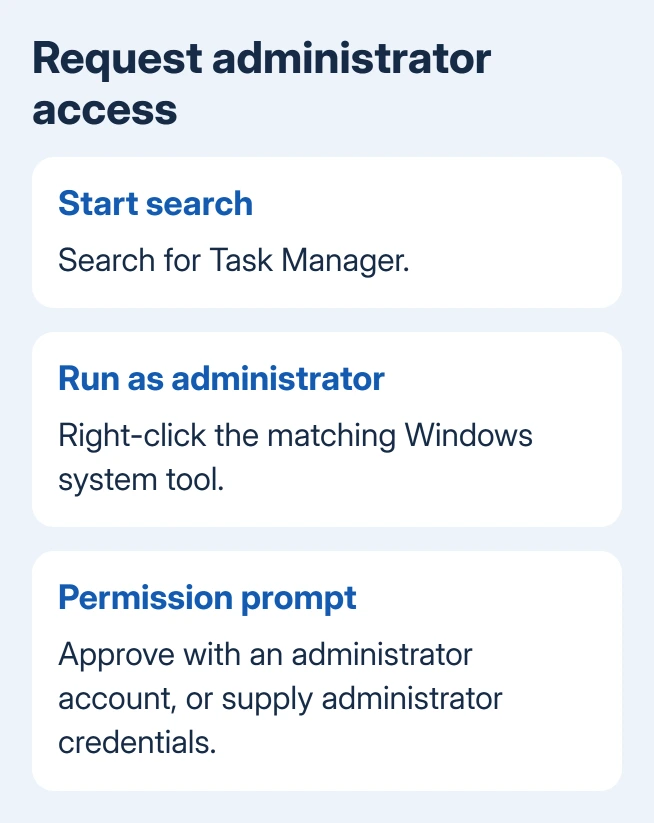
On an administrator account, the prompt normally asks for your approval. On a standard account, it asks for an administrator's account details. Enter the administrator's account details, rather than your standard account's password.
Microsoft explains this difference in how User Account Control works. An account in the Administrators group still needs to launch a program with administrator rights for it to get those extra permissions.
Once the window opens, choose the view you need. Windows 11 places its views in the navigation area, while Windows 10 uses tabs and may first show a compact window with More details.
If you just need to inspect an ordinary app's resource use, the Ctrl + Shift + Esc Task Manager shortcut is quicker. Use Run as administrator when the action you're trying needs more access.
I'd use elevation for a specific job, then close that copy afterward. That gives it extra access for the job you're doing without setting every future launch to ask for it.
Use the Windows program file when search won't help
Open File Explorer and enter %windir%\System32 in its address bar. Press Enter, then find Taskmgr.exe. Showing file-name extensions can help distinguish the program from similarly named items.
Right-click Taskmgr.exe and choose Run as administrator. On Windows 11, use Show more options if the command isn't visible in the first menu. Respond to the permission prompt as you would from Start.
This opens the copy supplied with Windows. Don't download a separate Task Manager executable because search doesn't find the installed one. The built-in program is already part of the operating system.
The Windows application-launch documentation describes Run as administrator as the launch action that requests elevation. Opening a file's Properties to look at its permissions doesn't do the same thing.
If neither Start nor the program's shortcut menu offers the action, check whether you're selecting the executable itself. A search category, document or special shortcut can show different commands from a normal Windows program.
On an organization's computer, tell IT which command is missing or what error appears. Your organization can limit which programs you can run as administrator. Use its approved account or support process to complete the job.
Check what elevation changed before ending anything
Try the action that needed administrator rights again. For example, a process detail or action that previously returned an access error may now be available. Compare the same item rather than a different process.
Task Manager doesn't need to put Administrator in its title bar for every Windows version. The title text varies between releases; check the launch method and the action you needed instead.
Check the command you chose and the permission prompt you answered. A missing prompt can also depend on the account's User Account Control configuration, so don't change that security setting just to force a prompt to appear.
Elevation doesn't mean a process is safe to stop. Identify the app and save any work it still allows before using End task. Force-closing an app can discard work it hasn't saved.
If Access is denied remains, note the process and failed action. Follow that app or service's repair procedure instead of stopping related entries at random.
Some problems need an app repair, steps for that particular service or IT access. Focus on getting the original job done; administrator rights won't let you change every process in the list.
A disabled-by-administrator message needs a different fix
The message Task Manager has been disabled by your administrator describes a policy restriction. Requesting elevation doesn't change that policy or remove an employer's controls.
For a computer you own and manage, the disabled Task Manager guide explains the relevant policy and registry checks. Follow those steps when that exact disabled message appears.
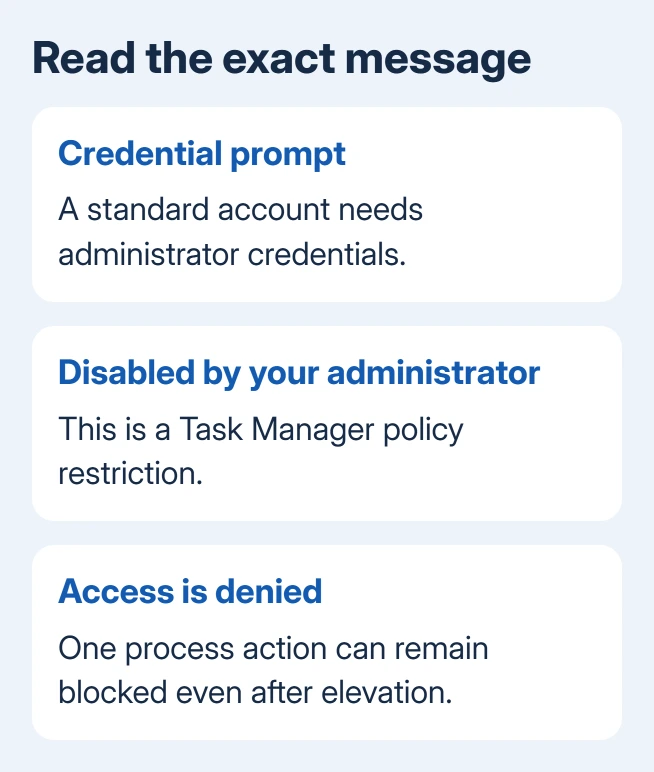
On a company or school computer, explain the blocked inspection task to IT and include the message. Ask them to perform the required task or provide approved access. Repeatedly launching the same program won't change the policy.
If Task Manager appears and immediately closes, record whether it closes before or after selecting a particular view. That's a startup or crash problem. Getting past the administrator prompt doesn't explain why Task Manager then closes.
Close the session or send support the exact failure
When you've finished, close Task Manager normally. Running it as administrator once doesn't change the standard account into an administrator, and it doesn't require changing the computer's User Account Control setting afterward.
If you created a shortcut for the launch, keep track of whether you enabled an always-run-as-administrator setting in its Properties. That shortcut setting stays enabled for future launches. Leave it off for a one-time launch.
For a personal computer where the Windows tool won't launch even after you approve the administrator prompt, open Get Help. Give support the Windows version from Settings > System > About, the exact error and which launch methods failed.
Mention whether other tools can request administrator access. If they also fail, support needs to check more than Task Manager. Leave passwords and recovery codes out of the report.
If only one app is frozen, name that app and explain whether a normal close still works. Support can help with its recovery without treating Task Manager elevation as the repair for the original application.
The Short Version
Use Start search to launch Task Manager with Run as administrator. Approve the prompt or enter the administrator's account details it asks for. Policy-disabled access and a denied action on one process need their own checks.
Checked November 15, 2026.
 If you have any business, I can build it online






