Safari's too many redirects error means a page keeps sending the browser elsewhere instead of loading. Old login data stored in a cookie can keep that loop going. Try a private window first; if it works, clear that website's stored data.
The website can also create the loop itself. When the same address fails in another browser or on another device, the site owner may need to repair its redirects. Clearing every device won't fix a broken sign-in service.
In this guide
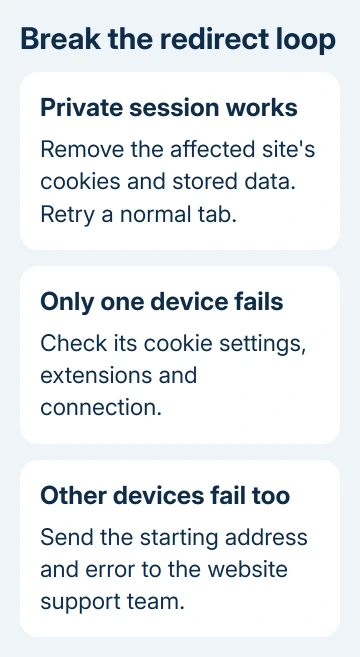
1. Open the site directly in a private session
Start from the site's main address rather than an old email link, saved login bookmark or repeatedly redirected tab. Type the address carefully. If the home page opens, use its own sign-in or navigation to reach the page you need.
On a Mac, choose File > New Private Window through Safari's menu bar, or press Shift-Command-N. Open the address in that new window. Keep the original tab available so you can compare what changes.
On an iPhone, open Safari's tab controls and choose the Private tab group, then open a new tab. On an iPad, choose Private from the tab groups in the sidebar or tab controls. Unlock private browsing if the device asks.
Try the same task, including signing in if that is where the loop starts. A private page that loads before sign-in but loops immediately afterward points to the sign-in route rather than Safari being unable to load any part of the site.
If the private session works, return to normal browsing and clear that website's stored data using the next section. If it also fails, compare another browser or device before making broad changes to Safari.
2. Remove only the affected site's data on Mac
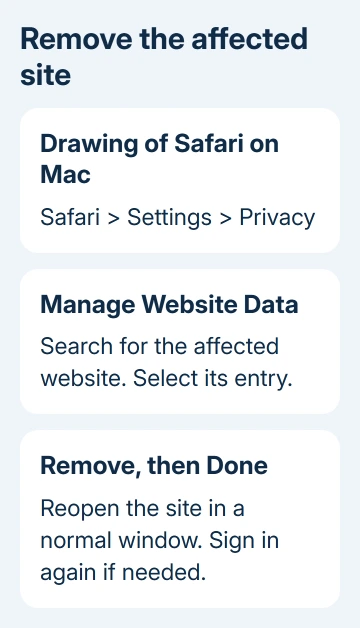
Open Safari > Settings > Privacy > Manage Website Data. Older Safari versions call the Settings menu Preferences. Search for the affected website, select its entry and click Remove, then Done.
Cookies help the site remember your signed-in session, so removing them can sign you out. Have your login details ready. Leave other websites' stored data alone during this targeted check.
Apple's Safari website-data repair recommends the private-window comparison before removing a troublesome site's data. Close the old redirected tab, open a normal window and visit the site's main address again.
A work sign-in may pass through a separate service that handles your login. Note whether the address changes to its domain before failing. Give those domain names to your administrator instead of guessing which unrelated entries to remove.
When the page now loads and you can complete the task, stop there. A reset of Safari, your network settings or the whole Mac adds no benefit to a repaired website session.
3. Clear site data on iPhone or iPad
Open Settings > Apps > Safari > Advanced > Website Data. On version 17 or earlier of iOS and iPadOS, find Safari on the main Settings list, without opening Apps. Search for the site's domain in the stored-data list.
Swipe the affected entry left and choose Delete, then reopen the site in a normal tab. If sign-in uses several related domains, ask website support which domains' stored data to clear.
For a broader reset, the same screen offers Remove All Website Data. That removes the saved cookies and cache without erasing your browsing history. Expect to sign back into websites whose sessions were stored there.
Clear History and Website Data in Safari settings also removes history, so don't choose it just to clear one site's login session. The iPad cache controls explain the difference when storage is part of the problem too.
If data controls are unavailable, check whether there is any stored data and whether Screen Time web restrictions apply. Clearing a list that is already empty won't change a server-side loop.
4. Check cookies and content blockers
Some sign-in pages need cookies to finish signing you in. If you've enabled Block All Cookies, turn it off for the comparison. On iPhone and iPad, that setting is in Settings > Apps > Safari > Advanced on current versions.
On current Mac Safari, open Safari > Settings > Advanced and clear Block all cookies if selected. Older versions put this checkbox in Privacy. Keep other privacy controls as they are during this comparison.
Temporarily turn off a content blocker for the affected site and reload. On a Mac, check Safari > Settings > Websites > Content Blockers for that site, or use the website's page controls when available.
For iPhone or iPad, use the address field's page menu to reach website or extension controls. Layout varies by Safari version. If the loop remains, restore the blocker; if it stops, update the blocker or ask its developer.
I'd change these one at a time. If removing site data already fixed the loop, weakening cookie or blocker settings afterward only makes it harder to know what was needed.
5. Compare the network and update Safari
Try the address on another trusted connection. An iPhone with cellular service can switch off Wi-Fi; a Mac or Wi-Fi-only iPad needs another network. If the site works there, check the original connection rather than Safari alone.
If you use a VPN, pause it briefly when permitted and retry. A work or school VPN may be required for internal sites, so follow the organization's connection instructions for those pages rather than removing its software.
For iCloud Private Relay on a Mac, View > Reload and Show IP Address tests the site without that feature when the menu item is available. Use this only for a site you trust, since the site receives your IP address for that visit.
Use the device's software updater to get available Safari improvements, then restart. The Safari update instructions cover Mac, iPhone and iPad. Safari isn't a separate app to reinstall from an unofficial download page.
Send the loop to the website's support team
If other browsers and devices show the same loop, use the website's published support channel. Send the address you started with, the exact error and what happened in private browsing. Say whether failure begins before or after sign-in.
For work or school sites, ask IT about the login redirects and your account access. Describe which domains repeat. Keep passwords and redirected addresses containing sign-in tokens out of the report.
The Short Version
Try a private window, then clear that site's data if it works there. Check cookie blocking and extensions as needed. If other browsers or devices repeat the loop, ask the website support team to check its sign-in redirects.
Checked November 10, 2026.