A grayed-out Color Tone setting on the Samsung G60SD is expected when Eye Saver Mode or PIP Mode is enabled. Turn those off in the monitor's own menu, then return to Color Tone. The model's manual lists both restrictions.
If Color Tone changes but Windows still looks too warm or cool, check Night light and the selected display. HDR also disables Picture Mode, a separate setting. Check which item is locked before changing your computer or console's output.
In this guide
1. Turn off Eye Saver Mode on the monitor
Press the monitor's rear control button while the screen is on to open the Function Key Guide. Enter Menu, open Picture, and find Eye Saver Mode. Change it to Off, then return to Color Tone in Picture.
Use the monitor's physical control for this. A Windows blue-light setting isn't the same switch, and switching off the computer's Night light won't unlock a menu restricted by the monitor's own Eye Saver Mode.
Samsung's G60SD user manual lists Eye Saver Mode as a restriction on Color Tone and White Balance. If you can now select Color Tone, Eye Saver Mode was keeping it locked.
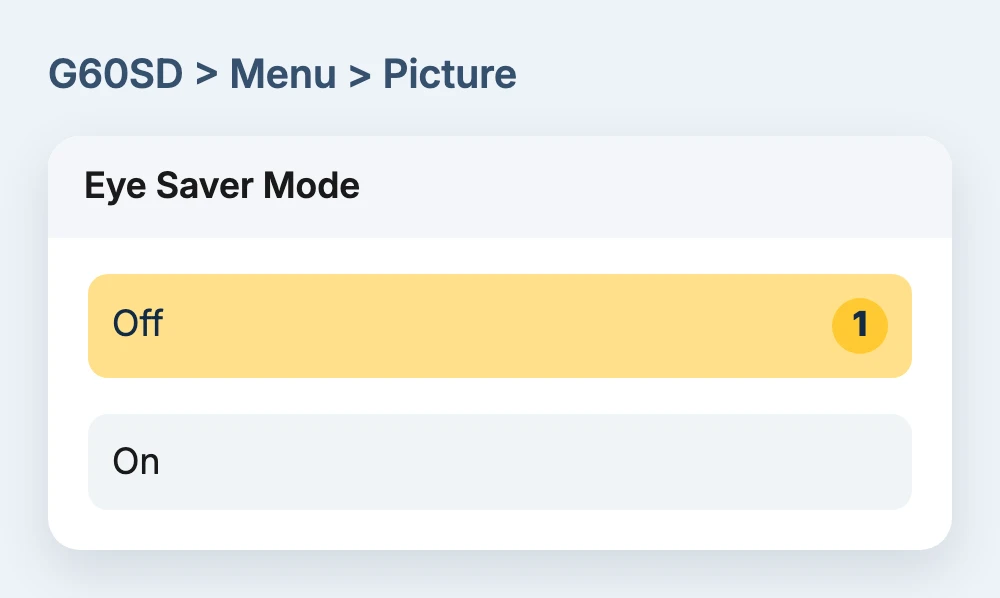
Eye Saver Mode changes the picture to reduce blue light. Turning it off can make the screen look cooler immediately, before you select another tone. Judge the final appearance after choosing the tone you want.
If the item is still unavailable, leave Eye Saver Mode off during the next check. Leave the other picture settings alone until you know which mode restricted the menu.
2. Disable PIP Mode before adjusting the main picture
Open Menu > PIP > PIP Mode and set it to Off. PIP means picture in picture: the monitor displays a second source in a smaller area. Return to Picture > Color Tone once the second picture closes.
PIP restricts several picture controls, including Color Tone. It also makes Picture Mode unavailable. An active second input can therefore explain why more than one adjustment seems locked at the same time.
After turning PIP off, check that one source fills the screen. If you can select Color Tone now, choose the setting you prefer. Compare the same document or image before changing anything else.
If it remains gray with both PIP and Eye Saver Mode off, note the active input and continue. Don't use instructions for another Odyssey model whose menu has different restrictions.
3. Separate a locked Picture Mode from Color Tone
An HDR input disables Picture Mode on this monitor. HDR means high dynamic range: it lets the signal carry a wider range of brightness information. Other grayed-out picture settings can have different causes.
Color Tone's manual entry lists PIP and Eye Saver Mode as restrictions. Don't assume HDR also locks Color Tone in every case. Check which exact menu item is unavailable before changing the computer's output.
To compare the picture without HDR on Windows 11, open Settings > System > Display, select the G60SD, then open HDR and turn Use HDR off if offered. SDR means the ordinary display mode without HDR.
On Windows 10, select the G60SD in Settings > System > Display, open Windows HD Color settings, and turn Use HDR off. The Windows HDR controls differ between the two versions.
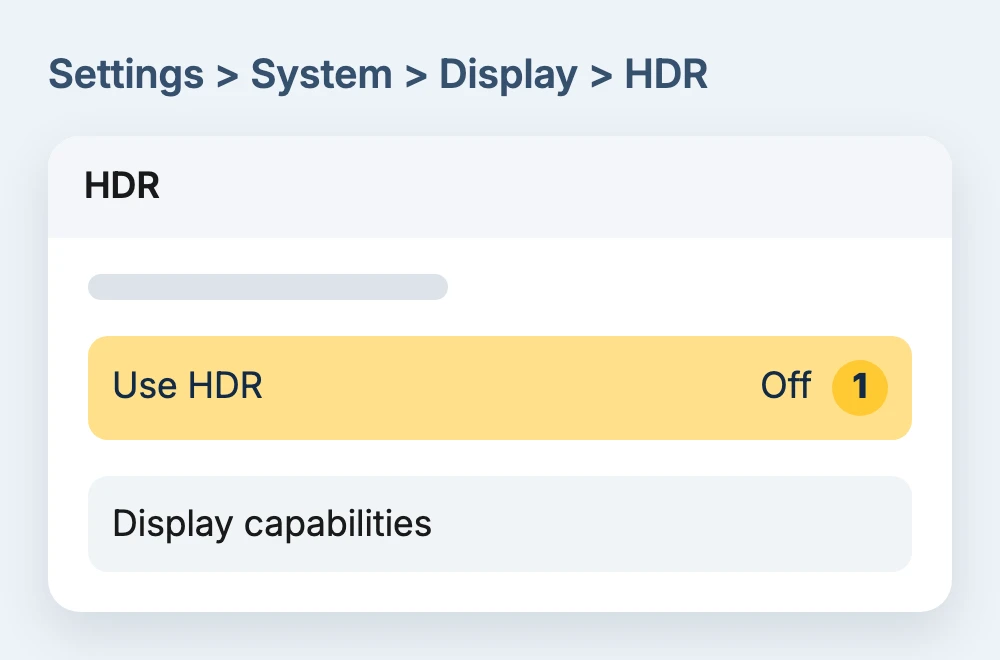
A brief black screen during an HDR change can be normal. Wait for the picture to return, then reopen the monitor menu. This comparison is useful when Picture Mode is the item that wouldn't change.
If you're using a console, temporarily change HDR through that console's video settings. Keep those steps separate from Windows settings, which only change output from the PC.
4. Check Windows when the tone changes but looks wrong
Open a white document and compare it with the monitor's own menu. If only the computer picture looks warm, inspect Settings > System > Display > Night light. Switch Night light off for this check, then look at the white document again.
The Night light guide explains its strength and schedule. A schedule can restore warmth later even though the monitor's Color Tone selection never changed.
If you use multiple displays, select the G60SD before adjusting HDR or its display profile, which controls how colors appear. Moving a settings window onto this monitor doesn't always select it on that page.
Check the monitor blue-tint guide if the control works but the picture stays too cool. It compares the monitor's own output, Windows color effects and the assigned profile.
I'd compare the same white document after each change. A different wallpaper, game scene or video makes a subtle tone difference harder to judge. Keep the source and room lighting steady during that comparison.
If the unwanted tint appears with another source connected too, move back to the monitor's settings and diagnostic test. A Windows setting can't account for the same tint from a console.
5. Reset the picture settings before a full reset
Record any custom picture values you want to keep. Open Menu > Picture > Picture Reset to return the picture settings to their defaults. Recheck Eye Saver Mode, PIP Mode and Color Tone after the reset.
Use Picture Reset for the picture settings first. Support > Reset All returns more of the monitor's settings to factory defaults. They're different commands, so choose the smaller reset for a picture-only problem.
If Color Tone responds normally after Picture Reset, restore each preferred picture setting separately. Check the tone after enabling another feature, especially one of the two modes that restricts it.
6. Run the built-in picture test if colors remain abnormal
Open Menu > Support > Self Diagnosis if the picture still looks wrong. Follow the test prompts without switching the input or turning the monitor off during the test.
If the test picture is abnormal too, contact Samsung monitor support with the exact model code, input and Self Diagnosis result. Explain whether Color Tone is gray or selectable, and whether Eye Saver Mode and PIP Mode are both off.
If the built-in picture looks normal, include the computer or console model and cable connection in the support request. Support can check that connection before deciding whether the panel needs replacement.
The Short Version
Disable Eye Saver Mode and PIP Mode to unlock Color Tone. Check HDR separately for a locked Picture Mode, then compare Windows Night light if the tone still looks wrong. Use Picture Reset and Self Diagnosis before requesting service.
Checked November 27, 2026.
 If you have any business, I can build it online