Samsung incoming calls can be easy to miss when they use a small pop-up over another app. Choose Full screen in Phone's Call display while using apps setting to restore the larger answer screen.
A phone that rings without answer controls also needs its Phone notifications checked. A black screen during an answered call points to the sensor instead. Calls that never reach the phone need carrier or call-blocking checks.
In this guide
1. Make the answer controls fill the screen
Open Phone > More options > Settings > Call display while using apps. More options is the three-dot menu. Select Full screen, then leave Phone open in the background and ask someone to call while you're using another app.
Samsung says the available call views include Pop-up and Mini pop-up. Those show a smaller incoming-call window, which can be easy to overlook during another task.
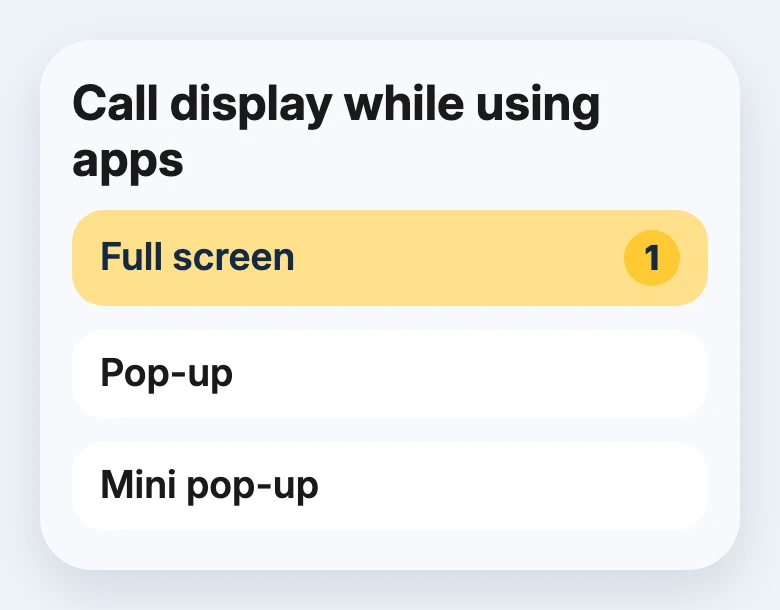
This setting applies while using apps. It won't fix a lock screen that never wakes or a call that goes straight to voicemail. Check those cases separately in the next sections.
An option to keep calls in a pop-up affects the view after answering. It isn't the same as choosing how the incoming call first appears, so change the display style before adjusting the answered-call preference.
If the larger screen now appears consistently, keep the display style you prefer. If the phone still rings with no answer controls, continue to the app's notification permissions rather than repeatedly switching display styles.
2. Check notifications for the actual calling app
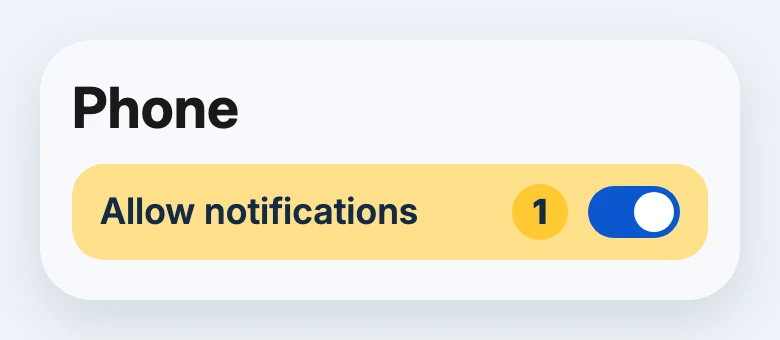
Open Settings > Notifications > App notifications, find Phone, and check Allow notifications where the switch is available. Review the app's available sound and display controls, rather than changing unrelated apps.
Some notification controls may be fixed by the system. Change the switches your phone offers; don't reset preferences just because one is missing. The Android notification options vary by device.
Arrange one call with the screen unlocked and another with it locked. Note whether the ringtone plays, the display wakes, and an answer control appears. Report those results separately to support.
If the call comes through WhatsApp or another calling app, inspect that app's notification permission instead. Changing Samsung Phone's display style won't change a different app's call interface.
I'd check those permissions before deleting app data. If calls consistently fail to appear with the screen locked, tell support that. After an account reset, it might be harder to demonstrate the problem to support.
3. Review Do not disturb when alerts are hidden
Open Settings > Notifications > Do not disturb. Check whether it is on now or follows a schedule that matches the missed calls. Temporarily turn it off and arrange another incoming call.
If the call display returns, check Calls and messages and Hide notifications before turning the mode back on. Call exceptions control who can interrupt you. The hidden-notification options control what appears when the screen is on or off.
Choose the available call exception that fits your needs. The contact choices vary with the software version, so follow your phone's current labels rather than matching every row to an older picture.
The Galaxy notification controls explain the separate app and system settings. A scheduled quiet period can make the fault seem intermittent even when nothing is wrong with the ringtone file.
If turning off Do not disturb changes nothing, restore your preferred setting and move on. Leaving a useful quiet schedule disabled won't fix an unrelated call-screen fault.
4. Restart a call screen that stopped responding
Use Restart from the power menu. If the phone won't respond, hold Volume Down + Power or Side together for at least seven seconds, then let go as the device vibrates and displays its Samsung startup logo.
Older Galaxy models call that control Power; newer models call it Side. Press both buttons together. A volume slider appearing by itself means the phone hasn't received the combined restart command.
The Samsung restart instructions explain the controls when holding the Side button opens an assistant. After restarting, test a call again with the same locked or unlocked screen condition that failed.
One owner in a Samsung Community discussion reported that restarting restored incoming-call displays temporarily, but the fault returned. A restart can get calls showing again, but that report doesn't offer a lasting fix.
Note whether the improvement lasts through later calls. A phone that can display calls after restarting needs a different repair discussion from a display that never turns on at all.
5. Separate a dark in-call screen from an absent call
If answering works but the display darkens when you bring it to your face, check that your fingers or a cover aren't blocking its sensor area. Move it away from your face and check whether the display returns.
The proximity sensor detects your face and turns the screen off to prevent accidental touches. A sensor problem or an unrecognized movement away from your face can leave it dark. This isn't controlled by the incoming-call pop-up size.
If calls go to voicemail without ringing or a call record, ask your carrier to check delivery and forwarding. If only certain numbers fail, check blocked numbers in Phone settings before reporting a screen fault.
A phone whose display stays black outside calls also needs the Samsung black-screen checks. Don't treat that broader display failure as a hidden answer button.
When the call display still fails
Contact Samsung Support through Samsung Members or your region's support page. Report the phone model, software version, calling app, whether the phone rings, and the locked-versus-unlocked results.
Explain that the incoming-call controls don't appear, and mention whether restarting helps temporarily. If another app handles the calls, report the same information to that app's support team.
The Short Version
Select Full screen for calls during other apps, then check Phone notifications and Do not disturb. Restart if the call screen stops responding. A dark screen caused by the sensor or a call that never arrives needs different checks.
Checked November 27, 2026.
 If you have any business, I can build it online