

Error 1061 means Windows sent a command to a service that couldn't take it, because the service was stuck starting or stopping. Where the message shows up decides which fix applies.
If every Run as administrator request fails with it, usually after a tweak tool switched services off, System Restore, run from the recovery screen, gets you back. If it's just one service in Services, end that service's stuck process.
In this guide
Which case do you have?
The wording is the same in both cases, which is why the fixes get mixed up:
This service cannot accept control messages at this time.- Every admin tool fails. Task Manager, Command Prompt or PowerShell as administrator, services.msc and System Restore all stop with the message. The service behind the admin prompt isn't answering, so start at fix 1.
- One service won't stop or restart. Services shows Error 1061 when you click Stop or Restart on a single service that's still halfway through starting or stopping. Jump to the section on a stuck service.
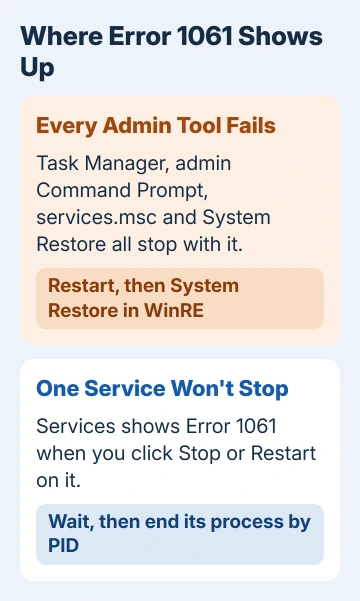
Two look-alike problems need different fixes. If Run as administrator is grayed out on a shortcut, that menu problem has its own cause, and Task Manager saying it was disabled by your administrator is a policy setting, not this error.
Why admin tools fail after a tweak tool
Every Run as administrator request goes through the Application Information service, Appinfo for short. Microsoft's list of Windows services is blunt about what happens without it:
> If you stop this service, users can't launch applications with the additional administrative privileges they may require to perform desired user tasks.
Its normal startup type is Manual, which means Windows starts it only when something needs it. For one owner, the trouble began right after they used Chris Titus Tech's WinUtil to switch off services they didn't need.
From then on, admin PowerShell, admin Command Prompt, Task Manager and services.msc all failed. That's the trap: putting the services back needs administrator rights, and so does the tool that changed them.
So the fix that works happens outside Windows, in the recovery screen.
1. Restart the PC first
A service caught halfway through starting can't take new commands until it finishes, and a restart starts every service fresh. It takes a minute, so I'd always try it before the recovery screen.
Use Start > Power > Restart, then try Task Manager or another admin tool.
If they open, the service was only stuck. If the message comes straight back, a setting has changed, and the next fixes put it back.
2. Use the tool's own undo, if it still runs
Most tweak tools can undo their own changes. In WinUtil, open the Tweaks tab, select the same tweak you applied and click Undo Selected Tweaks.
This only helps if the tool still starts. WinUtil needs administrator rights, so with the admin prompt broken it may not open at all. In that case, go straight to System Restore.
3. Roll back with System Restore from the recovery screen
System Restore puts system files, registry settings and installed programs back the way they were at a restore point, and it leaves your personal files alone. Service settings live in the registry, so they go back too.
- On the sign-in screen, select the power icon, hold Shift and choose Restart.
- Select Troubleshoot > Advanced options > System Restore.
- Choose the restore point dated before the tweak. Tick Show more restore points if it isn't listed.
- Select Next, then Finish, and choose Restart when it's done.
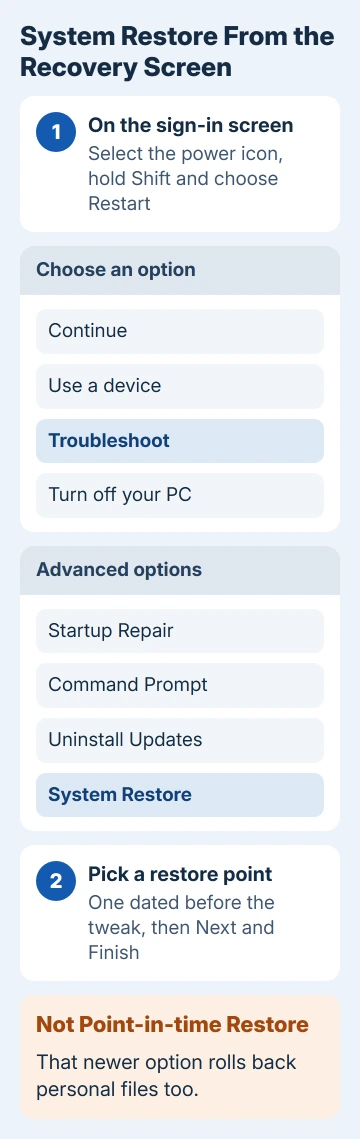
Pick System Restore, not Point-in-time restore. That newer option, in Windows 11 24H2 and later, rolls back your personal files as well. On a PC encrypted with BitLocker, have the recovery key ready before you start.
That owner accepted this fix, and it matches the System Restore steps for the recovery screen. Check the dates in the list: one restore point has to come from before the tweak. They had one, and WinUtil has a tweak that makes one.
4. No restore point? Reset this PC, keeping your files
Without a restore point, Reset this PC is the clean way out. In the recovery screen, choose Troubleshoot > Reset this PC > Keep my files.
Windows reinstalls itself with its normal service settings and keeps your personal files. It wipes your installed apps and your settings, though, so make a list of the apps you'll want back before you start.
When one service won't stop
In Services, Error 1061 on a single service reads like this:
Windows could not stop the Network Location Awareness service on Local Computer.
Error 1061: The service cannot accept control messages at this time.
The service is busy starting or stopping, and Windows won't hand it a new command until that's done. Microsoft's documentation of the error lists the three states that block one: stopped, start pending and stop pending.
Wait a minute, press F5 in Services and check the Status column. If it settles on Running, or goes blank because the service has stopped, try the command again.
If it stays on Stopping or Starting, end its process:
- Double-click the service and note its Service name, which is shorter than the name in the list.
- Open Task Manager with Ctrl+Shift+Esc and go to Services, a tab on Windows 10 and a page in the left menu on Windows 11. Find that name and note the number in its PID (process ID) column.
- In Details, find the same PID, select it and choose End task.
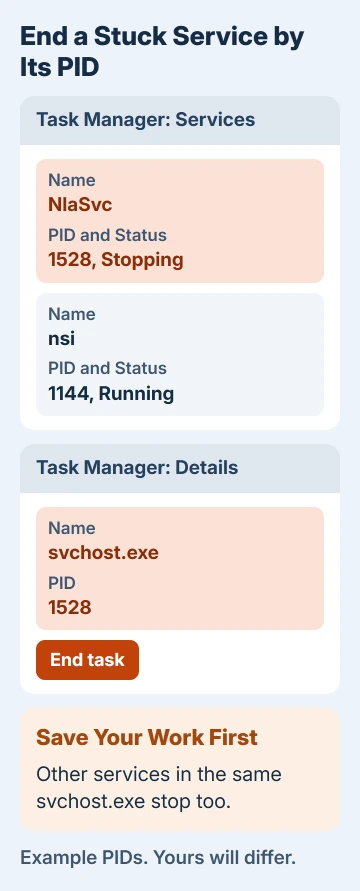
If you'd rather type it, sc queryex followed by the service name in an admin Command Prompt shows the same PID, and taskkill /pid with that number plus /f ends it.
If that PID belongs to svchost.exe and other services share it, ending it stops those too, so save your work first.
That's how a Microsoft MVP cleared Error 1061 on Network Location Awareness, though the real culprit there was another stuck service that depended on it.
So when one service won't let go, open its properties and check the Dependencies tab. The lower list shows the services that depend on it: stop those first, then the one you wanted.
When nothing worked
If admin tools still fail after a restore or a reset, contact Microsoft support through support.microsoft.com, or have a local repair shop do a clean install.
A company laptop is a job for its IT team, since the service settings on it may come from their policies.
The Short Version
Error 1061 means a service was stuck starting or stopping when Windows asked it to act. If every admin tool fails after a tweak tool, restart once, then use System Restore from the recovery screen.
No restore point? Reset this PC instead; Keep my files holds on to your documents. If one service won't stop, wait and refresh Services, then end its process in Task Manager by its PID.
Checked November 20, 2026.
 If you have any business, I can build it online






