An iPhone missing from Sideloadly usually needs a trusted USB connection or Sideloadly's required Windows iTunes components. Start with the unlocked phone connected by cable, accept Trust, then confirm Finder or iTunes recognizes it.
A phone that works over USB but disappears over Wi-Fi needs a different fix: enable Wi-Fi syncing while it's still connected. On an Apple silicon Mac, seeing the Mac itself in Sideloadly's device list isn't the connected iPhone.
In this guide
1. Make the phone visible over USB first
Connect the iPhone directly to the computer with a data-capable cable. Unlock it and leave its screen on. Look for your iPhone in Sideloadly's device list before starting an installation.
A charging symbol means power is getting through, but the cable might not carry data. Changing your Apple Account password won't fix that. Try another data cable and another port before changing account or signing options.
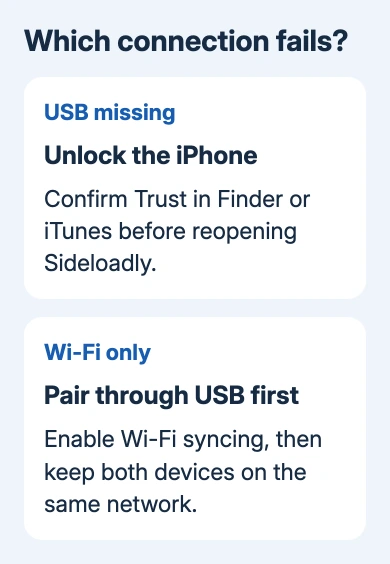
On a current Mac, select your iPhone from Finder's Locations list. Older Macs use iTunes for device management. Answer any computer-side connection request as well as the iPhone's Trust prompt.
If the phone is absent from Finder too, work through the iPhone connection checks first. Sideloadly can't use the phone over USB until the computer recognizes it.
Return to Sideloadly once Finder or iTunes recognizes the phone. A visible device means detection worked. If pressing Start produces an error, follow the repair for that specific message.
2. Finish the Trust request on both devices
In Finder, choose your phone, then approve Trust when requested. On the iPhone, tap Trust and enter its passcode. With iTunes, respond to its request to continue, then confirm the prompt on the phone.
Apple's Trust This Computer instructions explain that this permission allows access to device content. Only approve it on a computer you trust. Charging works without it, so power can work while detection fails.
If you previously tapped Don't Trust, open Settings > General > Transfer or Reset iPhone > Reset > Reset Location & Privacy. Reconnect the phone afterward and answer the new Trust request.
That reset clears privacy choices; apps will request those permissions again. It doesn't erase the phone. The repeated Trust prompt guide explains missing prompts and requests that appear during backups.
If the phone now appears in Finder or iTunes but not Sideloadly, continue with the computer-specific checks. Once the computer recognizes your phone, another privacy reset won't fix the remaining connection problem in Sideloadly.
3. Repair Sideloadly's Windows connection components
Sideloadly recommends reinstalling web versions of iTunes and iCloud, restarting Windows, then opening iTunes with the phone connected. Get those packages through the links on its official site.
These requirements are specific to Sideloadly. If the newer Apple Devices app recognizes your phone, the connection works, but Sideloadly still needs its Windows components. Check your installed iTunes edition before repairing it.
For NP_E_CONN_FAILED or AFC_E_MUX_ERROR, replace Microsoft Store iTunes with the web version. Sync the connected device, then reopen Sideloadly. Use this route for the matching error.
Close Sideloadly before changing those components. Finish their installation, restart Windows, connect and unlock the phone, then open iTunes. Confirm that iTunes can select it before launching Sideloadly again.
I'd repair these Windows components once USB works, before reinstalling any apps on the phone. Detection happens before Sideloadly installs the IPA app file, so deleting an app from your iPhone won't repair the computer's connection.
If installation itself fails, keep that installer's exact message. Fix that installer error before trying Sideloadly again. It's a separate problem from the empty device list.
4. Pair Wi-Fi detection using the cable
Leave USB connected while putting the computer and iPhone on one Wi-Fi network. Wireless detection needs that initial pairing; opening Sideloadly on a computer that hasn't paired with the phone isn't enough.
On Windows, select the device in iTunes > Summary > Options. Enable Sync with this iPhone over Wi-Fi, then apply the change and complete syncing. Older macOS versions using iTunes follow the same route.
On a current Mac, select the phone in Finder > Locations > General. Turn on Show this iPhone when on Wi-Fi. Apply the change. Finish syncing before disconnecting the cable.
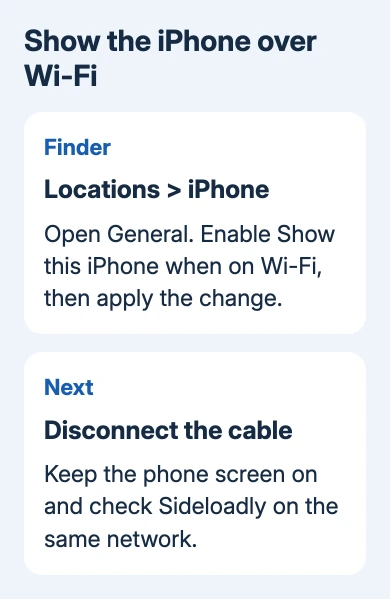
Disconnect USB and check Sideloadly again with the phone's screen on. For wireless detection, opening iTunes may be necessary in some cases. Keep the same computer and network while checking the result.
If USB works but Wi-Fi still doesn't, use USB for the immediate installation. The phone is detectable, so the remaining problem is how the computer finds or pairs with it wirelessly.
5. Separate detection from signing and refresh errors
An Apple silicon Mac can appear in Sideloadly as an installation target for compatible iOS apps. Select the actual iPhone when that's where the app should go. A Mac entry alone isn't confirmation that the phone is paired.
A Developer Mode Required message means installation needs another setting. It's a different problem from an empty device list. Once the correct device appears, follow the Developer Mode steps for your phone's iOS version.
For further help, use the support options on Sideloadly's official FAQ. Include the computer's operating system, Sideloadly version, iOS version, USB or Wi-Fi connection, and whether Finder or iTunes recognizes the phone.
Include the complete error text if detection succeeds but installation fails. Leave passwords and account verification codes out of the report. Those details won't help someone diagnose a device connection.
The Short Version
Get the unlocked iPhone recognized through USB, complete Trust, and repair Sideloadly's Windows iTunes components if its device list stays empty. For Wi-Fi, enable syncing while connected by cable, then check again on the same network.
Checked November 27, 2026.
 If you have any business, I can build it online