Siri can stop responding through AirPods when voice activation is off or an earbud's control is assigned to something else. Try the physical Siri control first: if that works, check the voice setting before resetting the whole pair.
No response, a silent reply, and a connection-error message need different fixes. Compare Siri on the connected iPhone with Siri through the AirPods to work on the symptom you get when making a request.
In this guide
1. Wear the AirPods and try the correct Siri control
Make sure the AirPods are connected to the Apple device you want to use. Wear the earbuds, or put on AirPods Max, and try the control for your model. Playing a little audio first helps confirm which device is sending sound to them.
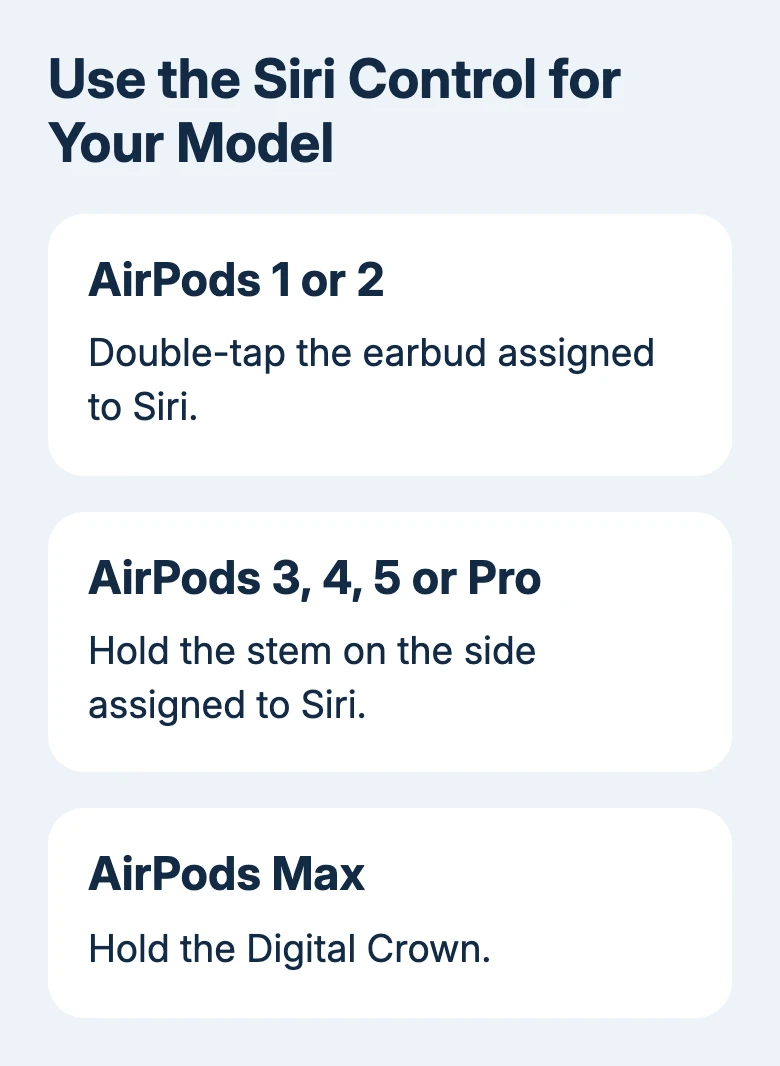
On AirPods 1 or 2, double-tap an earbud configured for Siri. On AirPods 3, 4, or 5, keep the stem pressed until the chime sounds, then make your request.
On AirPods Pro, press and hold the stem of an earbud assigned to Siri. A side assigned to listening modes can change noise control instead. On AirPods Max, hold down the Digital Crown until its chime sounds, then speak.
The AirPods Siri controls differ from the controls for pausing or skipping music. A quick stem press isn't the same action as holding it for Siri.
If the physical control works, check voice activation next. If it changes listening mode, correct that side's assignment. If Siri reports a connection problem, check the connected device's internet access.
2. Assign an earbud control to Siri
On your connected iPhone or iPad, open Settings and tap the AirPods name near the top. Find Press and Hold AirPods; if it isn't visible, open Controls & Gestures first.
Choose Left or Right, then select Siri. Use the same side for the next press-and-hold test. One earbud can call up Siri while the other keeps the listening-mode control.
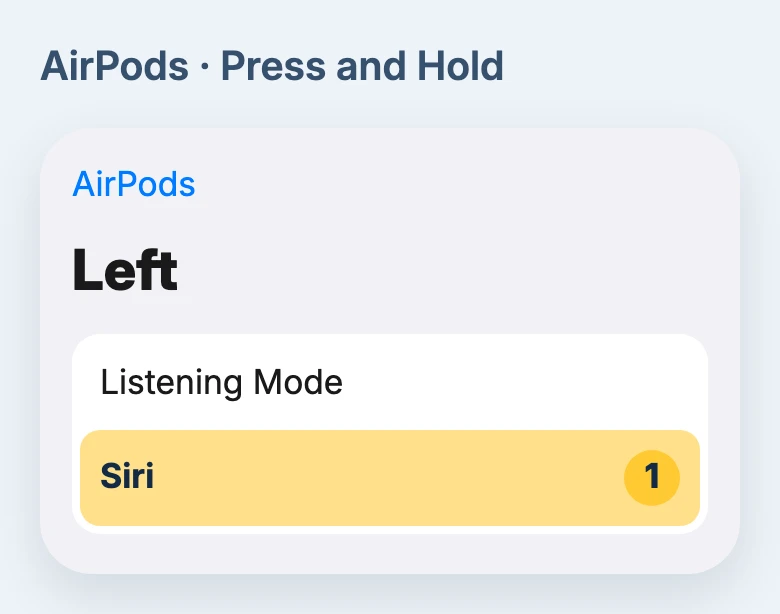
For AirPods 1 or 2, check the double-tap assignment instead. Select the left or right side under its double-tap settings and assign Siri. Test with that side so you know you're trying the earbud you just set up.
On a Mac, open System Settings, click your AirPods name in the sidebar, and use the menu next to L or R to choose Siri. Open Controls & Gestures first if those choices aren't immediately shown.
A supported camera app can use an assigned press-and-hold action for Camera Remote. Close that camera app while comparing Siri controls if holding the stem performs a camera action instead of your usual action.
3. Enable voice activation on the iPhone
AirPods 2 and later, AirPods Pro, and AirPods Max support voice activation. Original AirPods 1 use their configured double-tap Siri control. Use that control rather than trying to wake Siri by voice.
On current iPhone software, open Settings > Siri > Requests. On versions using the older menu name, open Settings > Apple Intelligence & Siri > Talk & Type to Siri. Turn on Siri or Hey Siri, as offered.
If voice activation is already enabled, switch it off, switch it on again, and complete the voice setup when prompted. Say the displayed phrases so the iPhone can recognize your voice again.
Try a simple request through the AirPods. If the physical control works but your voice doesn't wake Siri, repeat the request directly to the iPhone. That tells you whether voice activation fails on the phone too or only through the earbuds.
Apple's Siri troubleshooting steps recommend checking both setup and connectivity. When Siri also fails without the AirPods, work on the phone's Siri settings before changing more earbud controls.
4. Restore spoken replies when Siri is listening silently
If Siri opens on the screen and completes your request but you hear no answer, check how replies are set to play. On the iPhone, open Settings > Siri, or Apple Intelligence & Siri, then choose Responses.
Select Prefer Spoken Responses. Ask a simple question again and listen through the AirPods. This changes whether Siri replies aloud; it doesn't enable a disabled wake phrase or change the earbud's press action.
Check whether you can hear other audio through the AirPods too. If both music and Siri are silent, check the active audio connection. A spoken-response setting won't repair a pair that isn't currently receiving the phone's sound.
For sound that transfers to a different Apple device, check AirPods automatic switching. Restore the intended device connection before repeating your request.
5. Check internet access and the device you're using
When Siri reports trouble with the connection, confirm that the connected iPhone or iPad can get online. Open a page or another online app. When the phone lacks a working internet connection, restore that before testing Siri again.
AirPods can play Bluetooth audio from Android and other non-Apple devices, but that doesn't provide Siri on those devices. Test Siri with a compatible Apple device rather than treating an Android Bluetooth connection as a Siri setup.
If a Siri AI feature is failing, an option is missing, or you see a specific Siri AI error message, use the Siri AI checks. Those problems need different checks from an earbud that won't call up ordinary Siri at all.
I'd keep the working physical control available while sorting out voice activation. It lets you continue making requests and gives you a clear comparison after each change to the phone's settings.
6. Check the microphone and get help for a persistent fault
If Siri activates but consistently misses what you say, open the connected AirPods settings and check Microphone. If it's hidden, open Audio & Routing first. With Automatically Switch AirPods, either earbud can serve as the microphone.
Compare Always Left AirPod and Always Right AirPod while wearing the selected earbud. Make the same request each time. If one side repeatedly works and the other doesn't, report that difference rather than only saying Siri is broken.
This microphone choice applies to in-ear AirPods. If the microphone on your AirPods Max still doesn't work, report the headset problem to support.
Choose Automatically Switch AirPods again after the comparison unless you need to keep using one side. If calls also sound muffled to other people, mention that alongside the Siri failure when asking support to check the microphones.
Give Apple Support the AirPods model, connected device and software version, and which control or microphone fails. Ask for an earbud microphone or control check when Siri works directly on the phone.
The Short Version
Try the physical Siri control, correct its assignment, then check voice activation and spoken replies. Compare Siri directly on the phone. Check internet access for a connection error and the microphone for a one-earbud failure.
Checked November 29, 2026.
 If you have any business, I can build it online