

Yes, Stardew Valley on Android or iPhone can join a PC-hosted farm using experimental multiplayer. Match the game versions, then connect using your PC's IP address. Stardew Valley+, the Apple Arcade edition, doesn't have this feature.
For the easiest setup, keep the PC and phone on the same home network and let the PC host. The mobile version doesn't discover nearby farms automatically, so an empty list isn't a reason to reinstall the game.
Check the game editions and versions first
Open the game on both devices and select the ? button on the title screen. Read the version at the lower left. Update the game on each device until the numbers match before changing network settings.
The developer's mobile multiplayer guide covers joining a PC farm from the regular Android and iOS editions. Check your app's name if you use Apple Arcade: Stardew Valley+ can't do this.
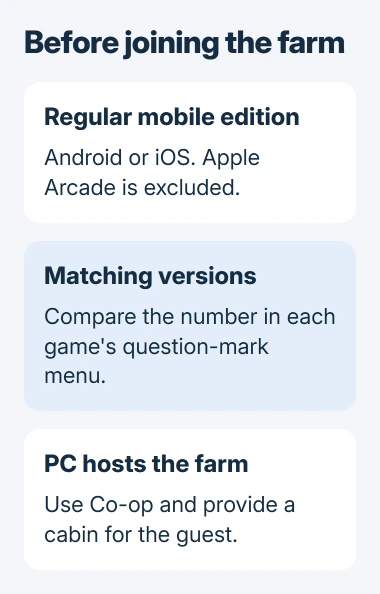
Status: Stardew Valley's mobile multiplayer instructions checked November 3, 2026. The developer still labels this feature experimental and excludes the Apple Arcade edition.
Back up your farm or use a new test farm before trying this feature. That's the caution documented by the vendor: bugs in experimental multiplayer can affect your save.
I'd make that first connection with a fresh farm hosted on the PC. You can check the phone and network without using your long-running farm as the test.
Reveal the mobile Co-op button
On your phone's title screen, find the four groups of leaves around the Stardew Valley logo. Tap the groups in this exact order, then press the ? button:
Up, Up, Down, Down, Left, Right, Left, Right, ?
The directions refer to the leaf groups around the logo. Once the question-mark menu opens, close it. Co-op should now appear on the title screen.
If Co-op doesn't appear, return to the title screen and carefully repeat the sequence, then check your edition again if needed. Get the button to appear first; you can check the connection after choosing Join.
Once Co-op is available, leave the phone at that menu while you prepare the farm on the computer. Keep both devices nearby so you can compare their screens during the first attempt.
Open the farm through Co-op on the computer
On the PC, choose Co-op on the title screen and open the Host tab. Start a new farm or load the farm you want to play. Opening a save through single-player won't start a session your phone can join.
The developer's multiplayer troubleshooting page explains how to check this: open the game's Options screen and look for its Multiplayer section. If it's absent, return to the title and use Co-op.
Set Server Mode to Online and check that your guest has a cabin. You can choose starting cabins for a new co-op farm. For an existing farm, Robin can build another if you haven't reached the player limit.
For two players, the guest needs one cabin and the host uses the farmhouse. Check for that cabin before retrying the address: even with a working connection, the guest needs a place to stay.
Keep the PC running with that farm open. If you close the game on the PC, the session ends, even if your phone still shows its multiplayer menu.
Find the host PC's local IPv4 address
On your Windows 11 PC, open Settings > Network & internet. Choose Wi-Fi, then your connected network, or Ethernet if you use a cable. Find IPv4 address, the number that identifies your PC on this network.
Microsoft says this entry shows the address your PC uses for that connection. Its IP address instructions cover Wi-Fi and Ethernet.
Copy the numbers and periods exactly. For example, an address might look like 192.168.1.25, but use the one your PC actually shows. Don't enter the example or the address listed as the gateway.
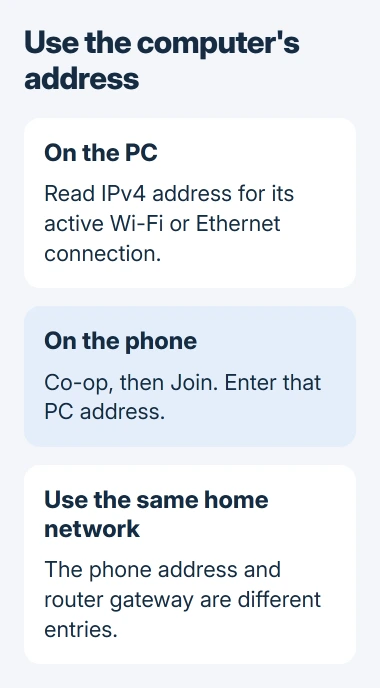
The local and public IP guide explains why a web search can show a different number. For two devices in the same home, use the PC's local address from Settings.
Connect your phone to the same home's Wi-Fi. The PC can use Ethernet and still be on that network. If your phone needs the password, retrieve the saved Wi-Fi password in Windows.
Join from the phone and handle the iPhone permission
Open Co-op on the phone, choose Join, and enter the PC's IP address. Follow the prompts to join the farm. The phone connects using that address, so don't wait for the farm to appear automatically.
On iPhone, the first join attempt asks to find nearby devices and connect over the local network. Choose Allow. The developer says the connection can fail just after you allow access; try joining again.
If you declined that request, Apple says you can change app access in Settings > Privacy & Security > Local Network. Turn on Stardew Valley and try again. Apple's local-network permission guide explains the setting.
This permission lets the app connect to nearby devices on your network. Turning on cellular data won't replace it. An app that can use the internet doesn't automatically have access to your local network.
When the address is correct but the connection fails
Compare the game versions again and check that the PC still has the farm open through Host. Then check its current IPv4 address. Connecting the PC to a different network can change the address you need.
The developer also lists firewall interference as a possible cause. On your own Windows PC, follow your security app's instructions to allow the game through the firewall on your trusted home connection.
Microsoft documents that allowing an app is less risky than leaving a port open. Keep the firewall on once you've allowed the game.
Keep the first test on the same local network. Joining from separate homes needs a different router setup, using UDP port 24642 as the mobile guide explains. Your PC's local address alone won't connect the two homes.
If joining still fails, give Stardew Valley support both game versions, your phone model and the exact error. Mention the iPhone permission setting and whether another player can join that PC-hosted farm.
The Short Version
Match game versions, reveal mobile Co-op with the leaf sequence, and host a farm with a guest cabin on PC. Join using that PC's local IPv4 address. On iPhone, allow local-network access and retry the first connection.

Isaac Smith is the founder and editor of PC Glance, a website that covers computers, laptops, and technology. He is a tech enthusiast and a computer geek who loves to share his insights and help his readers make smart choices when buying tech gadgets or laptops. He is always curious and updated about the latest tech trends.