System Restore error 0x800700b7 can block a rollback while Windows is stuck configuring updates. Retry from Windows Recovery Environment. You can use its restore tool even when the desktop won't open.
Background security software can interfere with restoration, but this code alone doesn't identify the program responsible. A PC that still signs in has additional options. When startup fails, begin with the recovery tools.
In this guide
1. Choose the route your PC can actually open
Save the complete failure message and note whether it names a file or folder. Keep the restore point's date too. These details help you tell whether the restore was blocked, the drive is damaged or there are no restore points to choose.
If Windows starts, test the app or setting you meant to recover. One owner reported that the rollback appeared to have worked after restarting despite the error. Check your own result before choosing another point.
Reaching the desktop tells you Windows can start. Check whether the original fault is gone too; that tells you whether you need another rollback.
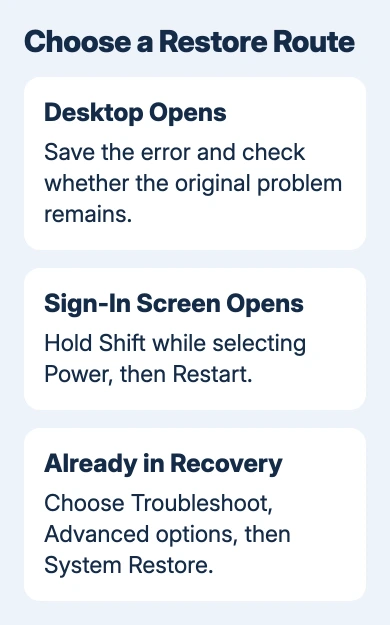
If a blue recovery screen is already open, use its Advanced options choices. If the PC loops through update configuration instead, use the recovery-entry methods in the next section.
2. Retry from Windows Recovery Environment
Recovery tools may ask for the encrypted drive's BitLocker recovery key. Have the key ready before restarting into those tools, and plug in the laptop charger for the restore.
When the Windows 11 desktop is accessible, open Settings > System > Recovery. Beside Advanced startup, select Restart now. On Windows 10, use Settings > Update & Security > Recovery, then Restart now under Advanced startup.
Another route from the Windows sign-in screen is to hold Shift while choosing Power > Restart. Use this when Windows reaches the sign-in screen but you can't get to the desktop.
If neither desktop nor sign-in opens, start from a matching Windows installation USB prepared on a working PC. Choose Repair my PC in Windows 11 Setup, or Repair your computer in Windows 10 Setup, to enter recovery.
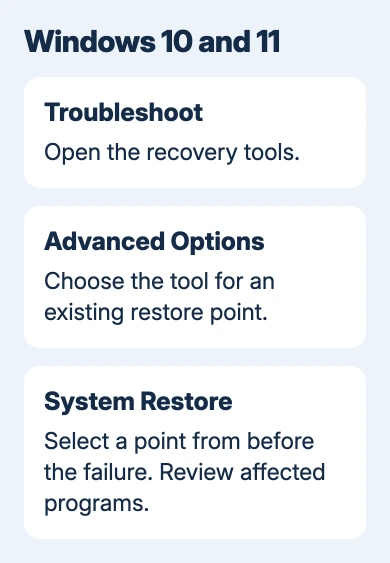
In recovery, choose Troubleshoot > Advanced options > System Restore. Choose the Windows installation if asked, then follow the restore-point wizard. This is System Restore, rather than Reset this PC.
Microsoft's System Restore instructions include this recovery route. This lets you try the restore without loading the usual startup software that may be getting in its way.
Select a point dated before the fault began. Use Show more restore points if available and Scan for affected programs to review software changes. Confirm with Next > Finish, then let restoration finish and restart when offered.
If the restore completes and Windows starts, check the original problem. If 0x800700b7 returns, save the new message. If it names a different code or file, follow that error for the next repair.
3. Use the older recovery screen on Windows 7 or Vista
On Windows 7 or Vista, start the PC and press F8 before Windows begins loading. If Advanced Boot Options offers Repair Your Computer, select it and sign in when prompted.
Choose System Restore from System Recovery Options, then select a point before the startup trouble. The Windows 10 and 11 Troubleshoot tiles won't appear on these older releases.
If Repair Your Computer isn't offered or won't open, use matching Windows installation or repair media. A repair shop can provide the correct recovery route for a computer whose original media is missing.
A manufacturer's factory recovery option can reinstall its original software and erase files. Don't select it as a substitute for System Restore. Copy the files you need onto separate storage before approving an erasing recovery.
If Windows won't load and Startup Repair is offered, try it for the startup fault. It won't retrieve a deleted document. When it finishes, restart normally to check whether Windows opens.
4. Check background software when the desktop works
A clean boot leaves non-Microsoft services and automatic app launches disabled during startup. If the restore works with those turned off, background software may be involved. That still leaves the question of which app caused the trouble.
For Windows 10 or 11, search Start for msconfig and open System Configuration as administrator. On Services, check Hide all Microsoft services before selecting Disable all, then select Apply.
On Startup, select Open Task Manager. Record the enabled entries, then select each one and choose Disable. Close Task Manager, select OK in System Configuration and restart.
Keep Microsoft services hidden before disabling services. Disabling the wrong system services can remove existing restore points. Don't change the Boot tab's advanced settings for this check.
Retry the restore once. If it works, turning off startup software helped, though the responsible app is still unknown. If the error stays, restore your usual startup configuration and continue with the error's file or folder details.
Return to the official normal-startup procedure: in System Configuration, select General > Normal startup. On Services, clear Hide all Microsoft services, choose Enable all, then Apply.
Reopen Task Manager's startup list, re-enable the entries you recorded and restart Windows. Your usual startup setup should now be back in place.
On Windows 7 or Vista, the older Startup list is inside System Configuration rather than Task Manager. Choose Selective startup, clear Load startup items, and hide Microsoft services before disabling the others.
Security software can protect its files against restoration. If it reports blocking this restore, request System Restore instructions from its support team for your installed version. Muting alerts won't turn off those file protections.
5. Follow the remaining error before trying a reset
A message naming file system corruption needs the drive-repair checks. That is a different, more specific warning than an unspecified restore failure.
If there are no points to choose, check the System Protection settings. Creating a point today won't recreate one from before the failure, so don't turn protection off and on to repair a missing older point.
I'd stop cycling through the same failed point after these checks. Give Microsoft Support or your PC manufacturer's recovery team the complete error, Windows version, restore-point date and result from recovery mode.
Ask for recovery that preserves your files and name any installed security software. Include the results from both the desktop and recovery tool, so support can follow the failure you still have.
The Short Version
Try System Restore from recovery, using the route for your Windows version. If the desktop works, a clean boot can check background interference. Follow any new file-specific error, and preserve your files before considering a reset.
Checked November 26, 2026.
 If you have any business, I can build it online