

Windows 11's SYSTEM_THREAD_EXCEPTION_NOT_HANDLED often points toward a driver, especially after an update or when it names a .sys file. Check that driver or new hardware first. For startup loops, open the repair controls in Safe Mode.
The stop code alone doesn't name the broken part. A crash that began after an update, one that names a driver, and one that happens before every startup need different first moves.
In this guide
1. Follow the crash's file name and the last change
Photograph the error if it returns. Record SYSTEM_THREAD_EXCEPTION_NOT_HANDLED, any file beside What failed, and what you were doing. The background color can vary across Windows 11 releases; the stop code matters more than the color.
Microsoft's 0x7E error guidance recommends checking an identified driver and recent hardware compatibility. A .sys name points you toward the device or software that uses that driver. It doesn't mean you should delete the file.
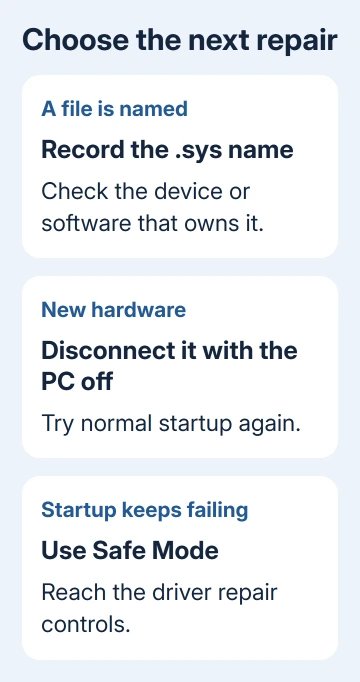
Shut down and disconnect hardware added just before the crashes, such as a USB dock or adapter. Start Windows again and retry the task that caused the crash. Leave internal parts to someone comfortable servicing that model.
If Windows becomes stable without the new accessory, check its Windows 11 compatibility and manufacturer driver before reconnecting it. If nothing changed, or the same crash returns without it, continue with the driver checks.
A similar-looking code needs its own diagnosis. KMODE_EXCEPTION_NOT_HANDLED is a separate stop error. Don't apply a fix for a specific update just because both messages contain exception not handled.
2. Reach Safe Mode when normal startup won't hold
If Windows stays running long enough, go to Settings > System > Recovery. Beside Advanced startup, select Restart now. From the sign-in screen, holding Shift while choosing Power > Restart is another way into recovery.
Before opening recovery, locate your BitLocker key. An encrypted PC can ask for this key to unlock the drive. For an organization-owned computer, check with IT for that key.
At the recovery screen, choose Troubleshoot > Advanced options > Startup Settings > Restart. Press 4 or F4 for Safe Mode. Option 5 adds networking when you need it, but a network connection isn't needed to roll back an installed driver.
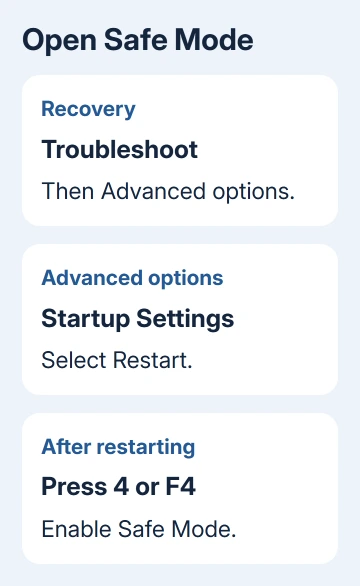
Safe Mode starts a smaller set of drivers and services. If it stays usable while normal startup crashes, focus on software and drivers loaded during a normal start. Use that difference to choose a repair before buying hardware.
If automatic recovery appears during a startup loop, use Advanced options to reach the same controls. If recovery won't open, follow the PC maker's recovery instructions or ask support for help starting from recovery media.
Restart normally after making a repair. Safe Mode lets you work on the fault. You'll still need to check that Windows runs without crashing after a normal restart.
3. Roll back the driver that changed
Open Device Manager using the Start button's right-click menu. Expand the category for the device involved, right-click that device, and choose Properties > Driver. Note its provider, version, and date before changing it.
Choose Roll Back Driver when the crashes began after that driver was updated. Select the reason when asked and finish the prompts, then restart. You'll need administrator permission for this change.
When the Roll Back Driver button is grayed out, Windows doesn't have a previous driver to restore through that button. Use the laptop or device manufacturer's support package matched to your model. Skip generic driver-download collections.
An older date alone doesn't make a driver the right choice. Match the device, Windows version, and processor type. I'd use the laptop maker's supported package first, particularly for customized graphics or power controls.
Return to the original activity after restarting. If the same crash returns, keep its file name and the version you just tried. Support can see which driver you tried and what happened, without other installations confusing the result.
4. Update an identified driver that wasn't recently changed
For a device with a warning in Device Manager, right-click it and choose Update driver > Search automatically for drivers. If Windows offers no newer package, check the manufacturer for the exact computer or accessory model.
Follow the downloaded package's installer instructions. For extracted driver files, use Update driver > Browse my computer for drivers and select their folder. Either method installs a driver for the device you've selected.
Also use Check for updates in Settings > Windows Update. Install offered Windows updates and restart. After restarting, repeat what you were doing when Windows crashed, such as waking the laptop or using the dock.
If the crash points toward security or other installed software, check that software maker's update or removal instructions. Don't manually remove a driver file from the Windows folder; that can break the software that installed it.
5. Use logs, recovery, or hardware service when it returns
Right-click Start > Event Viewer. Open Windows Logs > System and look for entries around the time you recorded the crash. Save messages that name a device or driver. A restart event alone won't identify which part caused the crash.
Run the hardware diagnostics supplied by the computer manufacturer if crashes continue, particularly when several different stop codes appear. Record any failure code so the repair team can act on it.
System Restore can undo changes from a newly installed app or driver if a suitable restore point exists. Back up important files, then choose System Restore in recovery's Advanced options and review which programs it will affect.
Use the Windows stop-error guide for broader crash checks when this code no longer matches. For recurring 0x7E crashes, ask your IT team or computer manufacturer to review the crash dump and named driver.
Give support the PC model, Windows version, crash times, driver versions tried, and hardware diagnostic results. Dump files can contain private information, so send them through the support team's private upload route.
The Short Version
Use the named .sys file and recent changes to choose a repair. Safe Mode gives access during a startup loop. Roll back a changed driver or update a problem driver, then use logs and hardware diagnostics for persistent crashes.
Checked November 15, 2026.
 If you have any business, I can build it online






