

A tenant access block in Outlook usually comes from your organization's sign-in rules. Ask IT to check those rules before reinstalling Outlook.
For AADSTS500021 or AADSTS500022, use the intended work account and ask IT to check tenant restrictions; AADSTS5000225 instead means the tenant was blocked for inactivity.
Those similar-looking codes lead to different repairs. Expand the error's troubleshooting details and copy the full code before changing accounts, passwords, or Windows settings.
A tenant is your organization's Microsoft cloud directory. It holds the accounts and rules that control access.
In this guide
1. Read the full sign-in error
Open the failed sign-in's Troubleshooting details or More details if that control is available. Save the complete message, error code, timestamp, request ID, and correlation ID. The labels depend on the sign-in screen.
Keep the account address and application name with those details. IT needs to know which account was trying to sign in to which organization, especially when you work with both your employer's mailbox and a client's services.
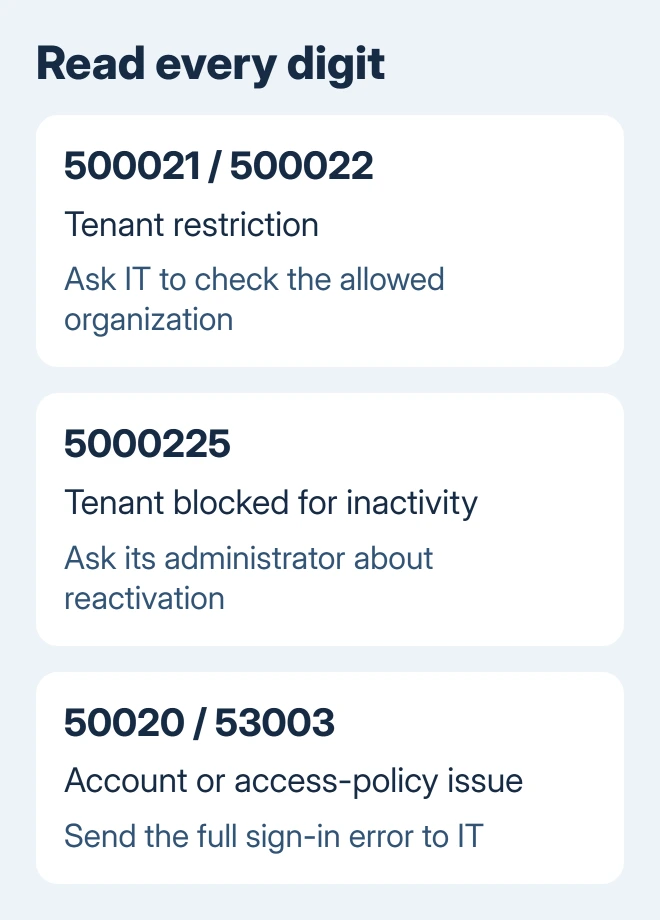
Use the exact digits. 500022 and 5000225 aren't shortened versions of the same fault. The first means access is restricted; the second needs the inactive directory's administrator to act.
Microsoft says these sign-in codes have separate causes: AADSTS50020 means an account is absent from the requested organization; AADSTS53003 signals a Conditional Access block.
If the message has no AADSTS code, send its complete wording to IT. A blocked mailbox, an account lock, and a browser error aren't interchangeable just because all three prevent Outlook from opening mail.
2. Confirm which account and organization you're using
Read the account address on that failure screen. A saved personal account, an old employer's account, or a client account can direct the sign-in to a different organization.
At the account chooser, select Use another account if offered and enter your current work or school address. If account types are offered, choose Work or school account for your organization-issued account.
For Outlook in a browser, open a private browsing window and sign in with the intended address. This lets you choose the account afresh without deleting saved site data from your regular browser window.
If the correct account works there, return to the original session and sign out of the unintended account before signing in again.
That points to the account selected or the saved sign-in session, rather than Outlook's installation.
When the correct account still shows that code, continue with its matching section. Don't remove your work account from Windows as a routine sign-in experiment; that can affect how the organization manages the device.
The Microsoft account sign-in guide helps distinguish account types. It won't override an employer's access rules, but it can prevent a personal account from being used in the wrong place.
3. For 500021 or 500022, ask IT to check restrictions
These codes mean tenant restrictions block the organization you're trying to reach. An organization can allow access to its own directory while preventing access to other Microsoft cloud organizations through its managed network or devices.
Send IT the target tenant name or ID shown in the error, your account, and the copied sign-in details. Explain whether this is your employer's mailbox or an external organization you have permission to work with.
Ask the team that manages your network and Microsoft sign-ins to check the tenant restriction that blocked the request. For the older restriction system, the allowed tenants are carried in Restrict-Access-To-Tenants.
IT manages that setting as part of the organization's sign-in system. It isn't an Outlook mailbox preference. Resetting Outlook's local settings won't add an organization to an allowed list maintained by IT.
With tenant restrictions v2, administrators should check the policy for your sign-in and the activity details for the failed attempt. Those logs can show the accounts, applications, tenant information, and reason access failed.
I'd send that error information before attempting an Office repair. It gives the administrator something specific to check and avoids spending time reinstalling a client that is reaching the sign-in service correctly.
If access to the external tenant is approved, IT can change the policy for that access and ask you to try again. If it isn't approved, ask which supported account or collaboration route your organization permits.
4. For 5000225, escalate the inactive tenant promptly
An error that says the tenant was blocked due to inactivity needs its administrator. Signing in through another Outlook app or repeatedly changing the user's password won't reactivate the directory.
The administrator can request reactivation within 20 days of the tenant entering the inactive state. A tenant left inaccessible for longer than that is deleted and can't be recovered through that reactivation route.
Use the contact instructions on the inactive-tenant recovery page. Ask the administrator to contact support about reactivating the named tenant, with the tenant ID and full error details ready.
Keep using the existing support case while you wait for a decision. The recovery instructions ask administrators not to open another request for the same reactivation while the current case is being handled.
If you're an employee or student, contact your organization's Microsoft 365 administrator. You usually can't reactivate the tenant from Outlook's sign-in window.
5. Use the separate route for 50020 or 53003
For AADSTS50020, confirm the account again. If it's the correct identity and you need an external organization's resource, that organization may need to invite the account as an external user before access can work.
Send the destination organization's administrator the account address and tenant named in the error. Ask them to match the invitation and intended access to your account. Don't create a random new personal account instead.
For AADSTS53003, ask IT which Conditional Access policy denied the request. Conditional Access means rules that decide whether the sign-in meets the organization's requirements, such as which device or sign-in checks are required.
Follow the specific requirement IT identifies. Don't assume every 53003 means an expired password, and don't disable a VPN or security tool to try to get around an organization's block.
If the error is actually an HTTP 500 page rather than one of these sign-in codes, the Outlook error 500 checks address that different failure.
The Short Version
Copy the full error and confirm the work account. Route 500021 and 500022 to tenant-restriction checks, 5000225 to urgent administrator-led reactivation, and 50020 or 53003 to the matching account or access-policy repair.
Checked November 12, 2026.
 If you have any business, I can build it online






