

Time synchronization fails when Windows can't get a reply from its time source. Connect to the right network, enable automatic time in Date & time, and retry. A blocked server, stopped service and wrong time zone need separate checks.
A work PC can take time from its organization's network rather than a public internet server. Keep those settings while checking the error, especially when the failure started away from the office.
In this guide
1. Retry from Date & time on a working connection
Press Windows + I, open Time & language, then Date & time. Turn Set time automatically on. Find Sync now, under Additional settings, and request another synchronization.
Connect to the internet first, including any hotel or guest-network sign-in. For a work PC, connect to the company network or its approved VPN. Then return to the sync control.
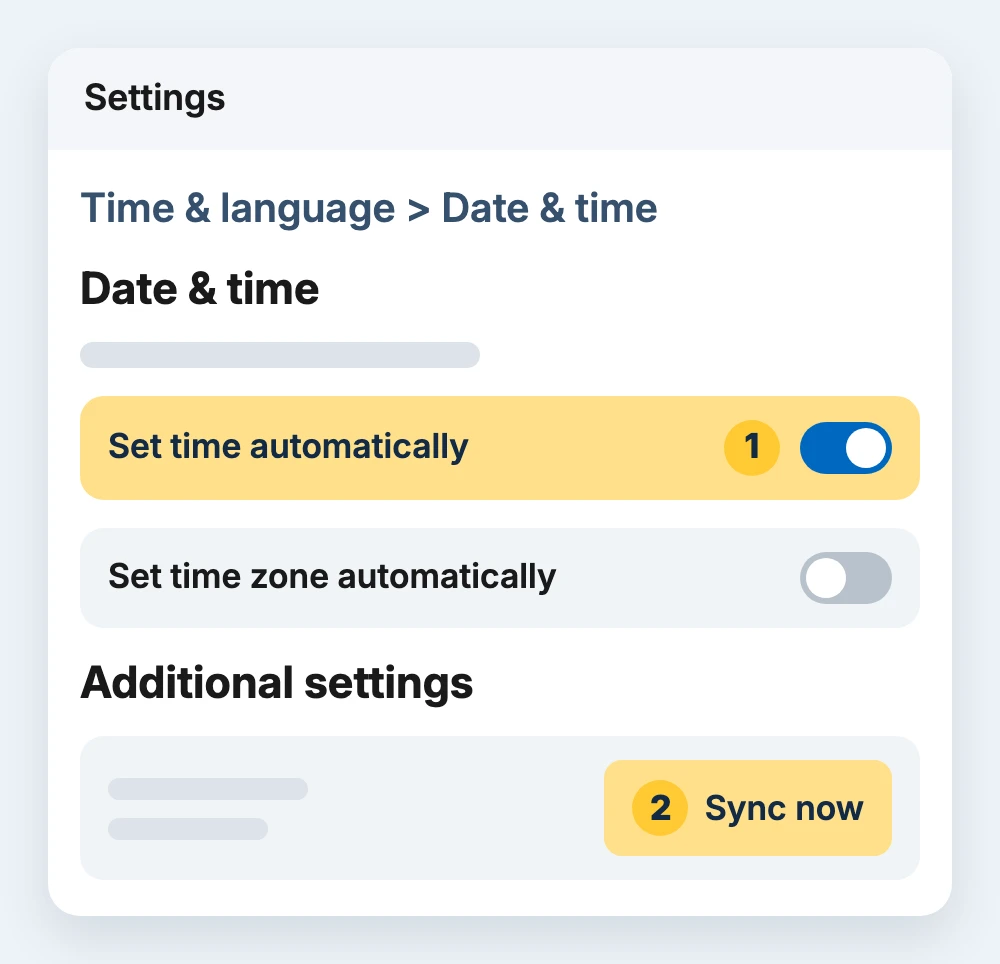
Check whether the synchronization information updates without another failure. Compare the date and time in Windows with a reliable clock afterward. The button's animation doesn't confirm that the time updated.
Microsoft's date and time instructions explain why the time-zone control is separate from automatic clock updates. A clock that is exactly hours off can have the wrong zone even after synchronization succeeds.
Check Time zone on that same page if the sync succeeds but the hour is wrong. If its selector is unavailable, use the Windows time-zone control checks. Keep a zone problem separate from a failed time-server request.
If the error returns, note its complete wording and continue. A later message from the time service can explain more than the Settings page's short failure notice.
2. Read the time source before changing its settings
Search Start for Command Prompt, choose Run as administrator, and approve the request. Run these checks one at a time:
w32tm /query /source
w32tm /query /status
w32tm /query /configuration
The first command names the current time source; the second shows sync details. The third shows which settings Windows uses and where they came from. That helps you tell whether a setting was chosen on the PC or applied by a policy.
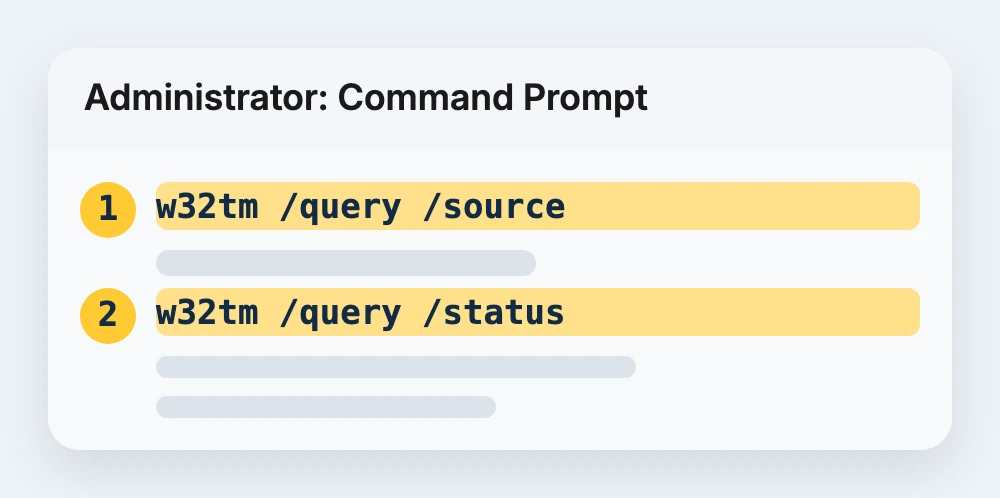
A company server or domain controller needs access to your organization's network. Keep that source instead of replacing an unfamiliar name with a public server. Ask IT whether you can reach it from your current connection.
If the output reports the local hardware clock instead of a network source, check the service and configured source next. That result by itself doesn't mean your motherboard battery needs replacing.
The Windows Time command reference explains these queries. They display information; they don't unregister the service or erase its configuration.
I'd save this output before changing anything deeper. It gives support the actual source and settings, rather than a list of different time servers tried without a record.
3. Start the time service and request rediscovery
If a query reports that the service hasn't started, use the same administrator Command Prompt and run:
net start w32timeFor a service that's already running, go straight to the sync request. For a disabled-service message or other start error, save the exact wording. On a managed PC, have IT check the service policy before changing its configuration.
Have Windows look again for the time sources it's set to use:
w32tm /resync /rediscoverThis asks your PC to check its network settings and look for its time sources again. It syncs your PC, not a remote server. You don't need to replace its existing time source with an address copied from a forum.
After a successful request, run w32tm /query /status again and inspect its synchronization details. Compare the clock too. Starting the service allows it to work; the sync result tells you whether it received time.
For Access is denied, reopen Command Prompt through Run as administrator. For no time data was available, continue to the network checks. Repeating the same resync request won't open a blocked network path.
4. Check the route to the server when no data returns
The no-time-data error can mean Windows can't look up the server's address, the network blocks its replies, or the target isn't providing usable time service. Windows Time uses NTP, the network protocol that exchanges clock information.
Check the saved source name for a typo or obsolete server. Ask whoever manages that setting to correct it. On a company PC, report the configured name rather than substituting another source yourself.
Web pages can load even when this connection fails. Web traffic and NTP use different network paths and rules. The time service needs UDP port 123, which a firewall or network rule can block even while ordinary pages load.
On a personal PC, try another trusted connection, such as a hotspot from your phone. If syncing works there, report the comparison to the original network's administrator. Ask whether that network's NTP rules block clock updates.
Leave Windows Firewall enabled during this comparison. Ask for the specific time-service traffic to be checked instead of turning off all protection or creating an unrestricted inbound rule.
If it fails on both networks, send the time source, service-start result and full resync error to support. They can check whether the configured server is valid and whether the PC's own rules are blocking the reply.
5. Handle a wrong clock while the sync fault is repaired
For an urgent task on a personal PC, you can set time manually in Date & time. Turn Set time automatically off, then select Change for manual entry. Enter the correct values, then confirm.
Manual entry corrects the clock temporarily without restoring synchronization. Enable automatic time again once the server or service works, then retry syncing. Keep your organization's time policy intact on a managed device.
If Settings shows the right moving time while the taskbar is frozen, use the stuck taskbar clock repair. Refreshing the desktop display addresses that symptom without changing a working time source.
A clock that keeps resetting after power is disconnected needs a different hardware or firmware check. Tell the PC maker when the reset happens, whether Windows had synchronized successfully, and whether the firmware clock is wrong too.
If syncing still fails, open Get Help or contact IT. Include the command results, exact error and what happened on each network. Ask them to check the Windows Time source and whether its traffic can get through on UDP port 123.
The Short Version
Enable automatic time and retry on the right network. Read the configured source, start Windows Time if needed, and use resync with rediscovery. No time data points to the server, name lookup or NTP traffic; a wrong time zone is separate.
Checked November 29, 2026.
 If you have any business, I can build it online





