An FPS counter usually comes from Steam, your graphics software, Game Bar, or the game itself. Turn it off in the app that put it there: Alt + R toggles NVIDIA's statistics, while Ctrl + Shift + O toggles AMD's performance overlay.
Windows 11 has no single switch for these counters. A temperature panel and a game's small FPS number can come from different apps. Choose the matching app to keep recording and other features available.
In this guide
Match the counter to the app displaying it
FPS means frames per second. It tells you how quickly the game produces frames. Hiding the number doesn't limit the frame rate or change your monitor's refresh rate.
Look at the other information in the panel. CPU or GPU usage, temperature, and RAM figures suggest a performance overlay, a panel drawn over the game. Steam, graphics utilities, and Game Bar can all show some of those figures.
Don't decide from the text color alone. Several tools let you change it. Open the app you already use and switch off its display while leaving the game running, if the game lets you switch windows.
If one number disappears but another remains, you've found two separate displays. Keep the first one off and work through the other installed tools. Hiding statistics doesn't require removing the graphics driver.
I'd start with the software you remember opening recently. Accidentally pressing an overlay shortcut is easier than accidentally changing Windows itself, especially when the counter appeared halfway through a session.
Disable Steam's performance display
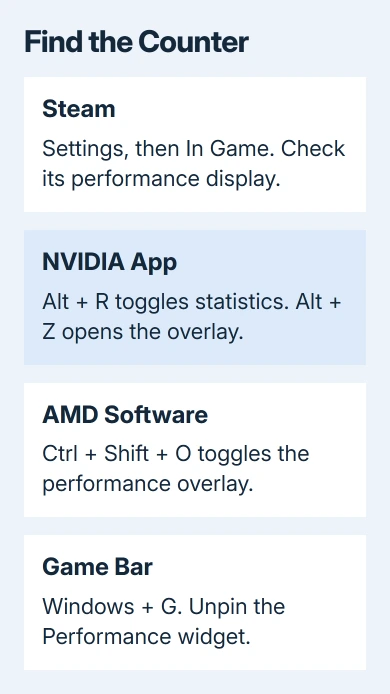
Open the Steam desktop app, then choose Steam > Settings > In Game. Look for the performance display controls on that page. You'll find this setting in Steam, rather than in the game's Windows shortcut.
Newer Steam clients have a Performance Monitor or Performance Overlay section with detail and display choices. Turn it off to hide the monitor. Choosing less detail can leave a single FPS number visible.
Older clients label the control In-game FPS counter. Open that menu and select Off. Switch back to your game and check the corner where the number appeared. Relaunch the game if the old display stays visible after changing the setting.
Valve replaced its simple counter with a richer performance monitor in 2025. The newer panel can include CPU, GPU, and memory information, so a large panel can still belong to Steam even if you remember its old tiny number.
Keep the general Steam overlay enabled if you want its chat and other tools. The performance display has its own control. Turning off the entire overlay would hide those tools too.
If Steam's display is off and the number remains, continue with the graphics software. A game launched through Steam can also have an NVIDIA or AMD overlay on top of it.
Hide NVIDIA statistics with Alt + R
With NVIDIA App installed and its overlay enabled, press Alt + R once. This toggles its statistics display. If the performance figures disappear, you're done. Pressing the shortcut again brings them back.
To inspect the setting, press Alt + Z to open the NVIDIA overlay and choose Statistics. That area controls the performance information shown over games. Close the overlay when you're done.
The statistics shortcut and the overlay-opening shortcut do different jobs. Alt + Z opens the controls; Alt + R shows or hides the statistics you've configured. Your shortcut may differ if you've changed it.
If neither shortcut responds, open NVIDIA App from Start and check its overlay settings and keyboard assignments. Having an NVIDIA card doesn't mean its overlay is running, especially if you installed only the driver.
With older GeForce Experience, Alt + R also hides its performance metrics. Its menus differ from NVIDIA App, so use this toggle before looking for the newer app's Statistics controls.
Turn off AMD's metrics overlay
For AMD Software: Adrenalin Edition, press Ctrl + Shift + O once. That's the default performance-overlay toggle. If the panel vanishes, the AMD display was the one you were seeing.
In AMD Software, go to Performance > Metrics and turn Show Metrics Overlay off in the overlay settings. The options for recording performance data are separate from the panel you see during a game.
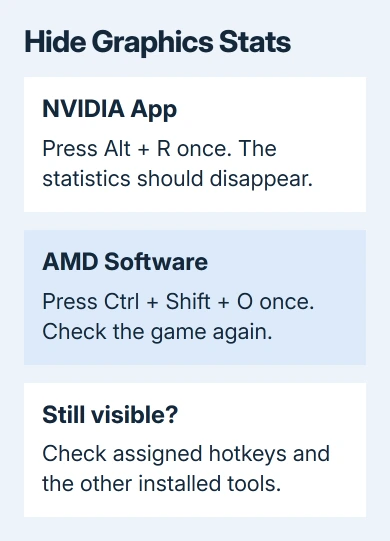
If the shortcut does nothing, search for Hotkey inside AMD Software and open Hotkey Settings. Check the assignment for Toggle Performance Overlay. A changed or unassigned shortcut won't respond to the default combination.
Leave tuning controls alone. You don't need to change clock speeds, voltage, or a game's graphics quality to hide these figures. Return to the game after changing the overlay control and check whether the panel is gone.
Unpin Game Bar or check the game's own setting
Press Windows + G to open Game Bar. If its Performance widget matches the panel on screen, turn off the widget's pin control. Then close Game Bar and check that the widget no longer stays over the game.
Microsoft says Game Bar's pin feature lets a widget stay onscreen when Game Bar is closed. Unpinning it stops the widget from staying there.
If you still want Game Bar for recording your Windows screen, keep that feature available. Unpinning a performance widget doesn't require changing the recording shortcut or uninstalling Game Bar.
For a number that appears in only one game, open that game's Settings and check Video, Graphics, Interface, or Telemetry for an FPS-display option. Games use different labels here; keep the frame-rate limit unchanged.
If a monitoring utility such as RivaTuner is also installed, check that utility's on-screen-display settings. Give its support team the utility version and a cropped picture of the counter if you can't identify the control.
A clean screen doesn't fix stuttering with a high FPS reading. Treat any remaining uneven movement separately after you've finished changing the display settings.
The Short Version
Disable the counter in its own app. Check Steam's In Game settings, use Alt + R for NVIDIA statistics or Ctrl + Shift + O for AMD's overlay, and unpin Game Bar's Performance widget. Check the game's settings if a number remains.
Checked November 13, 2026.