An iPhone showing Unable to Join Network hasn't completed its Wi-Fi connection. Rejoin the right network with its current password, then forget its saved entry if that fails. A blue checkmark with no internet is a different problem.
If your iPhone fails on just one network, check its saved details and the router settings. If it fails everywhere, check the phone. Compare networks before a network reset, which removes saved Wi-Fi passwords and other connection settings.
In this guide
1. Check the network name and retry with its current password
Open Settings > Wi-Fi, turn Wi-Fi on, and tap the intended network. Compare its full name with any guest networks or extenders nearby. Move near the router while making this first connection attempt.
Confirm the latest password with whoever manages this router. Its label can be outdated after a password change. Enter it carefully, including capitalization, then check whether it connects rather than repeating the rejected password.
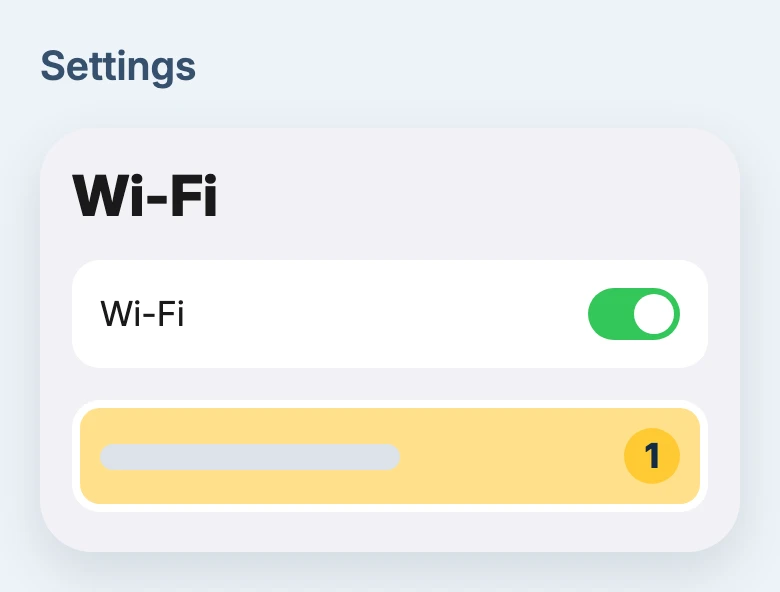
A blue checkmark beside the network confirms the phone has joined it. If the checkmark appears but pages won't load, follow the connected Wi-Fi with no internet checks instead of continuing to treat this as a join failure.
Check Airplane Mode in Settings and switch it off if necessary. The current Wi-Fi guidance also says to turn off Connectivity Assist, when that control appears in Wi-Fi settings. A grayed-out Wi-Fi switch calls for restarting the iPhone.
Apple recommends those checks in its Wi-Fi connection repairs, which also explain the network reset later in this guide. If the network still rejects the phone, forget the saved network and reconnect next.
2. Forget the saved network and make a fresh connection
Open Settings > Wi-Fi > Edit to see known networks, then open that network's information page. Select Forget This Network, and confirm Forget. Keep the password available for rejoining once its saved entry is removed.
Choose that network from the Wi-Fi list again and enter the password when asked. Forgetting can help after the router's settings have changed because the phone rejoins using the new details instead of the settings it remembered.
If Forget This Network isn't offered on a managed connection, ask its administrator how to reconnect. That network can have settings you can't change yourself.
Turn off Auto-Join to remember a network but stop joining automatically. It isn't the same as forgetting it. When manual joining works but automatic connection fails, check the iPhone Auto-Join settings.
If the fresh join succeeds, open a page to confirm internet access as well. If it still fails, leave the password alone and compare another network. Use that result to choose between router repairs and phone-side checks.
3. Compare another network and restart the equipment that fails
Try the iPhone on another known-working Wi-Fi network, such as a trusted location you have permission to use. At home, compare the iPhone with another device attempting to join that router.
If several devices can't join, restart the router and cable modem by unplugging them and plugging them back in. Wait for startup to finish, then retry. Ask the network owner before interrupting a shared connection.
If the iPhone fails there but joins elsewhere, check that router's settings and compatibility. A failed Wi-Fi radio is less likely when the phone joins elsewhere. If the phone fails at several working locations, check its software next.
Restart the phone too. For iPhone X and newer, keep Side and one Volume button held together. When the shutdown slider appears, release both buttons and drag the slider. After 30 seconds, press and hold Side to start the phone.
For iPhone 6/7/8 and SE (2nd/3rd generation), hold Side alone to get the slider. For 5-series, earlier iPhones and first-generation SE, hold Top. Drag the slider, wait 30 seconds, then hold that button to start up.
4. Check router compatibility when only one network fails
Ask the router owner to update its firmware and review Wi-Fi security. Recommended choices include WPA3 Personal or WPA2/WPA3 Transitional for older-device compatibility. Don't remove the network password as a test.
If the router provides separate frequency choices, try the other one. For example, join its 5 GHz network instead of 2.4 GHz. Use the available networks for this comparison; you don't need to split a combined network into new names.
A hidden network or device-access rule can prevent joining. Give the administrator the iPhone's exact message and ask whether the network permits this device. Let the person managing the network change who can connect.
For home settings, use the router configuration recommendations with the router maker's instructions.
5. Remove interfering VPN or security software
If VPN or security software is installed, record how to restore it, uninstall it, restart and test Wi-Fi. This goes further than turning a VPN switch off. For a managed phone, get the administrator's help with the software.
If removing it restores Wi-Fi, ask the provider or VPN manager how to reconnect without bringing back the failure. That tells you removing the software helped the phone connect; it doesn't mean anything was repaired on the router.
6. Reset network settings after the other repairs
If the phone still can't join working networks, open Settings > General > Transfer or Reset iPhone > Reset > Reset Network Settings. This removes saved Wi-Fi networks and passwords, cellular settings, and VPN and APN settings.
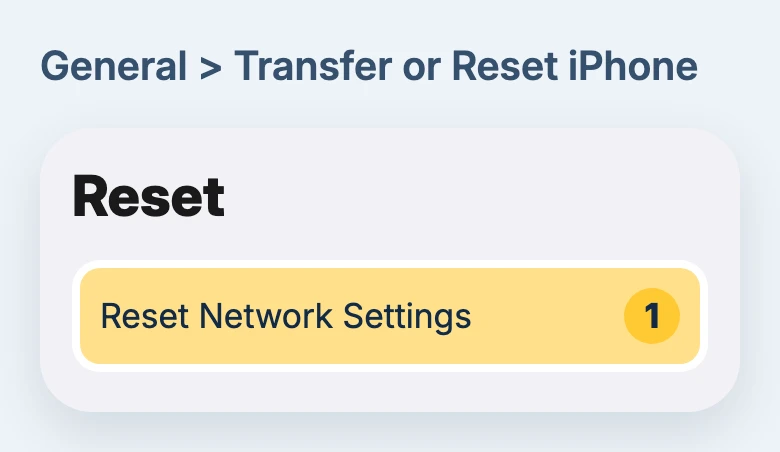
After the reset, reconnect with the current Wi-Fi password. If every network still fails, request a Wi-Fi connection check from Apple Support. If only one location fails, send its network owner the router details and comparison results.
The Short Version
Retry the right network, forget its saved entry and compare another Wi-Fi location. Restart the affected equipment, check router compatibility and VPN software, then reset network settings only if the earlier repairs fail.
Checked November 27, 2026.
 If you have any business, I can build it online