

Android updates come through your phone's Settings app, not a file you need to hunt down online. Open the system update screen, install the package your model is offered, then restart when asked so the new software takes effect.
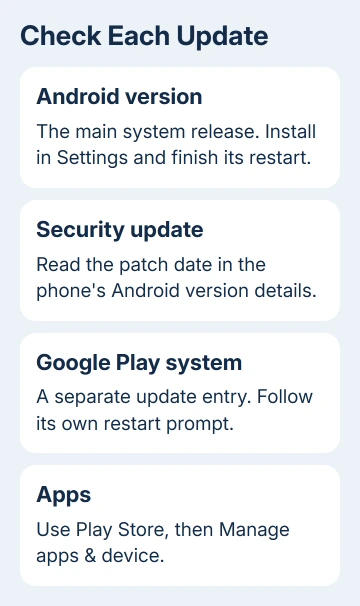
A phone can have separate Android, security, Google Play system, and app updates. Checking one doesn't finish the others. The menu names also differ between a Pixel, a Galaxy, and other Android phones.
In this guide
Start with the phone's version and a backup
Open Settings > About phone > Android version. On a tablet, look for About tablet instead. Note the Android version, build, and security patch date for comparison with the details shown after installation.
On Galaxy phones, find those details under Settings > About phone > Software information.
The Android version tells you which main system release your phone runs. The security date shows which security patch is installed. An older security date doesn't automatically mean a newer Android version is available for that phone.
Save a backup of irreplaceable data before updating the system. For Google's backup service, open Settings, tap Google > All services > Backup, and check the backup details. Tap Back up now if you need a fresh backup.
Photos and files can use separate backup services. Open the app that holds important data and check that its backup finished. The Android backup guide explains what the phone backup includes.
Use reliable Wi-Fi. Google's preparation guidance recommends a battery charge of at least 75%. Leave time for installation when you won't need the phone, because it can restart and be unavailable during that stage.
Find the update offered for your Android model
Google's Android update instructions use Settings > System > Software updates. Other devices can show Software update in the singular. Open that screen and follow its update check.
On a Pixel, start in Settings > System > Software updates and choose the system update option shown. Read whether the phone is checking, downloading, preparing a restart, or already up to date.
On a Samsung Galaxy, open Settings > Software update > Download and install. Some carrier models instead show System updates, Check for system updates, or Check for software updates.
If the menus don't match, use the Settings search box for software update. Choose the result for the phone's system software. A result inside an individual app won't update Android itself.
You can also start from an update notification. Tap it and read the version and installation choices. Dismissing that notification doesn't remove the update; you can return through Settings.
An up-to-date result means that check has no newer update to offer your phone. It doesn't mean every Android phone in the world is running that version.
Download, install, and finish the restart
Tap the offered download or install button and keep Wi-Fi connected. If the screen separates downloading from installation, wait for the next prompt. A completed download doesn't mean installation has finished.
On Pixel phones and Pixel Tablet, Android update installation happens in the background; a restart activates the downloaded changes. When the update screen asks for a restart, save your work and use its restart button.
Many other Android devices restart as part of installation. Let that process finish before opening apps or deciding the phone has stopped. A progress screen during installation is different from a frozen app on the Home Screen.
Once the lock screen reappears, unlock the phone and revisit About phone > Android version. Compare the version or build with the details you noted. Then open the update screen again to check its result.
Some Galaxy phones need more than one update to catch up. If another package appears, read it and repeat the installation. Don't expect one download to jump through every pending update on a phone left unused for months.
I'd check the final restart before checking individual apps. Otherwise it's easy to judge the old software while the phone is still waiting to activate the update you just downloaded.
Check Google Play system and app updates separately
In Settings > About phone > Android version, look for Google Play system update. Its location can vary with the manufacturer. Use Settings search if your phone puts that control elsewhere.
Open the Google Play system update entry and follow any available update and restart prompts. Its date can differ from the Android security update date because the two get their updates separately.
For apps, open Google Play Store, tap your profile picture, then Manage apps & device. Under updates available, choose See details and update the apps you need, or choose the available all-app update option.
An app that still fails after Android updates may need its own update. For example, a browser update changes the browser; a system update isn't a substitute for the browser's Play Store package.
The Android app update steps cover those controls in more detail. Finish the system update first, then use that separate check for apps still showing old behavior.
Deal with a missing or unfinished update
Update timing depends on the manufacturer, exact model, and carrier. Check those details before comparing your phone with a friend's. Two phones carrying similar product names can have different update schedules.
Older devices can't always run newer Android versions. Ask the maker or carrier about continuing system and security support for that model when Settings offers nothing newer. A reset doesn't extend its support period.
For a storage message, open Settings > Storage and review large downloads, videos, and unused apps. Move important files to a confirmed backup before deleting them, then return to the update screen.
An interrupted download can retry automatically over the next few days. Reopen the update notification when it returns. For repeated failures, try another working Wi-Fi connection and keep the full error message.
If it keeps failing, tell the maker's support your model, build, which update is offered, and where it stops. Ask them to confirm approval for your model and carrier, then recommend a way to get it installed.
The Short Version
Note your model and build. Back up, then run the system update in Settings. Finish the restart and verify the installed build. Check Google Play system and app updates separately; ask the maker about support if no newer release appears.
Checked November 13, 2026.
 If you have any business, I can build it online






