
A USB folder that suddenly has a gibberish name, impossible dates and files that won't open usually has damaged file information. Stop saving anything to the stick and recover its files to another drive before trying to repair it.
A readable drive with scrambled folders calls for a different recovery plan than a stick that shows 0 bytes or keeps disconnecting. The recovery route here helped the owner whose folders had future dates and broken symbolic-link errors.
In this guide
1. Protect the files the USB stick can still open
Close anything saving to the flash drive. Copy the folders that still open to your computer or another physical drive. Open several copied photos or documents at the destination to check that they contain what you need.
Don't format the stick, delete the strange folders or run a repair command before recovering important files. Those actions write to the drive, which can change information a recovery program still needs.
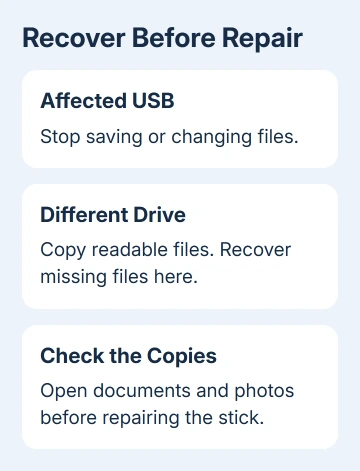
The files can still be readable even when the records linking them to their names are damaged. Renaming a folder won't repair those records. Save what you can open, then recover what's missing.
One owner saw dates such as 2079, zero-size entries and an error saying a symbolic link pointed to something that didn't exist. A normal disk check reported no errors, yet a later recovery attempt retrieved the files.
If your stick doesn't appear in File Explorer at all, use the USB detection checks first. Recovery software needs Windows to detect the storage device before it can read its contents.
2. Decide whether the stick is stable enough to scan
Open File Explorer, select This PC, and note the USB drive's letter and capacity. Check its size and label; Windows can give the stick a different letter when you reconnect it.
Press Windows + X > Disk Management if the drive's capacity is unclear. Look for the removable device with the matching size. Decline initialization and formatting prompts until your files have been recovered.
Recovery software is an option when the stick shows its expected capacity and stays connected. If it keeps disappearing, reports no media or freezes whenever you try to read it, get advice from a recovery service.
I'd stop home recovery attempts when a stick keeps dropping out and the only copy of important work is on it. Ask a data recovery service whether it handles flash memory and whether it can examine the device without writing to it.
If ordinary names remain intact and the message only says access is denied, check the external-drive access problem. That symptom can involve security software rather than corrupted folder records.
3. Scan with DMDE before paying for another recovery tool
Recuva found nothing in the reported case, even in a deep scan. Another tool found only two files before requesting payment. After an adviser suggested DMDE and its signature search, the owner confirmed successful recovery.
Download DMDE from its official site on your computer, not onto the affected stick. Its interface offers disk-editing functions as well as recovery, so stay with opening, scanning and recovering files.
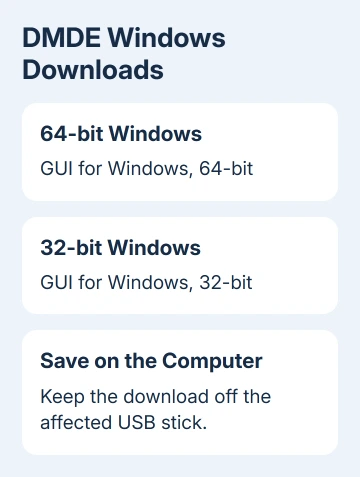
Start DMDE and identify the USB device by its size and model. Select the volume that contains the lost files. If the files already appear in a useful folder tree, inspect them before starting a longer scan.
When the initial view doesn't show what you need, use Full Scan. Scan the affected USB device or volume, then open a plausible volume result. Compare the folders and filenames with what you remember storing there.
The scan may show more than one version of a volume. Try another result if the first has incomplete folders or produces damaged files. Even a familiar filename can lead to damaged contents. Open recovered copies to check their condition.
Select a small group of important files and choose Recover. Set the destination to a folder on the computer or a different physical drive. Open those recovered files before recovering the rest.
DMDE's free and paid editions have different recovery limits. Use the free edition to check actual file quality before buying a license. Its FAQ explains that paying won't fix a file that the free edition recovers in a damaged state.
4. Use file signatures when the folder tree is broken
A file signature is a recognizable pattern inside a file, such as the start of a photo or document. Searching for those patterns can find contents even when the original folder information can't be used.
DMDE's Full Scan includes a Raw search for known file types. Examine its raw file results if the reconstructed folders don't contain the missing items. Select the types you need when configuring the scan.
Expect extra sorting: signature recovery can lose names and folder locations. Files split across different areas of the stick may recover incorrectly. Open each important result after saving it elsewhere.
For a document, open it and read several pages. For a video, try playback at different points. If a recovered file won't open, try recovering it from another volume result or have a recovery service examine the stick.
Keep the first working copy in its own folder while you compare files recovered from other results. Check their contents, not just their names: a similarly named file can be damaged. Leave your working copy intact.
5. Leave disk repair until the data is safe
The command chkdsk X: checks the selected drive's status without repairing it when you leave out the repair switches. Replace X with the USB drive's current letter. Microsoft's CHKDSK reference explains the different switches.
Adding /f changes the operation into a repair. That can be useful after recovery, but repairing folder records isn't the same job as retrieving the files first. A report with no errors doesn't mean every file will open.
Once you've checked the recovered files, consider whether the stick is reliable enough to reuse. A drive that corrupts files again should be replaced. Keep recovered files in two other places before testing or reformatting the old device.
If no scan produces usable files, give a recovery service the USB model, reported capacity and the names of tools already used. Mention whether any repair or format was attempted so they can assess what changed.
The Short Version
Stop writes, copy readable files and recover the missing ones to a different drive. DMDE restored the files in the reported case after other scans failed. Check recovered contents before repairing or reusing the stick.
Checked November 17, 2026.






