

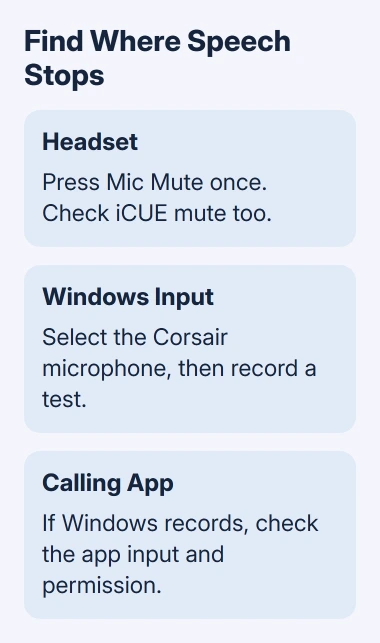
A silent Virtuoso MAX microphone can mean the headset is muted or Windows is listening to another input. Press Mic Mute once, then select the Corsair microphone in Windows Sound settings and run its recording test.
Sound in the earcups doesn't confirm that the microphone is working. A clear Windows recording with silence in Discord calls for a check of Discord's settings. If the microphone doesn't appear in Windows, check its connection.
In this guide
1. Unmute the headset and check the microphone position
Press the Mic Mute button on the headset. Press it again to reverse the mute state. Check iCUE's microphone controls too, because software can also control muting. After changing a setting, speak to check whether it lets your voice through.
Bring the flexible boom near the left corner of your mouth. Keep it clear of clothing. Corsair's Virtuoso MAX manual recommends adjusting the bend if your voice is too soft or loud.
If moving the boom closer improves the recording, its position or input volume needs adjusting. If silence continues, check which recording device Windows is using next. Turning up the headphones won't raise your microphone's signal.
I'd check the physical mute before reinstalling iCUE. It's quick, and you won't disturb your other audio settings.
2. Use the wireless receiver and select its input
For the PC wireless connection, plug the supplied USB wireless transmitter into a USB-A port. Move the headset's Wireless Mode switch from Off to Wireless. The headset then connects wirelessly to the transmitter.
The MAX also supports Bluetooth and can connect through both wireless systems at once. Check which input you've selected: sound from your phone and sound from your PC aren't necessarily using the same connection.
Use the USB wireless receiver for iCUE controls. The model's manual requires that receiver for its full software features. Connecting the headset's charging cable doesn't supply that receiver connection.
On Windows 11, open Settings > System > Sound. In Input, select the Corsair microphone. The device list is labeled Choose a device for speaking or recording. Select the device to open its properties.
Under Microphone test, choose Start test, speak normally, then Stop test. If Play appears, use it to listen to your recording. Hearing your recorded speech confirms Windows is getting sound from the microphone you selected.
On Windows 10, open Settings > System > Sound and select the headset under Choose your input device. Speak and watch Test your microphone. Movement shows Windows is receiving an input signal.
No Corsair input at all means you should check the receiver connection before changing an app. Try a direct USB port on the PC, then reopen Sound settings. Check whether the microphone now appears in the list.
3. Allow microphone access in Windows
The microphone can appear in Windows even when a privacy setting stops an app from recording. Microsoft's microphone troubleshooting steps include separate permissions for the device and its apps.
In Windows 11, open Settings > Privacy & security > Microphone. Enable Microphone access. Then turn on Let apps access your microphone and the affected app's own switch, if listed.
For desktop programs, enable Let desktop apps access your microphone on that page. Not every desktop program has its own switch in the Store-app list. This includes many installed chat and recording tools.
In Windows 10, open Settings > Privacy > Microphone. Allow microphone access for the device, enable Allow apps to access your microphone, and enable Allow desktop apps to access your microphone for desktop software.
On a work PC, a grayed-out permission can be controlled by IT. Ask whether microphone access is restricted for your account or app. A local iCUE reinstall won't change an administrator's recording policy.
Quit the affected program, then reopen it with the new permission. Retry its microphone test. If the Windows recording still works but that app remains silent, keep the next checks inside the app.
4. Correct an app-only failure or low recording level
Open the app's voice or audio settings and select the Corsair microphone as its Input device. Don't assume Default still points at the headset after connecting a webcam, controller or another microphone.
In Discord, use User Settings > Voice & Video. Choose the headset input and use the microphone test. Check the input volume and whether voice activity or push-to-talk is selected before judging the microphone itself.
Push-to-talk needs its assigned key while you speak. With voice activity, the app's detection settings decide when your voice is transmitted. Check these controls if the app's test plays your voice but people on the call can't hear you.
For low volume across apps, return to the selected input's properties in Windows 11 and raise Input volume, then record another sample. Listen for clear speech rather than simply choosing the highest setting.
Check iCUE's microphone volume too. Use Mic Boost only if your MAX's controls offer it; support varies. Sidetone adjusts your voice in your own earcups, so it doesn't confirm what reaches the call.
5. Update iCUE and take persistent failures to support
Open iCUE and check whether it detects the headset with the USB receiver connected. Install the current iCUE update through its settings, then repeat the Windows recording check before adjusting more voice settings.
For a firmware update, follow the MAX's own instructions and iCUE prompts. Its manual specifies USB mode for updating: headset powered off and connected to the PC. Let the update finish before disconnecting it.
Don't borrow a button-hold reset for the older Virtuoso, SE or XT. The MAX is a different model. Ask Corsair Support for its exact recovery procedure if it stops responding or the microphone stays absent.
Tell support whether iCUE can't see the receiver or headset, or whether it sees the microphone but gets no sound. Support needs the headset model, connection mode, iCUE version and the result of Windows' recorded test.
Use the Windows microphone repair guide for a failure affecting other microphones too. For a working Windows recording with silent Zoom calls, use the Zoom input checks.
Open a ticket through help.corsair.com if the MAX still fails. Ask for model-specific firmware recovery or warranty assessment, including whether a different direct USB port changed the result.
The Short Version
Check physical mute, connect the USB receiver, and test the selected Corsair input in Windows. Fix permissions or app input selection when Windows can record. Persistent silence or missing hardware needs MAX-specific support.
Checked November 12, 2026.
 If you have any business, I can build it online






