
An old laptop can work as a spare if its hardware is sound and its software still gets updates. Save your files and check the exact model first, then decide whether to keep it as it is, try ChromeOS Flex, donate it or recycle it.
I'd choose a real job for it before buying upgrades. A machine for occasional video calls has different needs from one expected to run a Windows-only work app every day.
Check what still works and what you need to save
Start your laptop with its normal charger plugged in. Check the screen, keyboard, touchpad, Wi-Fi, speakers and camera, then try your planned task. Reaching the login screen doesn't tell you whether calls or document editing will work well.
Copy documents, photos and other important files to separate storage, then open a few copies on another device. If you're moving to a replacement computer, follow the PC transfer guide.
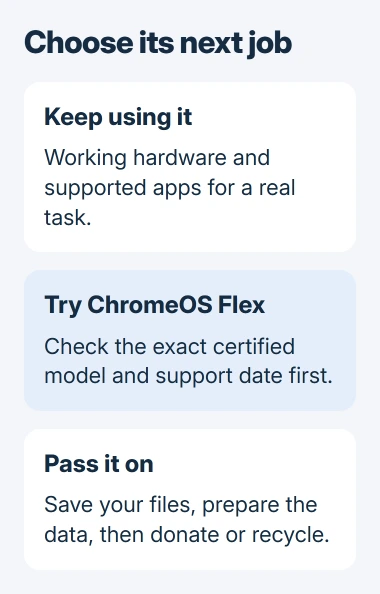
Status: reuse options reviewed November 3, 2026. ChromeOS Flex eligibility depends on the exact model and its support date; installing it replaces the existing system.
Write down the model from the label underneath or the manufacturer's system-information screen, including every letter and number after its name. Laptops that look alike can have different processors, storage and support dates.
If the case bulges, the trackpad has lifted or the battery looks swollen, stop using and charging the laptop. Ask the manufacturer or an electronics recycler how to handle that battery before trying to reuse it.
Keep the existing system when it still meets the job
If the operating system still gets support and the apps work, your laptop can be a spare for travel, paperwork, video calls or learning. Install its available security and app updates, then try your task again.
Check whether the browser still gets updates and whether the apps you need support that operating system. The laptop's age alone won't tell you whether you can keep using it.
For a slow laptop, compare the repair quote with what you plan to use it for. Replacing a worn battery or failing drive may make sense; repairing several parts costs more. Ask the shop what's faulty before agreeing to the work.
Before buying memory or an SSD, check the model's service manual for compatible parts and how to reach them. Some laptops have soldered memory, and a storage upgrade won't fix a damaged screen or charging circuit.
If the laptop can't run supported software for the job, consider another operating system or donate it to a refurbisher. Keep outdated software off the internet, even if the laptop still starts.
Check whether ChromeOS Flex fits your model and apps
ChromeOS Flex gives a compatible Windows, Intel Mac or Linux computer a system built around Chrome and web apps. Google says it needs a 64-bit Intel or AMD processor (x86-64), at least 4 GB of memory (RAM), and 16 GB of internal storage.
Find your exact model on Google's certified models list and read its Current status and End of support columns. Matching the manufacturer name alone isn't enough.
A Decertified model has reached its support date. Google also lists models with expected minor or major issues. Enough memory alone doesn't mean Google supports your model or that every part will work.
Google states that Flex doesn't support ARM computers, including Apple silicon Macs. Its preparation guide explains the current hardware and USB requirements.
Check your apps next. Flex won't run your usual Windows desktop programs, and Google's differences page lists limits on Android-app support. It won't give you the same Play Store experience as a Chromebook.
List what you need to test: a particular website, printer, meeting service or accessibility feature. Use that as your checklist during the trial. If an app you need requires Windows or macOS, let that guide your decision.
Try Flex from USB before replacing the laptop's system
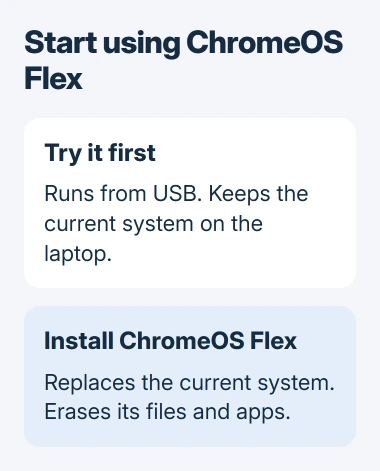
Google provides Try it first so you can run Flex from a USB drive while keeping your current operating system. Google adds that USB is for testing, rather than long-term use.
Choose a USB stick that holds 16 GB or more, as Google's current preparation page requires. Making the installer erases that stick, so move anything you need off it before starting.
- In Chrome on a working computer, install Google's Chromebook Recovery Utility extension.
- Open the utility and choose Get started, then Select a model from a list.
- Select Google ChromeOS Flex as the manufacturer and ChromeOS Flex as the product.
- Choose the correct USB drive, continue, and select Create now.
- When the utility says the recovery media is ready, move the USB drive to the old laptop.
Shut down the old laptop, then use its boot-menu key to start it from the USB drive. Google's boot guide lists common keys; check your model's instructions if those don't match.
On the welcome screen, choose Get started. At Start using ChromeOS Flex, select Try it first, then finish setup. Test the Wi-Fi, sound, camera, sleep behavior and essential websites before deciding whether it suits you.
If something you need doesn't work, keep the original system while you check that model's known issues. A successful trial shows how your laptop handles the tasks you tried; other accessories may work differently.
Decide on installation only after the trial
Installing Flex erases your laptop's files, apps, settings and current operating system. Check that you can open your backup, then disconnect the backup drives before choosing Install ChromeOS Flex.
Follow Google's installation sequence. After installation finishes and the computer shuts down, remove the installer USB and start the laptop again.
Google notes that your downloads and settings from the USB trial won't carry over to the installed system. Save anything you created during the trial alongside your other files before installing.
If Flex doesn't suit you, ask a refurbishing organization whether it accepts your repairable laptop. Check the condition it needs, which charger to include and whether it wants an operating system installed.
Prepare a handover or arrange electronics recycling
Before selling or donating it, save your files and follow the laptop data-removal procedure. Include its charger and tell the recipient about battery life, broken ports and faults that come back.
If repairing it would cost too much, use a manufacturer collection program or an electronics recycler. The US EPA's electronics guidance lists ways to find donation and recycling options.
The EPA says lithium-ion batteries and devices containing them don't belong in household garbage or ordinary recycling bins. Tell the collection service about a damaged battery and follow its instructions if the laptop's sealed.
If a broken laptop still holds private files, ask the repair or recycling service how it handles data before handing it over. A drive can still be readable when the laptop won't start.
The Short Version
Save your files and check the hardware before choosing its next job. Keep supported software or try Flex on a suitable model. Remove personal data before donating, and take failed hardware to an electronics recycler.

Isaac Smith is the founder and editor of PC Glance, a website that covers computers, laptops, and technology. He is a tech enthusiast and a computer geek who loves to share his insights and help his readers make smart choices when buying tech gadgets or laptops. He is always curious and updated about the latest tech trends.