

Plain yellow folders were normal in the first Windows 11 release, which didn't show previews of their contents. Current releases have that feature. Start by checking your Windows version, then enable thumbnails and use a large icon view.
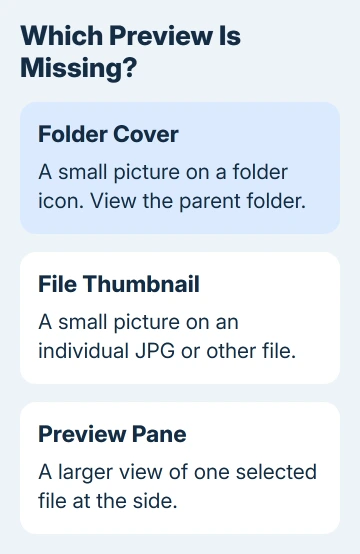
Folder previews differ from photo thumbnails. If pictures inside a folder are missing too, check thumbnail settings and local availability. If only the folder's cover is blank, compare it with a new folder containing ordinary JPGs.
In this guide
1. Check whether this is the original Windows 11 release
Press Windows+R, type winver, and press Enter. Check the displayed version number. An old installation showing 21H2 comes from the period when Windows 11 didn't include folder-content previews.
The feature returned with the Windows 11 2022 release, version 22H2. Microsoft first announced the change in its folder-preview announcement.
Open Settings > Windows Update > Check for updates. Install the supported Windows release offered for your PC and finish its restarts. Don't install the old 22H2 release just because that's when this feature arrived.
The November 2021 discussion concerned a Windows release without folder previews. Its accepted answer describes their return. That explains why thumbnail settings didn't help then, but a blank folder on a current PC needs further checks.
If your version is newer than 21H2, move on to the display settings. A current installation doesn't need an Insider build or a replacement file manager to show folder previews.
2. Give the folder enough room to display its preview
Open the folder that contains those plain yellow folders. Select View > Large icons, or Extra large icons, in File Explorer. Check the folder icons there rather than judging their tiny versions in a Details list.
Double-click one of those folders. Can you see small pictures on the JPG or PNG files inside it? That comparison tells you whether thumbnails are missing everywhere or only from the containing folder's cover.
The Preview pane is a separate feature that displays a selected file at the side of Explorer. Opening it won't put a picture onto a folder icon. Likewise, a taskbar hover preview has no connection to folder covers.
If your folder contains unusual documents or image formats, try the ordinary-photo comparison in step 4. A folder's contents matter, so comparing a photo folder with an empty folder won't tell you much.
I'd use one known photo folder throughout these checks. If you switch folders after each change, you can't easily tell whether that setting helped or the second folder just contained different files.
3. Turn thumbnails back on in Folder Options
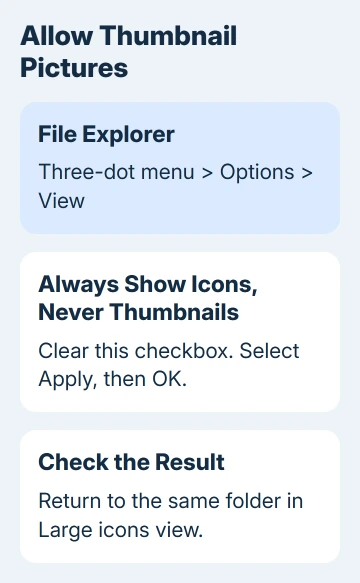
Select File Explorer's three-dot menu > Options. Open the View tab. Clear Always show icons, never thumbnails, then select Apply and OK. Return to the same folder in Large icons view.
Checking that box makes Explorer use generic icons. Clearing it allows thumbnail pictures again. It doesn't download cloud files, add support for every file format, or force every folder to use the same cover picture.
Microsoft's File Explorer instructions explain its view controls. Older advice referring to a ribbon's View tab won't match the newer Windows 11 command bar.
If thumbnails remain disabled across Explorer, press Windows+R and run SystemPropertiesPerformance.exe. On Visual Effects, enable Show thumbnails instead of icons and select Apply.
Check the same folder again. If individual pictures now appear but that folder still has a plain cover, the general thumbnail setting is working. Continue with a simple local folder rather than repeatedly changing those two settings.
4. Compare a small local photo folder
Create a temporary folder in a local location outside OneDrive. Copy a few JPGs that already open correctly on the PC into it. Use copies so your original photo collection stays where it belongs.
Open that new folder and confirm the files show thumbnail pictures in Large icons view. Then return to its parent folder and examine its folder icon at the same size. Allow Explorer time to build the previews.
If the new folder works, Windows can create folder-content previews. Check what differs in the original location: cloud-only files, unusual formats, an empty folder, or a folder with a custom icon.
For cloud-managed photos, the OneDrive thumbnail checks explain how to make files available locally. Moving an entire photo collection out of OneDrive also changes its backup arrangement.
If ordinary JPGs work but SVGs, PDFs, or other supported add-on formats don't, check the relevant File Explorer add-on settings. A missing format handler requires its own repair rather than a folder-cover change.
If the new local photo folder also fails, the original folder's contents aren't the only problem. Rebuild the saved thumbnail pictures next, rather than moving your files around again.
5. Rebuild the thumbnail cache once
Search Start for Disk Cleanup and open it. Choose the Windows drive if prompted. In Files to delete, select Thumbnails. Review the other selected categories and clear anything you don't intend to remove.
Select OK > Delete Files. This removes saved thumbnail pictures that Windows can generate again. Selecting Thumbnails doesn't erase the photos themselves, but other cleanup categories remove their own listed files.
Reopen the same test folder. Thumbnails can appear gradually while Explorer rebuilds them, especially in a large collection. Check a few known files before deciding the cleanup failed.
If the local comparison now works, return to the original folder. If neither works, avoid repeating cleanup or installing random thumbnail utilities. Tell support exactly which previews are missing instead.
6. Report a failure that survives those comparisons
Press Windows+F to open Feedback Hub. Describe folder-content previews specifically, include the version from winver, and state whether individual JPG thumbnails work. Include the result from the new local photo folder.
For school or company PCs, ask IT about thumbnail restrictions if controls disappear or won't keep your changes. For a personal PC, open Get Help from Start and ask about File Explorer folder thumbnails on that Windows build.
The Short Version
Update an original 21H2 installation, use Large icons, and allow thumbnails. Compare a local JPG folder, then rebuild Thumbnails with Disk Cleanup if necessary. Report folder covers separately from individual file previews.
Checked November 16, 2026.






