Install error 0x800711c7 affected KB5007651 on Windows 11 in S mode. An owner fixed that June 2022 failure by installing a later Windows update, without leaving S mode. Try current updates before making a permanent switch out.
Check the full update name before choosing a fix. An error beside KB5007651 version 1.0.2109.27002 matches that old report; the same code beside a different package needs its own diagnosis.
In this guide
1. Match the failed package before changing anything
Open Settings > Windows Update and read the name immediately beside the error. Write down the KB number, the version in parentheses and whether the message says downloading or installing failed.
Open Update history on that page to see whether a later attempt succeeded. A failure in history can remain visible after the current update offer has changed. Compare it with what Windows Update is asking you to install now.
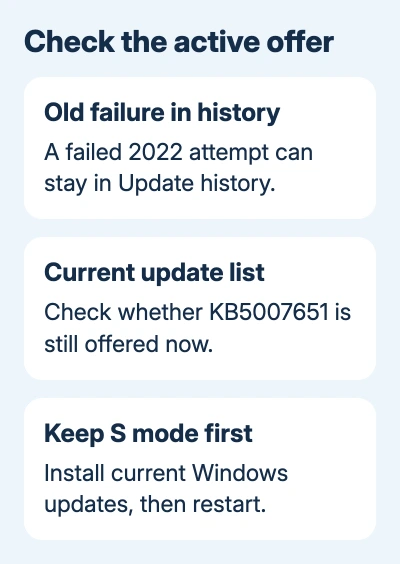
The original report was about Update for Windows Security platform - KB5007651 (Version 1.0.2109.27002). It wasn't a failed attempt to install a desktop program from outside Microsoft Store.
S mode restricts desktop applications, but Windows Update is still the normal route for system updates. A failed security update doesn't mean you must abandon that restriction.
If another package carries the code, keep its full name for support. Don't assume instructions written for a particular 2022 Windows Security version apply to every update that returns 0x800711c7.
2. Install the current Windows updates while keeping S mode
In Settings, choose Windows Update, then Check for updates. Let the updates currently offered finish installing. If a restart is requested, save open documents, then select Restart now, then check the page again after signing in.
In the original discussion, the asker reported that installing KB5014668 made the failed KB5007651 offer disappear. That fixed their June 2022 failure.
Those are 2022 packages. Install whatever Windows Update currently offers your computer instead of searching for that old cumulative update. A newer release can have different prerequisites, and an old package may not apply to it at all.
When checking finishes, look at the active update list. If the failed security package is gone and Windows reports that updates are current, you don't need to repair an old failure just because it's still listed in Update history.
If other packages install but this one returns, photograph its complete error for support. When every package fails, use our Windows Update troubleshooting steps for the wider fault.
I'd keep S mode during this check. That lets you try the successful update route without changing how programs can install on the PC.
3. Check that Windows Security itself opens
Select Start, type Windows Security, and open it. Select Virus & threat protection and read the current status. This checks whether the security app works now, even if an earlier update failed.
If the page opens and offers a scan, run Quick scan. Read the result when it finishes and act on any threat it lists. A scan checks for threats; it doesn't install a missing Windows Security application update.
If the page won't open, is blank or shows an administrator restriction, record that message too. Our guide for Virus and threat protection that won't open addresses that separate fault.
Stay with S-mode-compatible steps on this PC. Command Prompt, PowerShell and downloaded desktop repair tools aren't alternatives you can use in S mode. Stick to the Settings checks while it's enabled.
A clean boot had already failed to resolve the asker's error. Repeating it won't follow the fix that worked for them. The later update cleared the failed offer.
4. Decide separately whether to leave S mode
Open Settings > System > Activation to check your edition and S mode status. Windows 11 S mode belongs to the Home edition. A PC running Pro isn't in the same situation, even if it displays the same update code.
Microsoft's S mode FAQ explains that leaving is free and permanent. Once switched, that Windows installation can't be put back into S mode.
One owner reported choosing to leave because they also wanted desktop applications. Consider it if you already want those applications. You don't have to leave S mode to try the Windows Security update fix.
If you've decided to switch, use Settings > System > Activation and the Go to the Store link for switching out of S mode. In Microsoft Store, choose Get on the Switch out of S mode page and follow its confirmation.
Avoid the separate paid edition-upgrade link. Buying Windows 11 Pro isn't required just to leave S mode. After the Store confirms completion, reopen Windows Update to retry that package.
If you prefer the Store-only restriction, stop before confirming the switch and take the support route instead. That's a reasonable choice, especially on a family member's PC bought for its Store-only restriction.
When the same offer still fails
Search Start for Get Help. Describe your Windows 11 S mode update failure. Include the current KB number and version, error 0x800711c7, the Windows version shown in Settings > System > About, and whether Windows Security opens.
Ask for an S-mode-compatible repair or confirmation that the offered package has been replaced. Explain that you want to remain in S mode. Support can then check the failed update while keeping your preference to stay in S mode clear.
The Short Version
Match the package first, then apply today's offered updates, then restart. The old June 2022 failure cleared for an owner after a later update. Switch out only when you want to permanently allow desktop installers.
Checked November 26, 2026.
 If you have any business, I can build it online