

0x80070424 means Windows went looking for a service and found it isn't installed at all. In Windows Update and the Microsoft Store, the missing piece is usually the Windows Update service itself, wuauserv.
Restarting won't bring it back. Putting back its registry key, the entry that tells Windows the service exists, and then restarting does. That's how owners stuck for months got their updates working again.
In this guide
What the code means, and how it differs from 0x80070422
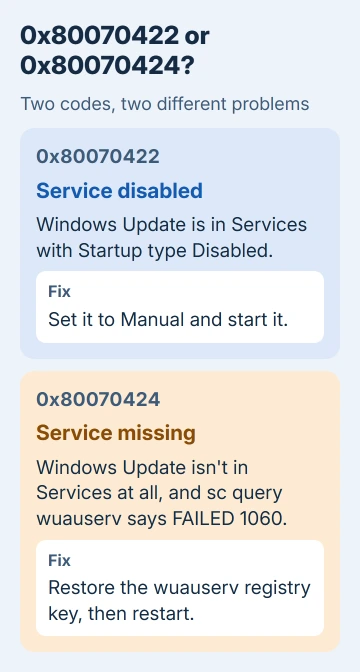
The 424 at the end stands for error 1060, which Windows' list of system error codes describes as "The specified service does not exist as an installed service."
Its close cousin, 0x80070422, means the service is there but disabled, and setting it back to Manual fixes that one. With 0x80070424 nothing can be switched on, because the service's registry entry is gone.
If your code is a different one, the Windows Update error codes page sorts the common ones by what they mean. The same 0x80070424 can also come from Windows Defender Firewall, and that case has its own section near the end.
1. Confirm the service is missing
Press Win+R, type services.msc and press Enter. Sort the list by name and look for Windows Update, then for Background Intelligent Transfer Service.
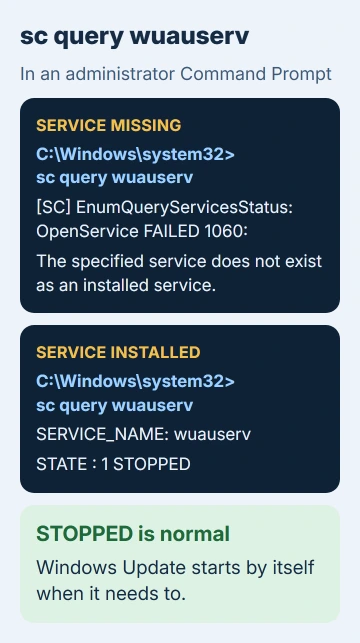
When the list has no Windows Update entry, that settles it. For a second opinion, run this in an administrator Command Prompt:
sc query wuauservIf the service is missing, you'll get FAILED 1060 and the same "does not exist" wording. On a healthy PC you'll see the service's state instead, often STOPPED, which is normal: Windows Update starts itself when it needs to.
2. Remove whatever deleted it
Services don't vanish on their own. An adviser who answered the Microsoft Store version of this problem blamed malware or an update blocker such as StopUpdates10.
Uninstall any tool you added to stop or delay updates, including the debloat scripts that strip services out of Windows to slim it down.
Then run a full scan with Windows Security, or with the antivirus you already use. A blocker left on the PC can delete the service again after you fix it.
3. Put the Windows Update service back
The thing to put back is the service's registry key, HKEY_LOCAL_MACHINE\SYSTEM\CurrentControlSet\Services\wuauserv. Microsoft's old support article on this error says that's the key that goes missing.
Dozens of owners in one forum thread confirmed that putting it back worked. One wrote "The reg fix worked for me", and an owner who hadn't updated since 2018 got going again. Create a restore point before you touch the registry.
The cleanest copy of the key comes from a second computer running the same Windows version and build as yours. On that computer, open Start, type cmd, choose Run as administrator, and enter:
reg export HKLM\SYSTEM\CurrentControlSet\Services\wuauserv wuauserv.regThe file lands in the folder shown at the prompt, usually C:\Windows\System32 in an administrator window. Copy wuauserv.reg from there to the broken PC, double-click it, accept the warning and restart.
I'd take this export over a downloaded file every time, because you know where it came from. The owners who confirmed the fix used a ready-made one; if you do too, open it in Notepad first and check it only touches the wuauserv key.
After the restart, Windows Update should be listed in Services again. Open Settings, go to Windows Update and press Check for updates; the 0x80070424 message should be gone.
If Background Intelligent Transfer Service was missing too, export and import HKLM\SYSTEM\CurrentControlSet\Services\BITS the same way.
If you run Windows 11 22H2 or newer, also check that C:\Windows\System32\wuauserv.dll exists. An adviser pointed out that the file is new in 22H2.
4. Run a repair install if the service won't come back
A repair install rewrites the Windows system files in place and leaves your files, settings and apps alone. The Reinstall now button in Settings works through Windows Update, so with the service gone it can't help; use the ISO instead.
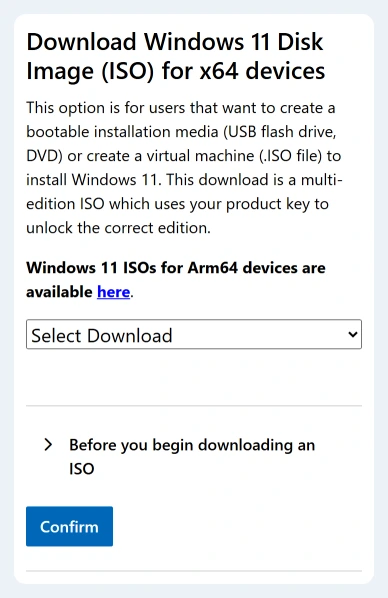
On the Windows 11 page of Microsoft's software download site, pick the multi-edition ISO under Download Windows 11 Disk Image, choose your language and download it.
Double-click the ISO to open it, run setup.exe and keep personal files and apps. The repair install guide covers each screen.
I wouldn't start here, though. Two owners said a repair install updated Windows but left the service missing, so restore the key in step 3 first and keep this for when that fails.
When the Store or the firewall shows 0x80070424
In the Microsoft Store, the code points to the same missing Windows Update service, so steps 1 to 3 apply as written. Try the Store download again after the restart.
Windows Defender Firewall can show it too, saying it can't change some of your settings. There the missing service is Windows Defender Firewall itself or the Base Filtering Engine it depends on, so check Services for both names.
No owner in those firewall threads reported a fix that worked. A malware scan and the repair install in step 4 are the sensible next moves for that version.
When nothing brings the service back
Back up your files, then use Reset this PC with the option to keep your files, or do a clean install from the ISO. Reset keeps your personal files, but your apps and settings are wiped, so list the programs you'll have to install again.
If you'd rather hand this off, chat with a Microsoft agent in the Get Help app, or book a local repair shop to run the reinstall. Tell either of them the error code and the FAILED 1060 result.
The Short Version
0x80070424 means the Windows Update service is gone, not just turned off. Remove any update blocker, restore the wuauserv key from a second PC running your Windows version, restart, and fall back to an ISO repair install.
Checked November 20, 2026.
 If you have any business, I can build it online






