

Word 2013 removed the old browse controls from the bottom of the vertical scroll bar. Use Ctrl+G to select Page in Go To, close the dialog and navigate with Ctrl+Page Up or Ctrl+Page Down.
That reset helps when the keys follow search results instead. For a clickable alternative, put page commands on the Quick Access Toolbar. Changing display settings won't bring the old scroll-bar controls back.
In this guide
1. Reset navigation to pages after a search
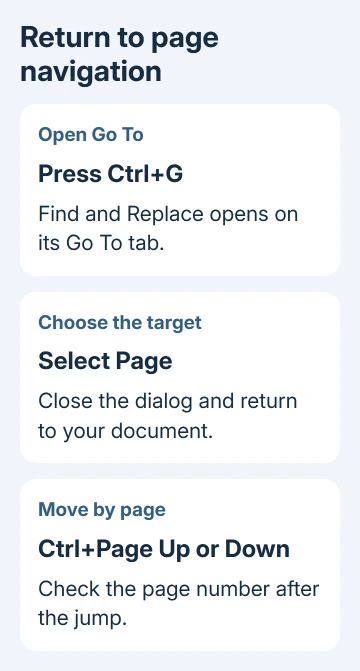
Press Ctrl+G in Word 2013 for Windows. The Find and Replace dialog opens on its Go To tab. Select Page in the Go to what list, then close the dialog and return to your document.
Press Ctrl+Page Down to move forward by page or Ctrl+Page Up to move backward. Watch the page number in the status bar so you can tell page navigation from another jump through your search results.
One owner posted the accepted workaround after a Navigation Pane search changed what the shortcuts followed. Selecting Page restored the behavior they needed.
If you search again and the keys start following matches, repeat the Go To selection. Clearing the search text doesn't necessarily switch the shortcuts back to pages. Check what the next shortcut actually does in the document.
This is about Word 2013's desktop controls. A browser-based document and Word for Mac use different interfaces. The Windows Options controls described here won't match those editions.
2. Jump directly to a page when repeated paging is slow
For a long document, Ctrl+G also lets you enter a page number. Select Page, type the number in Enter page number, and choose Go To. Close the dialog when you reach the page you need.
For example, enter 12 to reach page 12 instead of pressing a next-page shortcut eleven times. This is useful when a reviewer has given you a page number and you want to inspect that part of the document.
Enter a number for a known destination; use the shortcuts when reading neighboring pages in order. Both methods avoid the missing scroll-bar buttons, but the direct jump is faster for a distant page.
If the page layout looks different from the printed copy, compare the document version and its page setup with that copy. Navigation can't make two differently laid-out copies share identical page numbers.
Microsoft's Word keyboard shortcut list also covers Go To and document movement. Its current version includes newer Word releases, so keep the older search-navigation behavior in mind for Word 2013.
3. Add clickable page controls to Word's toolbar
Near the top of Word's window, the Quick Access Toolbar holds commands you choose. Add page commands here if you prefer clicking buttons. They give you another way to turn pages now that the scroll-bar buttons are gone.
Open File > Options > Quick Access Toolbar. In Choose commands from, select All Commands. Find Next Page and Previous Page, select each one and click Add, then choose OK.
If you're customizing a particular document, check the Customize Quick Access Toolbar choice before saving. Choose the all-documents setting when you want the buttons available across your normal Word work rather than only in one file.
Click each added command with a multi-page document open. Check that each click takes you to the neighboring page you expect. If the behavior doesn't fit the task, use the Go To method instead of adding more similar-looking commands.
The old discussion also mentions Browse Next and Browse Previous. Browse controls can follow a selected object or search target, so check where they take you. I'd start with the page-named commands for a page-only toolbar.
Keep only the pair you use. Several similar toolbar controls can leave you guessing which action each click will run. You can remove an unwanted command through the same Quick Access Toolbar settings.
4. Tell page movement from scrolling and search results
The ordinary vertical scroll bar still moves through the document. Its top and bottom controls scroll the view; they aren't the old browse-by-page controls that sat near the end of the bar in earlier Word versions.
Page Up and Page Down without Ctrl move through the view by screenfuls. A screenful isn't necessarily one printed page, especially when zoom is large or part of a page sits outside the window.
Use View > Print Layout when printed page boundaries matter. At a reduced zoom, several pages may be visible together, so watch where the cursor lands and check the status bar, rather than judging only by how far the screen moves.
The Navigation Pane has its own useful jobs. Open it with Ctrl+F, then select Pages to browse page thumbnails. Clicking a thumbnail takes you to that page, which can be easier than repeated jumps in a short illustrated document.
For a structured document, headings can be faster than pages. If those entries don't appear, the missing headings guide covers the heading-style problem. It doesn't restore scroll-bar controls.
If the actual task is to repeat content, duplicate the Word page rather than adding navigation commands. Moving to another page doesn't copy anything to it.
When a shortcut still fails
When Ctrl+Page Down does nothing, click inside the document and retry. The keypress can go to an open dialog or another selected control instead. On a compact keyboard, check which keys you need to press for Page Up and Page Down.
If your keyboard requires Fn for those keys, use the combination its maker specifies. Fn arrangements vary between laptop models. Test the actual Page Down key function rather than substituting a cursor key with a similar position.
If Go To works but the shortcut doesn't, note the keys you pressed and any shortcuts you've customized. Have your Office administrator try those keys in a blank multi-page file before resetting preferences.
Support for Word 2013 has ended. Give IT the exact navigation behavior and request a comparison using a current desktop Word installation. Don't reinstall this old version just to recover a removed control.
The Short Version
Select Page through Ctrl+G, then use Ctrl+Page Up and Ctrl+Page Down. For mouse navigation, place Next Page and Previous Page on your Quick Access Toolbar, and use Go To for a known page number.
Checked November 17, 2026.






