

The Document Information Panel was removed from Word 2016. Reinstalling won't restore it. Edit properties through File > Info, or use the SharePoint library's property controls for fields that Word can't show or change.
The old panel sat beside the document and could display a custom form. Its removal doesn't mean the file's title, author or library metadata was deleted. The replacement depends on which kind of information you need to edit.
In this guide
1. Open File and Info for the document's properties
Open the affected file in Word for Windows. Select File > Info and look for Properties. This opens a separate page away from your document, so the fields don't stay beside your text as they did in the old panel.
Select Show All Properties to expand the available information. For an editable text property, such as Title, select its value and enter the new text. Return to the document after making the change.
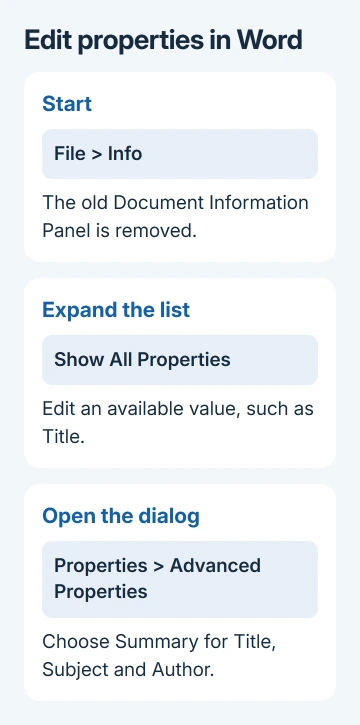
Microsoft says in its Office 2016 feature changes that the Document Information Panel was removed. In the original thread, the asker found that explanation after upgrading from Word 2013.
Don't spend time searching every ribbon tab for Show Document Panel in Word 2016. Its absence is expected. If File > Info itself is unavailable, first check that you're using the Windows desktop app rather than a different Word interface.
For fields such as Author, you may need to right-click the entry and choose Edit. Word updates some information automatically, including file statistics, so you can't type a new value into every field.
Check the changed value after saving and reopening the document. If the intended property isn't listed, continue to Advanced Properties or the SharePoint library, depending on where that field comes from.
2. Use Advanced Properties for the Summary fields
On File > Info, select Properties > Advanced Properties. Open the Summary tab. This puts related fields in one dialog, which saves working through the smaller list on the Info page.
The Summary tab includes Title, Subject, Author, Manager, Company, Category, Keywords, and Comments. Edit the field you need, select OK, then save the document. Reopen the dialog to confirm the value.
The document-property instructions describe this route. These fields identify the file; changing Title here doesn't replace the heading typed on the first page of your document.
To change the text readers see in the document's header or body, edit the text or the property field inserted there. Don't assume a visible heading and the file's Title property contain the same value.
Custom document properties are extra named values kept inside the file. They're separate from SharePoint library columns. Adding a local property with a matching name won't automatically complete a required library field.
I'd check where the field is stored before adding a replacement. A library column called Status and a custom file property called Status can serve different workflows, even though the words on screen match.
3. Check required SharePoint fields in Word's Info page
Open the document from its SharePoint library, then return to File > Info. Library properties can appear here alongside the file information. Look for the field requested by the library, such as a category or document status.
Required library properties can be marked on the Info page. Fill the available editable fields using the values the library accepts. A choice field may require an existing option rather than any text you want to type.
Save your changes, then open the library record to check them. Completing an ordinary Summary field isn't enough if the library is asking for a separate required column. Use the exact field name from the save prompt or library view.
Use the library when Word can't edit a field. Some property types need SharePoint data or your organization's controls. The library's browser interface lets you work with its own fields without rebuilding the Word template.
The original asker needed to update SharePoint metadata, the details stored about the document, rather than recover missing text. If the file itself is missing, the Word document search steps address a separate problem.
4. Edit the library record through SharePoint
Navigate to the library on your SharePoint site. Select the file without opening the document, then open the Details information pane at the top right.
Choose the property value you need to change, enter the new value and press Enter. For several fields together, select Edit all, update the values and choose Save. Confirm the new value remains after selecting the file again.
In a classic library view, the controls differ. For the editing route, right-click the item, choose More, then Edit properties. Follow the library form and save the change rather than looking for the modern Details pane.
The SharePoint property-editing steps cover both interfaces. This changes the library's record directly, so use it when you can't find a required field in Word.
If a property is read-only or you can't find an edit action, send the library owner the library address and field name. Request a check of your editing rights and the column setup. Reinstalling Office won't grant those permissions.
5. Replace workflows that depended on the old panel
Showing more properties won't restore a custom InfoPath panel. If your team depended on it to collect metadata whenever a document opened, have the library or template maintainer review how those details should now be entered.
Ask which fields are required, where to enter them now, and how completion is checked. Show the administrator an affected document so they can compare its content type and columns with how your team needs to use it.
Avoid rolling the whole team back to an old Office installation just to recover the panel. Office 2016 is already outside support. Plan to use a supported Word release with clear steps for entering the library's information.
If you're also missing options for how the document looks, the Word theme repair steps cover theme files. Themes change formatting; they don't bring back a metadata panel or its custom form.
When the ordinary Info fields don't save, report that separately to your Microsoft 365 help desk. Include the Word build, whether a new local document saves its properties, and whether the failure happens only in one library.
The Short Version
Word 2016 removed Show Document Panel. Use File > Info or Advanced Properties for normal fields. Edit library metadata through SharePoint, and have the administrator review workflows built around the removed panel.
Checked November 17, 2026.






