

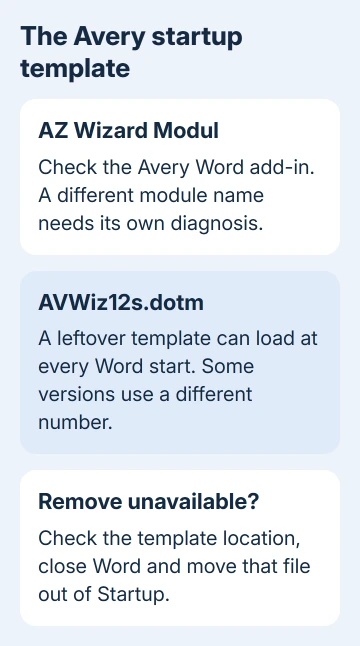
An AZ Wizard Modul compile error points to the Avery Label Wizard loading with Word. Disable the add-in, then move its leftover startup template if it returns. Owners found AVWiz12s.dotm remained after uninstalling the program.
The template is separate from your documents. If you can't click Remove for a template Word loads at startup, find the file's location. Repeatedly trying that button won't remove it.
In this guide
1. Confirm the module name and compare Safe Mode
Read the full error. This procedure is for AZ Wizard Modul or the matching Avery wizard, not every message that contains Compile error in hidden module. Other module names can belong to unrelated add-ins.
Save open documents, then exit Word. Hold Ctrl while starting Word from its shortcut, keep holding it until the Safe Mode question appears, and choose Yes. Check whether Word opens without the AZ Wizard message.
Safe Mode skips startup extras. If Word opens without the error, checking the add-in is a sensible next step, but you'll still need to find its file. Close that session and open Word normally to check the add-in.
For a complete failure to launch, use the Word startup checks to separate a launch failure from this named add-in error. I'd check for a leftover Avery template before reinstalling Office.
The original question mentioned Acrobat, but the successful replies identified Avery. Don't remove an unrelated PDF add-in just because both programs happen to be installed.
2. Unload the Avery template in Word's add-in list
In Word 2007, click the round Office button, choose Word Options, then Add-Ins. At the bottom, set Manage to Word Add-ins and click Go.
For Windows desktop Word from 2010 onward, open File > Options > Add-ins. Choose Word Add-ins in the Manage list, then Go. This isn't the COM Add-ins list, which manages a different kind of extension.
In Templates and Add-ins, look under Global templates and add-ins. Select the Avery wizard entry or AVWiz12s.dotm and clear its checkbox. Confirm with OK, then check Word's behavior.
The original AZ Wizard reports include owners who stopped the error by disabling or removing the Avery component. Other replies report that Remove was unavailable in their installations.
If Remove is available, removing the selected Avery entry takes it out of that list. If it's grayed out, continue to its startup location. Don't clear every unrelated template just to make the dialog look empty.
3. Find the template when Remove is grayed out
Microsoft's template and add-in instructions explain that Remove is unavailable for templates in the Startup folder. Unloading one there lasts only for the current session; Word loads it again next time.
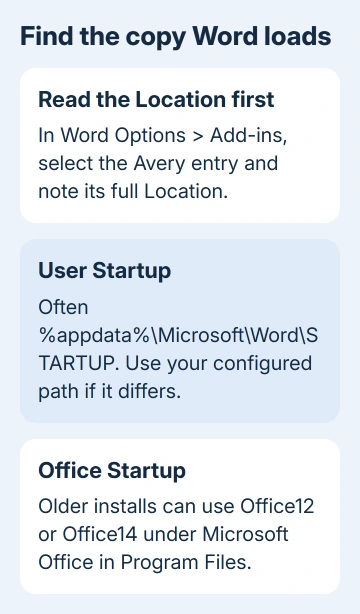
First select the Avery entry in File > Options > Add-ins and read its Location line. That shows you which template Word is loading, even if its filename has a different version number.
To check the user startup folder too, open File > Options > Advanced > General > File Locations and read Startup. Word 2007 uses Office button > Word Options > Advanced > General > File Locations.
Close Word before moving its template. Open File Explorer and use its address field to reach the folder reported for the Avery entry. Entering the path directly lets you reach it even if one of the folders is hidden.
The usual per-user location is %appdata%\Microsoft\Word\STARTUP. Use the path reported by your installation when it differs. Check that actual folder, rather than the early reply's vague Templates location.
Find the Avery template identified in Word's list, such as AVWiz12s.dotm or AVWiz14s.dotm. Make a backup folder outside every Word startup location and move that specific template there. Keep it so you can restore the template if needed.
Restart Word normally. If the message is gone, open a document and check that ordinary editing works. If the error remains, check the Office installation's startup folder next rather than deleting your normal document template.
4. Check the Office installation's startup folder
An owner with Word 2007 found AVWiz12s.dotm in C:\Program Files\Microsoft Office\Office12\STARTUP. Another confirmed the corresponding Office14\STARTUP folder for Word 2010.
For 32-bit Office installed on 64-bit Windows, also check under C:\Program Files (x86)\Microsoft Office for the matching Office12 or Office14 folder. These older paths can differ in current Office installations.
Move only the matching Avery template to your backup folder while Word is closed. A Program Files change can require administrator permission, so have IT make it on a managed PC. Leave other startup files in place.
Open Word normally again. If the error stops after you move that template, you've found the copy Word was still loading. An empty user startup folder doesn't rule out a startup add-in; Word can also load one from its installation folder.
I wouldn't reset Normal.dotm for this named error before checking both locations. It stores other customizations, and changing it doesn't remove an Avery template from a separate startup folder.
If customizations also fail to save after closing, the Word 2010 macro-saving checks cover that separate template problem. Keep the Avery removal focused on the module named in this error.
5. Remove the unused program or ask for a compatible version
If Avery Label Wizard is still installed and you don't use it, open Control Panel > Programs > Programs and Features, select that program and use its uninstall command. An owner also resolved the problem by removing the Avery program there.
If the software was already removed, moving the leftover startup template is still relevant. Uninstalling the program doesn't always remove every file it left in Word's startup folders.
If you still need the wizard for label printing, ask Avery support or IT which replacement supports your Word version. Don't download an old copy from an unknown site to replace a missing software component.
If the error remains, send them the exact module name, Word version, add-in filename and both startup paths you checked. Ask which remaining component is loading the wizard. Keep the template backup until the replacement works.
The Short Version
Unload the Avery Word add-in first. If Remove is disabled or the error returns, move its template out of the user or Office startup folder while Word is closed. Keep a backup and check a normal restart before changing other templates.
Checked November 16, 2026.
 If you have any business, I can build it online






