

Word's message that a feature appears to be broken can come from a conflict with WPS Office, formerly Kingsoft Office. Owners on the original thread stopped this exact error by uninstalling WPS after Office repair hadn't helped.
Check for that second office suite before repeating the same repair.
The reports concern Windows desktop Word and older Office installations. Without WPS installed, test Word's add-ins and then repair Office; the error text alone doesn't identify which component failed.
In this guide
1. Check for the WPS or Kingsoft installation
Save open documents and close Word. Look in Windows' installed-app list for WPS Office, WPS Office Free 2014, or Kingsoft Office. The product name changed, so you might see either name on an older computer.
On Windows 11, open Settings > Apps > Installed apps and use its search box. On Windows 10, open Settings > Apps > Apps & features. For older Windows, use Control Panel > Programs > Programs and Features.
If WPS is present and you don't need it, choose Uninstall from its entry and follow the prompts. On Windows 11 the command sits in the entry's three-dot menu; on Windows 10 select the app to reveal its uninstall controls.
Keep documents you need and check whether your workplace relies on WPS before removing the application. Uninstall the named program through Windows rather than deleting folders with Office in their names.
Restart Windows, then launch Word through Start. Choose a new blank document once its start screen loads. If it opens without the repair message, try the document that previously triggered it.
Opening a document checks that Word works normally, rather than just letting you dismiss the warning.
The original feature-broken thread includes several owners who confirmed that removing WPS or Kingsoft stopped the message. One described WPS Office Free 2014; another confirmed the same result after reading that reply.
The owners reported this conflict with older software; it doesn't mean every current WPS version breaks Word. If WPS isn't installed, skip removal and try Word's Safe Mode next.
2. Open Word without its usual startup extras
Close Word after saving. Press Windows + R, type winword /safe, and press Enter. Include the space before /safe. A successful launch should identify Safe Mode in Word's title bar.
Safe Mode loads Word with fewer extras. If the message disappears there but returns in a normal launch, an add-in or startup customization needs checking before another installation repair.
If Safe Mode opens cleanly, choose File > Options > Add-ins. At Manage, select COM Add-ins and click Go. Note the checked entries before changing them, then clear one checkbox and select OK.
Close Word and reopen it normally from Start. If the error is gone, leave that entry disabled while asking its maker about an update. If it remains, restore the checkbox and compare the next entry, restarting Word each time.
For other loaded tools, use the relevant list in the same Manage control. Don't disable unrelated software across Windows because its name happens to include Office. Stick to the extras that Word actually loads.
If Safe Mode shows the same error, continue to Office repair. If Windows can't find the command, confirm that desktop Word is installed; a browser shortcut doesn't provide the Windows program that command starts.
3. Use the right repair for the Office installation
If WPS removal and startup checks haven't helped, follow Microsoft's Office repair procedure. Finish and save your Excel, Outlook and other Office work before repairing the shared suite.
In Windows 11, locate your Microsoft 365 subscription or Microsoft Office suite under Settings > Apps > Installed apps, open the entry's menu and select Modify. Select the Microsoft product, not the WPS entry used earlier.
In Windows 10, use Settings > Apps > Apps & features, select Office and choose Modify. On an older Windows installation, open Control Panel > Programs > Programs and Features, select Office and choose Change.
For Click-to-Run, the Office installation type that offers two repair choices, start with Quick Repair. If it hasn't helped, use Online Repair, which downloads replacement components and needs an internet connection.
An older Windows Installer installation may provide just Repair. Use the repair option it offers. An Online Repair button isn't available in every Office installation.
When repair finishes, restart if prompted and launch Word normally. Check a blank document before reopening the original file.
If the same warning returns after both repairs, tell support what you've tried rather than running them again.
I'd check the second suite first when it's installed. In this thread, owners had a concrete result from removing it, while Quick Repair and Online Repair hadn't helped the original asker.
4. Separate this warning from other startup problems
The key message says that a feature appears to be broken and asks for Office repair through Programs and Features. A missing-program message, a document permission warning and Word silently closing are different symptoms.
For Word that won't show a usable window at all, the Word startup checks cover broader template and installation problems. Keep the complete wording of any new error, since the original repair warning may have changed.
If Word opens and the warning is gone but editing flashes or freezes, use the Word glitch checks for that remaining behavior. A successful launch doesn't explain a separate display fault.
Also compare another Office app, such as Excel, from Start. If several apps show the same repair warning, tell support that the failure crosses the suite. If only Word fails, include the Safe Mode and add-in results.
5. Arrange a supported reinstall after unsuccessful repair
For work or school Office, send your Office administrator your licensing details and explain which repairs failed. Make sure you can access the account used to install Office before removing the suite.
For a personal supported installation, use Help > Contact Support in a working Office app if available. Ask for help removing and reinstalling the licensed Office product after failed Online Repair, and mention whether WPS was installed.
The old discussion includes advice to use a historical removal tool, but a current reinstall needs the removal method for the product installed now.
Let support choose the removal method that matches your installed product and Windows version.
If the computer still runs unsupported Office or Windows, discuss a supported replacement with IT. Keep your documents and any required templates available so the replacement can be checked against real work before the old setup is retired.
The Short Version
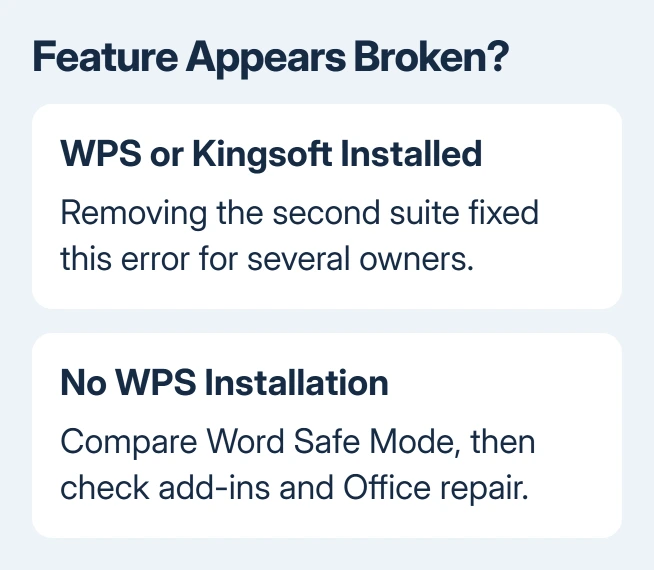
Check for WPS or Kingsoft first; removing it stopped this exact warning for several owners. Otherwise compare Safe Mode and add-ins, then repair the Microsoft Office installation.
Take repeated repair failures to support with the full error wording.
Checked November 16, 2026.
 If you have any business, I can build it online






