

A hidden ribbon tab can make References disappear from Word, while Starter 2010 never included it. Check the edition first. In full Windows Word, enable References under File > Options > Customize Ribbon.
A tab that has disappeared and a tab missing only its bibliography commands are different problems. The app you're using matters too: a document open in a browser isn't using the desktop Word interface.
In this guide
1. Enable References in the full Windows edition
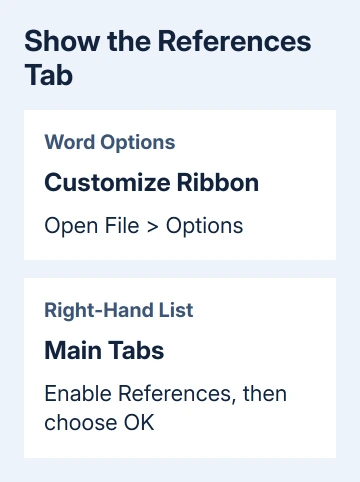
Open Word and choose File > Options > Customize Ribbon. On the right, set the list to Main Tabs. Look for References and check its box, then choose OK.
The tab should appear along the ribbon. Select it and look for the command you need, such as Insert Footnote, Insert Citation, or Bibliography. Seeing the tab again confirms that its visibility setting was the problem.
Microsoft's ribbon customization instructions explain showing and hiding default tabs. Changing Word's ribbon leaves your Excel and PowerPoint ribbon layouts alone.
This route applies to full desktop Word for Windows, including current Microsoft 365 and one-time-purchase editions. Word 2010 also used File > Options > Customize Ribbon. Starter is different and needs the edition check in step 3.
If References is already checked, look in the right-hand list in the dialog. The commands list on the left is used for adding commands; the Main Tabs list on the right controls which tabs appear.
2. Expand the ribbon when all its commands are hidden
If Home, Insert, and References are visible as names but their command rows disappear after a click, the ribbon is collapsed. That isn't a missing References tab.
On desktop Word for Windows, press Ctrl + F1 to switch between the expanded and collapsed ribbon. Alternatively, select a tab and use the pin control when Word offers it to keep the commands displayed.
If the document is in Read Mode, press Esc to return to the normal editing view. Check the tab names again there before changing which tabs are enabled.
A narrow window can also compress groups into smaller controls. Maximize Word, select References, and inspect the groups rather than expecting every command to remain a wide labeled button.
If the tab now stays visible but one command is absent, continue with the edition and command checks. Repeatedly expanding the ribbon won't add a feature that your app doesn't include.
For an actual tab key problem while editing lists, use the Word bullet-indentation setting. That concerns the keyboard key, rather than a named tab on the ribbon.
3. Check whether this is Word Starter 2010
Open File > Help in Word 2010 and check the product name. Look for Microsoft Word Starter 2010, rather than assuming that every program labeled Word 2010 includes all the same tools.
The historical missing-References discussion identifies Starter as a separate case. It lacks the References tab and doesn't offer the full edition's ribbon customization.
One owner found both Starter and full Word installed on the same computer. Opening Starter from a frequently used shortcut had hidden the tools they remembered. Save the file, start the full Word edition, then open it there.
That explains why instructions beginning with Customize Ribbon can fail to match a Starter installation. Reinstalling the same Starter edition won't add those full-version controls.
For automatic citations and a generated bibliography, open the document in a supported full desktop edition of Word. If a school or workplace provides that license, check your access through its IT team before buying another copy.
When automatic source management isn't required, you can type references as ordinary document text. That doesn't add the built-in citation tools, and Word won't maintain those typed entries as a managed bibliography.
Save an untouched document copy before switching apps. Check its layout after opening it in desktop Word. The useful result is access to the required command while keeping the content you already wrote.
4. Match the instructions to browser Word or Mac Word
A document with a web address in your browser is open in the web edition of Word. Windows desktop instructions for File > Options > Customize Ribbon won't apply to that interface.
For the desktop bibliography tools, open the file in the full Word app through the available Open in Desktop App command. This needs a licensed desktop installation; changing the browser's zoom or toolbar won't install it.
The Word references guide explains the citation and bibliography workflow once the commands are available, including the Citations pane on Mac. Use it once you can see the tools you need.
On a Mac with full desktop Word, open Word > Settings > Ribbon & Toolbar, or Word > Preferences > Ribbon & Toolbar in versions that use Preferences. Inspect the main tabs and enable References if it was hidden.
If the tab is present on Mac but the wanted citation control looks different, check the command rather than rebuilding the Windows layout. You can manage references through the Mac Citations pane.
Mobile Word also uses a different ribbon arrangement. For a bibliography task that needs desktop features, move to the desktop app rather than following a phone's editing controls as if they were the Windows Options dialog.
5. Reset only References if its groups were removed
Use this step when References is visible but its normal groups of commands have been removed through customization. In Windows Word, return to File > Options > Customize Ribbon and select References in the Main Tabs list.
Choose Reset > Reset only selected Ribbon tab. Confirm the change and choose OK. Open References again and check whether its normal groups have returned.
This is narrower than resetting every customization. I'd try the selected-tab reset before changing a whole ribbon you've arranged for work. It restores that tab while leaving your other tabs as you arranged them.
To save your existing arrangement, choose Import/Export > Export all customizations before resetting. That saves your ribbon and Quick Access Toolbar arrangement in a file you can keep.
For a disabled command, create an editable blank file and compare its controls with your original document. If the command works in the blank file, tell support about any editing restrictions on the original file.
For a tab still missing in a full desktop edition, use Help > Contact Support when available or the Microsoft 365 administrator at work. Give them the product name, version, and whether References appears and is checked in Main Tabs.
The Short Version
Enable References in Customize Ribbon, or expand the ribbon if only its commands are hidden. Starter 2010 lacks the tab. Manage the full bibliography workflow in desktop Word.
Checked November 17, 2026.






