A right tab can sit beyond Word's right indent while staying inside the page margin. Enter its position through the Tabs dialog when clicking the ruler won't work.
This matters for a long contents entry: the heading should wrap before the page number's position, while the number sits farther right. Don't add a return at the end of each visible line to force that shape.
In this guide
1. Separate the paragraph indent from the page margin
Click inside one affected entry and open Home > Paragraph using the small dialog launcher. Look at Right under Indentation. A positive right indent pulls the paragraph's wrapping edge inward without moving the paper's margin.
That space can leave room for a contents page number. Word measures a tab position from the left margin, but measures the Right indent inward from the right margin. Keep those different starting points in mind when choosing your values.
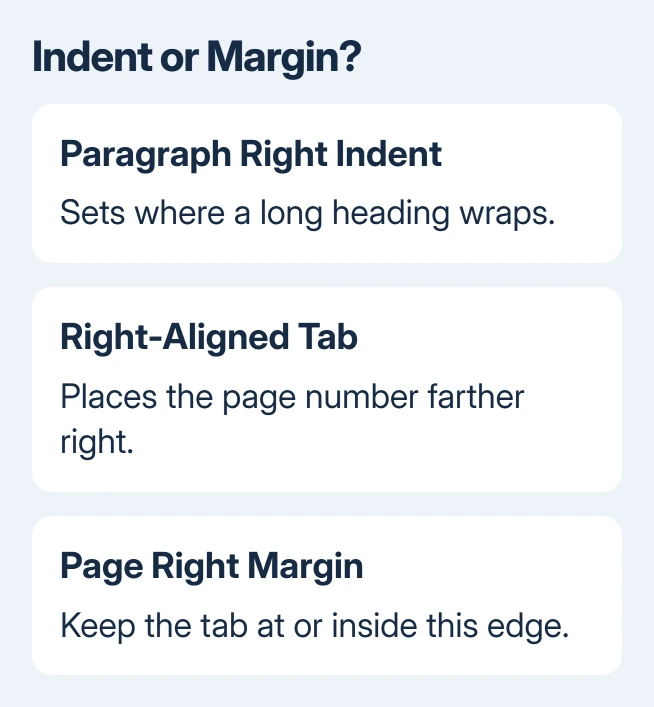
As an example, a text area 6.5 inches wide with a 0.5-inch right indent wraps ordinary text at 6 inches. A right tab at 6.5 inches places the number at the margin. These are example measurements, so use your document's actual text width.
Check whether your tab sits outside the indent or outside the margin. If it crosses the margin, go to the legacy-file section. Otherwise, enter its position in the Tabs dialog next.
2. Enter the right tab through the Tabs dialog
With the affected paragraph selected, open Home > Paragraph dialog launcher > Tabs. Type the required distance in Tab stop position, choose Right under Alignment, select a leader if needed, and click Set, then OK.
Microsoft's tab-stop instructions give this dialog route. A leader supplies the repeated dots between an entry and its number; it isn't necessary for right alignment itself.
For a manually typed entry, put one tab character between the heading and page number. Don't fill the gap with spaces.
The right-aligned tab positions the number's right edge, so a one-digit and a three-digit number can end at the same place.
Try a long heading that runs onto a continuation line. The text should wrap at the paragraph's right indent, while the number ends at the tab position. If nothing moves, reopen Tabs and confirm the stop was added to the selected paragraph.
I'd try this dialog before changing the document format. The original Windows discussion explains that the ruler can refuse to add a stop even when Word can use it in the layout.
If Tab changes a bullet's level or fails to change it, that's another behavior. Use the bullet indentation checks for list levels rather than removing a tab that your contents layout needs.
3. Update an old Word 2013 installation
An early Word 2013 installation can still fail after the numeric stop is set. The original right-tab discussion points to a June 2013 cumulative update and later confirms the intended Windows behavior in updated Word 2013 and Word 2016.
In a Click-to-Run installation, open File > Account > Update Options > Update Now. Select Enable Updates first if shown. Save open Office work, wait for installation to finish, then reopen the document.
If Update Options isn't present, ask whoever manages that Office installation to check its update method. Older installer-based editions use a different update route.
A missing update menu doesn't mean your tab position is wrong.
Test the same paragraph again after updating, keeping both measurements unchanged. Keeping those values the same lets you see whether the update fixed it.
Word 2013 is an old unsupported product. For a machine still relying on it, arrange a supported Office replacement with IT rather than downloading an unverified copy of a historical patch.
4. Keep automatic contents entries separate from manual text
A manually typed contents entry is an ordinary paragraph. An automatically generated table of contents is built from document headings, so a later update can replace edits made directly inside its entries.
Check whether the failure returns only after updating the contents. If it does, note the entry's paragraph style and the tab value that disappears.
Ask the template's author to correct that contents style rather than repeatedly inserting returns into generated text.
For ordinary paragraphs, the whole-paragraph indent settings explain Left and Right separately from first-line and hanging formats. Adjust the wrapping edge there; adjust the page number's position in Tabs.
After a correction, compare a short heading with a long one. Both numbers should share a right edge, and the long heading should still wrap naturally. Reopen the saved copy to check the layout once more before sharing it.
5. Use legacy compatibility only for the older layout
One owner in the discussion confirmed that saving as Word 97-2003 Document (.doc) restored their old tab behavior. That helped with the older layout, especially with tabs beyond the right margin that the newer layout no longer allows.
Keep the original .docx and use File > Save As to make a separate .doc copy. Review any compatibility warning and inspect the resulting pages.
Switching to an old format can change features, so don't replace the working original just to compare a tab.
If the legacy copy works but the modern copy doesn't, give the template author both files and the exact measurements. That points to Word's layout handling, rather than a missing Tab key or a number with the wrong alignment.
On Mac, the tab dialog opens through Format > Tabs. The historical Windows answer doesn't confirm the same beyond-indent behavior on Mac.
Browser Word recognizes tabs already in the file, but setting them requires the desktop application.
Get help with a paragraph that still won't align
For a managed template, send its author a short entry without private data, the margins, Right indent, tab measurement, file format and Word version. Say whether the Tabs dialog works and whether updating the contents changes it again.
For a current supported Word edition, use Help > Contact Support if available, or request a case through the administrator handling your Microsoft 365 subscription.
Request a check of right-aligned tabs outside the paragraph indent, making clear whether the stop is still inside the page margin.
The Short Version
Set the right-aligned stop numerically in Tabs and keep it within the right margin. Update an old Word 2013 installation if it still fails. A separate .doc copy can preserve legacy behavior, but keep the original and inspect its layout.
Checked November 16, 2026.