
You press the side button to open Control Center, hold it a half second too long, and the Emergency SOS screen fills the watch instead.
Control Center moved to the side button back in watchOS 10, and it wants a quick press and release. The old way in, swiping up from the watch face, now opens the Smart Stack.
If your press keeps missing, one accessibility setting widens the window the watch accepts.
If you are still swiping up from the watch face
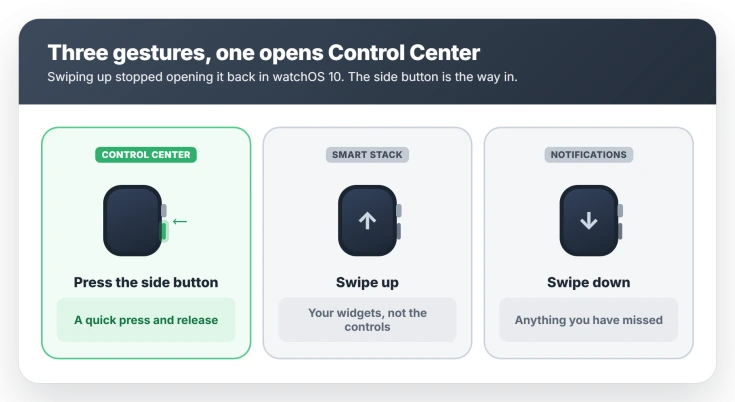
Press the side button, the flat oval one under the Digital Crown, then let go.
That is the documented way to open Control Center now.
To close it, press the side button again or just turn your wrist away.
If you are already pressing that button and getting the emergency screen, your press is landing too long.
Swiping up from the watch face does something else now. It opens the Smart Stack, your Live Activities and widgets. Turning the Digital Crown upward opens that same stack.
Swiping down from the watch face still shows your notifications.
If you keep getting Emergency SOS instead
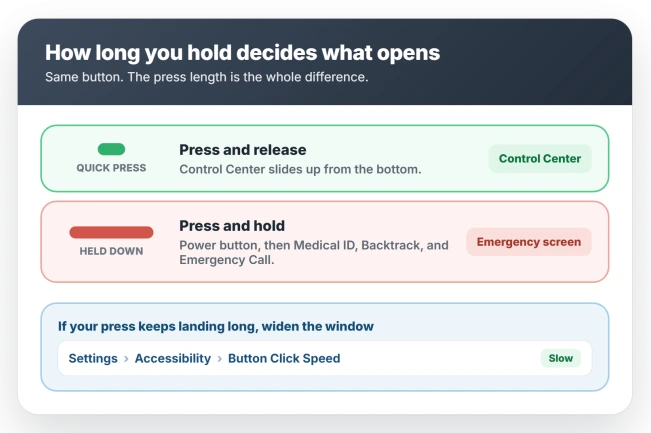
The side button does two jobs, and the only difference is how long you hold it. A quick press and release opens Control Center.
Hold it down and the emergency screen takes over: a power button icon, then sliders for Medical ID, Compass Backtrack, and Emergency Call.
Keep holding past that and the watch sounds a warning, runs a countdown, and calls emergency services. If you start that by accident, just release the side button.
Letting go is the entire cancellation, and the warning sound plays even in Silent Mode.
If the call has already connected, do not hang up. Stay on the line and tell the responder you are safe and do not need help. Hanging up on a live emergency call tends to bring a callback and a dispatch.
You can also take the hold gesture out of play entirely. On the watch, open Settings, tap SOS, then Hold Side Button, and turn it off.
The Emergency Call slider still works, so you keep the feature and drop the accidental dial.
Widen the press window: Button Click Speed
On the watch, open Settings, tap Accessibility, then Button Click Speed, and choose Slow or Slowest. Older watchOS versions labeled it Side Button Click Speed, so that is what most forum answers call it.
Apple does not publish the timings.
Apple Support Community regulars put Slow and Slowest at roughly one and two seconds against a much shorter default, which is enough to stop a press that runs long from registering as a hold.
It is not free. A slower click speed adds a beat to every press, so Control Center opens a little less briskly and an Apple Pay double click feels sluggish.
For a press that keeps landing long, that trade is usually worth making.
If it opens but a control you use is missing
Water Lock stopped showing up in the default Control Center layout in watchOS 26.
People hit this from the beta through release day, though Apple's own Control Center page still lists Water Lock among the default controls, so the documentation has not caught up.
Either way, the control still exists, it just may not be there out of the box.
Add it back: open Control Center, scroll to the bottom, tap Edit, tap the plus tile at the end of the grid, pick Water Lock from the Settings group, tap the close button, then scroll down and tap Done.
The same Edit screen rearranges things. Touch and hold a control and drag it, or tap the delete badge in its corner to remove one.
If the layout is a mess, reset it. On the watch, open Settings, tap Control Center, then Reset Control Center Layout. That rebuilds the list from defaults in a few seconds.
Resetting drops back to the watchOS 26 defaults, so any control you added by hand, Water Lock included, has to go back in.
If the icons vanished from your watch face and not from Control Center, that is a complications problem.
If the buttons are there but blank
Sometimes Control Center opens to a grid of empty capsules. The symbols and their labels both fail to draw, though the buttons underneath still work, so tapping where a control should be triggers it.
Force the watch to redraw Control Center. Open Settings, tap Battery, turn on Low Power Mode and confirm, then press the side button and check. The labels usually redraw on the first try.
Return to Settings, Battery and turn Low Power Mode off.
Expect to redo it after every restart. The redraw does not survive one.
Low Power Mode does more than dim a few things.
It turns off the Always On display and background heart rate readings, pauses heart rate notifications, and can delay other alerts, which is worth knowing if you are already fighting watch battery drain.
You are switching it straight back off, so the window is short.
The other option people report is a language swap, done from the iPhone rather than the watch.
Open the Apple Watch app, tap My Watch, General, then Language and Region, switch to another language, then switch back. The watch restarts and takes a few minutes, so it has not hung.
Note where the menus sit before you switch, since the watch will briefly be in a language you may not read. Nobody has confirmed whether this one survives a restart either.
On the history: this is not new to watchOS 26. The same blank grid was reported on watchOS 7 back in 2020, and it resurfaced in the watchOS 26 beta in August 2025.
Reports thin out sharply after the public release, so it is uncommon rather than something every watch does. Apple has never acknowledged it and no release note mentions a fix.
Status: on watchOS 26, Control Center opens with a quick press of the side button, not a swipe up. Holding it opens Emergency SOS. Button Click Speed set to Slow or Slowest fixes a long press.
When Control Center still will not open
- Force restart the watch. Hold the side button and the Digital Crown together for at least 10 seconds, until the Apple logo appears. Skip this if an update is installing, and take the watch off the charger first, since it will not restart while charging.
- Update watchOS. In the iPhone Apple Watch app, tap My Watch, General, then Software Update.
- Skip Reset Sync Data. It turns up in a lot of lists, but it only erases and re-syncs contacts and calendar data, which has nothing to do with Control Center drawing.
- Unpairing is a last resort. It works because it rebuilds everything, but it costs an hour of backup and restore, and a restore can carry the same state back with it.
How do I open Control Center on Apple Watch?
Press the side button, the flat oval button below the Digital Crown, with a quick press and release. Control Center slides up from the bottom.
To close it again, turn your wrist away from you or press the side button a second time.
Why does my Apple Watch show Emergency SOS instead of Control Center?
You are holding the side button rather than pressing it. A hold is the emergency gesture, a quick press is Control Center.
In Settings, Accessibility, set Button Click Speed to Slow or Slowest. That widens the window, so a press that runs slightly long still counts as a click rather than a hold.
Older watchOS versions call the same setting Side Button Click Speed.
Where did Water Lock go in watchOS 26?
Apple removed it from the default Control Center layout. Add it back through Control Center, Edit, the add button, then Water Lock.
Why are my Apple Watch Control Center icons blank?
The icons and labels failed to render, which leaves empty capsules that still respond to taps. Turning Low Power Mode on and back off in Settings, Battery forces Control Center to redraw.
It came out of the watchOS 26 beta period and is uncommon on shipping releases, and the redraw has to be repeated after each restart.
The Short Version
- Control Center opens with the side button, not a swipe up. Swiping up from the watch face opens the Smart Stack now.
- Holding the side button opens Emergency SOS instead. Use a quick press and release.
- If your press keeps missing, set Settings, Accessibility, Button Click Speed to Slow or Slowest. It costs a little speed on every press.
- Water Lock is gone from the default layout in watchOS 26. Re-add it in Control Center, Edit, add button.
- Blank buttons are a rendering fault, mostly from the beta period. Toggle Low Power Mode on and off to force a redraw, and expect to redo it after a restart.
Where to Next
- Watch face icons gone instead: Apple Watch complications missing
- The watch draining after an update: Apple Watch battery draining fast
- Notifications piling up and not clearing: Apple Watch notifications will not clear

Isaac Smith is the founder and editor of PC Glance, a website that covers computers, laptops, and technology. He is a tech enthusiast and a computer geek who loves to share his insights and help his readers make smart choices when buying tech gadgets or laptops. He is always curious and updated about the latest tech trends.