
You have been through Settings looking for a keyboard size slider and you have not found one. That is not you missing it. iOS does not have one.
Apple documents no setting that makes the keys bigger on their own, which is why this search leads nowhere.
What does enlarge them is magnification, and there are a few routes to it. Apple does not join them up anywhere, so let me take you through them.
If it shrank suddenly and slid to one side
Deal with this first, because no display setting will undo it and people spend a long time in the wrong menu.
iOS has a one-handed layout that pushes the keys into a narrower block against the left or right edge. Apple describes it as a way to "move the keys closer to your thumb".
It takes two actions, not one. You touch and hold the emoji key or the switch-keyboard key, a small menu opens, and then you tap one of the side layouts along the bottom of it.
A thumb that rests on that key and then lands on one of those buttons does it without you noticing.
Apple gives two ways back, and the second is easier than the one most pages print:
- Open that same menu again and tap the default layout button, which sits between the left-handed and right-handed ones.
- Or tap the empty strip of screen beside the narrowed keys. Apple's wording is to "tap the right or left edge of the keyboard". If that keeps hitting the app behind it instead, use the menu.
That pattern, a narrow keyboard hard against one edge with everything else on screen looking normal, is the one-handed layout.
Turn the phone sideways for a wider one
Apple's own tip, on its accessibility keyboard settings page, costs you nothing permanent:
> "Rotate iPhone to landscape orientation to use a larger keyboard for typing in many apps, including Mail, Messages, Notes, and Safari."
That gives you a properly wider keyboard with more space between the keys, instantly, and it changes nothing about how your phone looks the rest of the time.
Apple says "many apps", not all, so an app built only for portrait will ignore it.
If nothing rotates, check the rotation lock, and note Apple's condition carefully.
Swipe down from the top-right corner to bring up Control Center, then tap the Lock Rotation button only if it is red.
Tapping it when it is already off switches the lock on and leaves you worse off than before.
The two magnifiers, and why the difference matters
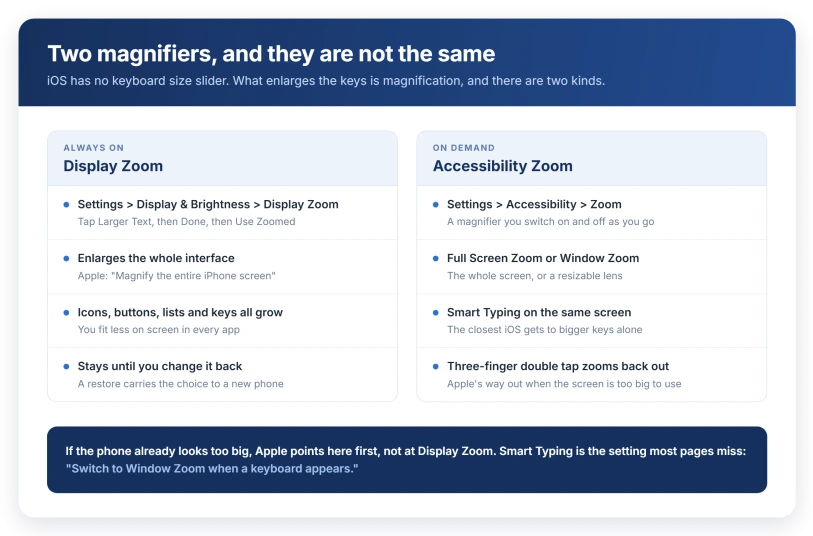
Both of these enlarge the keys. They are not interchangeable, and the second one rarely gets named.
Display Zoom is permanent and applies to everything.
Open Settings, tap Display & Brightness, tap Display Zoom, tap Larger Text, tap Done in the upper right, then tap Use Zoomed.
On iOS 27, Display Zoom moved. Apple's iOS 27 display guide gives the new route: tap Appearance, tap Display Zoom, then tap Larger Text, and confirm with Use Zoomed.
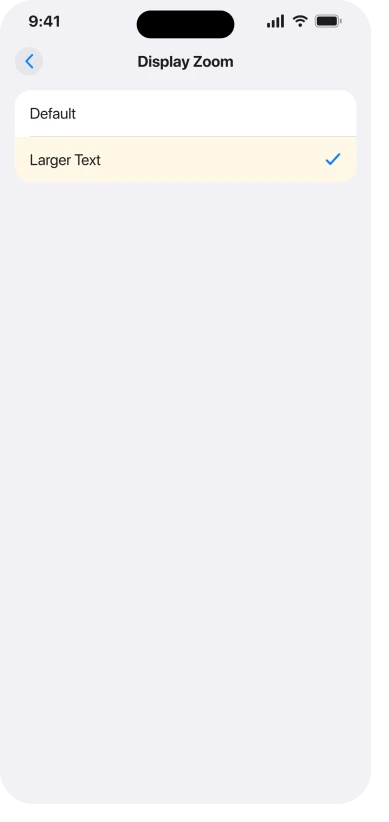
Apple's heading for that procedure is "Magnify the entire iPhone screen", and that is exactly what it does: icons, buttons, lists and the keyboard all grow together, and you fit less on screen.
To undo it, walk the same route and pick the other option, which the phone labels Default.
Accessibility Zoom is a magnifier you switch on and off as you go. Open Settings, tap Accessibility, tap Zoom, and turn on Zoom.
Apple's description is that you can "magnify the entire screen (Full Screen Zoom) or magnify only part of the screen with a resizable lens (Window Zoom)".
One setting on that screen matters here. It is Smart Typing, which Apple defines as "Switch to Window Zoom when a keyboard appears".
That is magnification that behaves itself around the keyboard specifically, which is the closest thing iOS has to enlarging the keys alone.
So: Display Zoom if you want everything bigger all the time, Accessibility Zoom with Smart Typing if you want help only while typing.
If everything went too big, this is the more likely cause
The complaint runs in both directions, and the answer for "too big" is not the setting most pages name.
Apple has a page for exactly this, If your Home Screen icons are magnified, and it points at Accessibility Zoom rather than Display Zoom: "If the icons on your Home Screen appear too large or are magnified to fit the screen, your device may have the Zoom feature turned on."
Apple's fix, including the part for when the screen is too magnified to navigate:
- Double tap with three fingers on the display to zoom out.
- Then open Settings, tap Accessibility, tap Zoom, and turn Zoom off.
If Zoom was already off, check Display Zoom instead. A restore or a new-phone setup carries over whatever the old phone had, which is how people end up on a setting they never chose in either direction.
Text Size and Bold Text change the letters, not the keys
These two get recommended constantly for this problem, and they do something different.
- Settings > Display & Brightness > Text Size, then drag the slider. This resizes text throughout iOS, including the letters printed on the keys. The keys stay the same size.
- Settings > Display & Brightness > Bold Text. This thickens the characters, which helps if reading the keys is the problem rather than hitting them.
On iOS 27 both sit under Settings > Appearance instead, as Text Size and Bold Text, per Apple's iOS 27 display guide.
For more range, Apple's route is Settings > Accessibility > Display & Text Size > Larger Text, where turning on Larger Accessibility Sizes extends the slider past what Display & Brightness offers.
That is a different Larger Text from the Display Zoom option higher up. Same two words, different screen, different job.
On iOS 27, if the Text Size control in Control Center stopped offering a size for just one app, the per-app text size page covers that fault.
The same Accessibility screen also holds the controls covered in our guide to turning down iOS 26 animations, including one that calms flashing on the keyboard itself.
There is also a Text Size control you can add to Control Center, which changes text size for the app you are in rather than system-wide.
If reading what you type is the real problem
A control almost nobody mentions, and it lands exactly in this gap.
Go to Settings > Accessibility > Hover Text and turn on Hover Typing.
Apple: "As you type in a text entry field, a larger version of what you're typing is displayed." It has its own size options, and Apple notes "you don't need to connect a pointing device to use Hover Typing".
That does not enlarge the keys, but if the trouble is seeing what has landed in the box, it beats Text Size for the job.
Or skip the keys entirely
If the keys are simply too small to hit accurately, the most direct answer is not to type at all. Apple flags this at the top of its own onscreen keyboard page.
Turn it on at Settings > General > Keyboard > Enable Dictation, then tap the microphone key on the keyboard and talk. It is free and you can stop using it whenever you like.
One catch on the way in: Apple's own step says to tap Enable Dictation again if a prompt appears, and dismissing that prompt leaves the switch reading as on while nothing works.
If the microphone key never turns up, our guide to iPhone dictation not working covers the rest.
The uppercase trick
Go to Settings > Accessibility > Keyboards & Typing and turn off Show Lowercase Keys.
Apple's reasoning: "If it's easier to read uppercase letters, you can set an option so the onscreen keyboard doesn't display lowercase letters."
The keys stay the same size, but the letters become uniformly capital, which some people find much easier to pick out.
If landscape will not work and Display Zoom is too much
Some people end up with neither. The app is portrait only, and magnifying the whole interface costs more than the keyboard gains.
At that point a third-party keyboard is a real answer rather than a last resort, because some of them draw larger keys inside a normally sized phone.
Add one at Settings > General > Keyboard > Keyboards > Add New Keyboard, then switch to it with the Switch Keyboard key.
That is the same Settings screen that has no size control of its own, being used for a different job.
Two costs to know first.
A third-party keyboard is the first thing to remove when typing goes laggy, which our guide to iPhone keyboard lag and dropped letters covers.
And granting Full Access asks for permissions the built-in keyboard never does.
If none of it lands, say it to Apple in those words: a portrait-only app, Display Zoom too much to live with, and keys still too small for you.
If the keys are the right size but you keep hitting the wrong one
Different problem, different answers.
If the keyboard looks fine and your typing still goes wrong, our guide to autocorrect changing words you spelled correctly covers the corrections, and our keyboard lag guide covers dropped and delayed characters.
If the letters wash out against whatever is behind them, the keyboard is not what is wrong, the iOS 26 glass is.
Our Liquid Glass guide has Reduce Transparency and Increase Contrast, which are heavier levers than Bold Text.
What does not help
- Hunting for a size slider in Settings > General > Keyboard. That screen manages which keyboards you have and how you switch between them. No size control, and neither has the Accessibility keyboard screen.
- Text Size alone, when the problem is mistyping. It resizes the letters on the keys, not the keys.
- Deleting and re-adding the keyboard. There is no size stored to reset.
- Reaching for Display Zoom when the keyboard is squashed against one edge. That is the one-handed layout, and the fix is in the keyboard menu.
- Installing a third-party keyboard first. Landscape, Zoom and dictation are built in and reversible in seconds, so try them before installing anything.
Status: current for iOS 26.6. No control that sizes the keyboard on its own appears on Apple pages for display, keyboard, accessibility keyboard or onscreen keyboard. Recheck at the next release. Updated 25 September 2026: on iOS 27 these settings sit under Settings, Appearance.
How do I make my iPhone keyboard bigger?
Rotate the phone to landscape for an instantly wider keyboard, which Apple says works in many apps including Mail, Messages, Notes and Safari. For something permanent, Settings, Display & Brightness, Display Zoom, Larger Text magnifies the whole interface and the keyboard with it. For magnification only while typing, turn on Settings, Accessibility, Zoom and enable Smart Typing.
Why is my iPhone keyboard suddenly so small?
If it also sits against one edge with a gap beside it, you have switched on the one-handed layout, which happens when a thumb holds the Switch Keyboard key and then taps a side layout. The way back is the default layout button in that same menu, or a tap on the empty strip beside the keys.
If it is still full width but everything on screen looks smaller, check Settings, Display & Brightness, Display Zoom, which a restore may have carried over from your old phone.
Why does everything on my iPhone look too big?
Apple's own answer is Accessibility Zoom rather than Display Zoom. Its page on magnified Home Screen icons says the Zoom feature is probably turned on, and tells you to double tap with three fingers to zoom out, then go to Settings, Accessibility, Zoom and switch it off. Check Display Zoom afterwards if that was not the cause.
Does Text Size change the keyboard?
It changes the letters on the keys, not the keys themselves, which is why it disappoints people who are mistyping. Use Text Size and Bold Text when the keys are hard to read, and landscape, Display Zoom or Accessibility Zoom when they are hard to hit accurately. Hover Typing enlarges what you have typed rather than the keys.
The Short Version
- No setting sizes the keyboard on its own. What enlarges the keys is magnification.
- Shrank and sits against one edge? That is the one-handed layout, from holding the Switch Keyboard key and then tapping a side. Reopen that menu and tap the default layout button.
- Fastest wider keyboard: rotate to landscape. If nothing rotates, tap the Lock Rotation button in Control Center only if it is red.
- Permanent: Settings > Display & Brightness > Display Zoom > Larger Text, then Done and Use Zoomed. Everything grows and you fit less on screen.
- Only while typing: Settings > Accessibility > Zoom, then Smart Typing, which switches to a lens when a keyboard appears.
- Everything too big? Apple points at Accessibility Zoom first. Three-finger double tap to zoom out, then switch Zoom off.
- Text Size and Bold Text change the letters, not the keys. Hover Typing enlarges what you type. Dictation skips the keyboard entirely.
Where to Next
There is no keyboard size slider, so stop hunting for one. What makes the keys bigger is magnification, and there are several routes depending on how much bigger you need them.
Try landscape first, because it costs nothing and it is often enough.
If none of the routes gives you what you need, tell me which iPhone you have and how you hold it, and I will suggest the one I would pick.

Isaac Smith is the founder and editor of PC Glance, a website that covers computers, laptops, and technology. He is a tech enthusiast and a computer geek who loves to share his insights and help his readers make smart choices when buying tech gadgets or laptops. He is always curious and updated about the latest tech trends.