

You open Mission Control on macOS 27 and click the Desktop at the top. Nothing happens. Or it drops you straight back into the full-screen app you just left.
When your work lives across several desktops, that stops you cold. There is no need to reinstall macOS. I tried to find a fix that sticks, and the reinstall was not it.
I start with what still works, then the quick reset owners use after every wake, and I finish with the big fixes that did not hold.
What is going on
This is a macOS 27 fault. It is a widespread one, too. The main community thread on it has 302 people saying Me too.
The person who started it found what you are likely seeing: clicking "the Desktop space does nothing". Clicking another open app, "it glitches out really badly".
A later owner pinned down the jump: "clicking on the Desktop space doesn't actually switch to it. Instead, it just takes me back to the full-screen app's Space".
Your version may be the numbered shortcuts instead. One owner found "Ctrl right and left arrow works fine, it is just the Ctrl+ number shortcuts that fail".
The pattern for you to know is sleep. The same owner wrote: "After a restart all works fine but if the Mac goes to sleep then it stops working".
It does not hit every Mac. A Level 10 adviser wrote: "I haven't noticed any differences in mission control, but I don't use full screen." My reading, and it is ours: full-screen apps are where it bites.
Status: macOS 27.0, checked 25 September 2026. Not fixed by Apple, and Apple has not commented. Adding and deleting a desktop brings the Desktop click and the shortcuts back until the next sleep. Safe mode, a new user account and a reinstall did not hold for the owners who tried them.
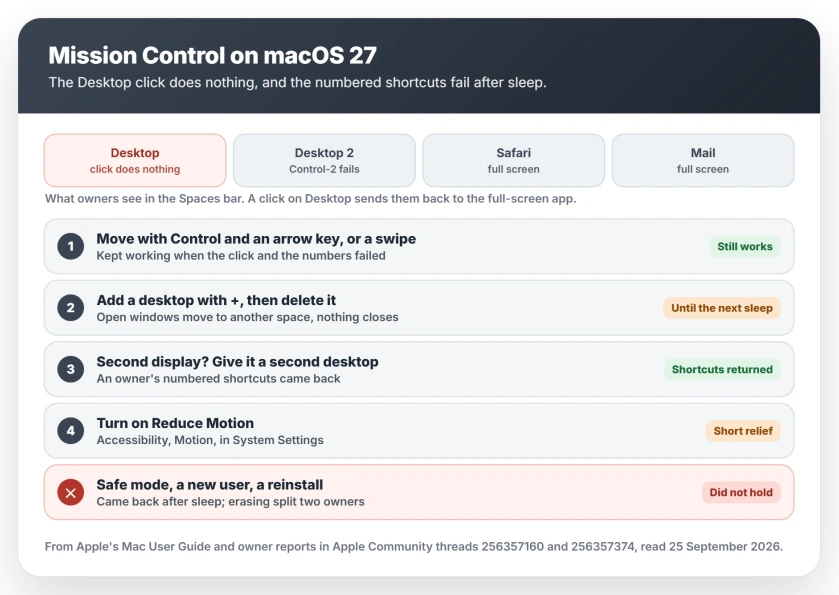
1. Move with the arrow keys or a swipe
This is the route that kept working in the thread. Apple's Spaces guide lists it: "Press the Control key and the Right or Left arrow key."
On a trackpad, Apple says to "swipe left or right with three or four fingers". On a Magic Mouse, it is a two-finger swipe.
It is slower than jumping to a numbered desktop. But it gets you there when the click and the numbers fail.
2. Add a desktop, then delete it
This is the reset. One owner put it in one line: "add a new desktop space using the +icon, and then delete it".
To open Mission Control, Apple says to "press the Mission Control key or press Control-Up Arrow". Click the + button in the Spaces bar along the top.
Now hold the pointer over the new desktop and click the X that appears. Nothing you had open closes. Apple's note: "If the space contains open windows, they are moved to another space".
It does not last, though. Another owner wrote: "Creating a new desktop, and destroying it again. Afterwards, the shortcuts work, until I wake my computer from sleep".
So make it a habit each time you wake the Mac. It takes a few seconds.
One owner went further and "deleted all of my desktops and recreated them and all is well". Their update was blunt: "My keyboard shortcuts continued to work for about 30 minutes, now gone again". I would stick with the one-desktop reset.
3. Give a second display a second desktop
Use an external display? Then this one is for you. An owner who lost the numbered shortcuts found: "If I add more workspaces to the secondary display, the shortcuts start working again."
A Level 3 member gave the same advice: "make sure each display has more than one Space as well".
This applies when each display keeps its own desktops, which is Apple's "Displays have separate Spaces" option under Mission Control in System Settings, Desktop & Dock. In Apple's words, it sets up "separate spaces for each display".
With it on, add the extra desktop from the second display's own Spaces bar, as in step 2.
4. Turn on Reduce Motion
One owner turned on Reduce Motion and said it "temporary cured" the glitch. That is a short reprieve, not a fix. But it is easy for you to try.
Apple's route: "choose Apple menu > System Settings, click Accessibility in the sidebar, then click Motion on the right". Then turn on Reduce motion.
Apple says the setting changes screen movement, including when you "switch between desktops".
One catch. If your wallpaper then goes black as you switch desktops, a different fault causes that. The black wallpaper fix turns Reduce Motion back off.
5. If it freezes for a second instead
A second thread, with 93 Me too, describes a different version: Mission Control pauses for about a second as you switch desktops, and there is "no transition animation".
Safe mode did not help there. The owner who started it wrote: "I have already tested Safe Mode and a new user account, but unfortunately the issue persists".
If you were about to clear your widgets, that did not help either. One owner reported: "Even with zero widgets it happens".
What did help one owner: "Normally restarting finder helps but sometimes a full restart is needed". Choose Force Quit from the Apple menu. Then, in Apple's steps, "Select Finder in the Force Quit window, then click Relaunch."
What did not hold: safe mode, a new user, a reinstall
Two advisers suggested safe mode first, and you may have tried it already. It did not hold. In safe mode, on a new user account, one owner's "keyboard shortcuts still don't work after the Mac has been woken from sleep".
A reinstall is the next thing you might reach for. It looked like the answer for one owner at first: "Mission Impossible(27) problems gone". The next day it was back: "All worked as long as Mac didn't go to sleep, once she woke up, it was all over to square 1".
Erasing the Mac split two owners. One "freshly reinstalled a clean os27 without restoring anything" and still had the fault.
The other "erased the disk, reinstalled macOS, and set up the Mac as new without restoring the old profile". For them, "The screen flashing, dock glitches, failed Space selection, and lockups when accessing Mission Control are now gone."
One for and one against, after hours of work each. I would not erase your Mac for this. Use the reset in step 2 and wait for Apple's fix.
Send it to Apple
Owners in the forum cannot patch macOS. Apple can, so file the bug on the macOS feedback page. Say whether you use full-screen apps or a second display, and that it breaks after sleep.
If your Magic Mouse also went dead after the update, that is a separate macOS 27 fault with its own workaround.
And if Proofread in Writing Tools stopped catching mistakes, the Writing Tools fix starts with one Siri switch.
Why is Mission Control not working on macOS 27?
A fault in macOS 27.0 breaks it. Clicking the Desktop in Mission Control can do nothing or return you to a full-screen app, and the Control and number shortcuts can stop switching desktops. Owners report it returning after every wake from sleep.
How do I fix Mission Control on macOS 27?
Open Mission Control, add a desktop with the + button, then delete it, and owners say the Desktop click and shortcuts work again until the next sleep. Control and an arrow key kept working for one owner when the numbered shortcuts failed.
Why do my desktop shortcuts stop working after sleep?
Owners in Apple's forum see what you see: a restart or the add-and-delete reset brings the shortcuts back, and waking from sleep breaks them again. Apple has not explained it yet.
Will reinstalling macOS fix Mission Control?
Not reliably. One owner's reinstall worked until the Mac slept. A clean install without restoring anything failed for another owner, and erasing and setting up as new worked for a third.
The Short Version
- macOS 27 can break the Desktop click and the numbered desktop shortcuts in Mission Control.
- It tends to break again after each wake from sleep.
- Control and an arrow key, or a swipe, still moves between desktops.
- Add a desktop and delete it after you wake the Mac.
- On a second display, give it more than one desktop.
- Safe mode, a new user and a reinstall did not hold for owners.
Where to Next
Step 2 is the one to learn by heart until Apple ships a fix, and I will add that fix here the day it lands.
Did the reset work for you, and did it survive a sleep? Drop your Mac model in the comments, and whether you use a second display. That detail helps the next reader.

Isaac Smith is the founder and editor of PC Glance, a website that covers computers, laptops, and technology. He is a tech enthusiast and a computer geek who loves to share his insights and help his readers make smart choices when buying tech gadgets or laptops. He is always curious and updated about the latest tech trends.