
You open Mail on your Mac and the Yahoo account has a little warning triangle next to it. Gmail and iCloud still work. Hover over the triangle and it says Unable to connect to service ("null").
Losing an email account after an update is worrying, especially when deleting and re-adding it changes nothing. One owner spent four days on it, including two days with Apple Support.
I will show you the workaround that got their Mail back, and be clear about the part that still does not work.
Who has it
Seventy owners have pressed Me too in the forum thread so far. The first owner's Yahoo account went offline after a macOS Tahoe update, while "it works in mail on my iphone".
Another owner gets a similar server error on an M4 Mac mini, while the same Yahoo account works on their M1 MacBook. Both run macOS Sequoia 15.7. So it is not only Tahoe.
So your Yahoo account itself is probably fine. What fails is how the Mac connects to Yahoo.
For the Tahoe case, a Level 9 volunteer explained why, and it is their explanation, not Apple's. The macOS sign-in step cannot read Yahoo's sign-in page, so the Yahoo login never completes.
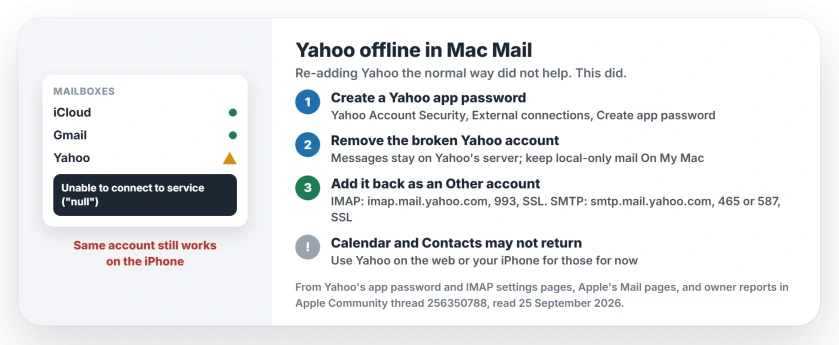
Status: macOS Tahoe 26.6.2 and Sequoia 15.7, checked 25 September 2026. No fix from Apple yet. Adding Yahoo by hand, with an app password, brought Mail back for the first owner.
What did not work
Owners report trying the obvious things first. Try them too, but do not expect much.
The first owner deleted Yahoo from Internet Accounts and added it back. They created an app password. They spent two days with Apple Support.
None of it cleared the triangle. When volunteers posted suggestions, the owner replied that none of them had helped.
1. Create a Yahoo app password
The workaround skips the Yahoo sign-in window completely, so Mail needs a special password instead of your normal one.
Yahoo's help page gives the steps. "Sign in to your Yahoo Account Security page", then under External connections click Create app password. Name it, for example Mac Mail, and click Generate password.
Keep that code open in a window. Yahoo says it is for signing in once: "Use the one-time password to log in to your 3rd party app".
2. Remove the broken Yahoo account
Before you remove anything, check for mail that only lives on your Mac. Apple says that when you remove an account, "the account's messages are removed from your Mac", but copies stay on Yahoo's server.
Mailboxes under On My Mac are stored on the Mac itself. Anything you are unsure about, drag into one of those first.
Then open Apple menu, System Settings, Internet Accounts, select the Yahoo account, and remove it from your Mac.
3. Add Yahoo back as an Other account
Now add it the long way. In Mail, choose Mail, Add Account, then click "choose from a list" instead of typing your address straight in.
Do not pick yahoo! from the list. That is the sign-in that fails.
Instead, pick Other, at the end of the providers list. Apple's page on email providers says you then "follow the onscreen steps to manually set up your account".
Enter your name, your full Yahoo address and the app password. When Mail asks for server details, use the ones from Yahoo's IMAP settings page:
- Account type: IMAP
- Incoming mail server: imap.mail.yahoo.com, port 993, SSL on
- Outgoing mail server: smtp.mail.yahoo.com, port 465 or 587, SSL on
- User name: your full Yahoo email address
- Password: the app password from step 1
This is how the first owner got Mail working again. They typed in "Yahoo's server details", and it worked for Mail and Notes.
4. Calendar and Contacts may stay missing
This is the half that did not come back. In the first owner's words, it "only works for mail and notes, not calendar and contacts".
Nobody in the thread has confirmed a fix for those two yet. Until one appears, I would use Yahoo Calendar and Contacts on the web, or through your iPhone, where the account still works.
5. Not a yahoo.com address? It may still be Yahoo
This fault is not only for yahoo.com. Apple's provider list tells you to choose yahoo! for addresses such as @att.net, @sbcglobal.net, @rogers.com and @frontier.com.
So if one of those went offline in Mail at the same time, it is probably the same problem, and the same workaround should apply. That last part is ours, not a tested fix.
6. Tell Apple, and check Private Relay
The volunteer also suggested turning off iCloud Private Relay if problems persist. It is a quick test, and you may want to try it before the manual setup.
Then report it through the macOS feedback page. Mention the exact message, your macOS version, and that Yahoo works on your iPhone.
Other Mail problems on the Mac
If Mail stopped sending from every account after the Tahoe update instead, that is a different bug, and the Mac Mail sending fix covers it.
If your email stopped on a phone after an update, the phone email checks start with the password and the server.
Why does Mac Mail say unable to connect to service null for Yahoo?
The first owner saw it after a macOS Tahoe update, and another on Sequoia. A Level 9 volunteer's explanation is that the Mac's Yahoo sign-in step fails. The same account keeps working on an iPhone.
How do I fix Yahoo Mail offline on my Mac?
Create a Yahoo app password, remove the Yahoo account, then add it back in Mail as an Other account using imap.mail.yahoo.com and smtp.mail.yahoo.com. That brought Mail back for one owner.
Will deleting and re-adding my Yahoo account fix it?
Not if you add it back through the Yahoo sign-in. The first owner did exactly that and the triangle stayed. Adding it as an Other account is what worked.
Do Yahoo Calendar and Contacts work with the workaround?
Not so far. The workaround brought back Mail and Notes only. Use Yahoo on the web or your iPhone for those until there is a fix.
The Short Version
- The triangle and "Unable to connect to service" mean your Mac's Yahoo sign-in failed.
- Re-adding Yahoo the normal way did not help owners.
- Create a Yahoo app password for your Mac.
- Remove the account, then add it back as an Other account with your app password and Yahoo's servers.
- Mail and Notes come back; Calendar and Contacts may not.
- AT&T and SBC Global addresses use Yahoo too.
Where to Next
Create the app password first, since you will need it for every step after.
If the workaround works for you, or if you found a way to get Calendar and Contacts back, leave a comment. I will add it for the next person stuck with that triangle.

Isaac Smith is the founder and editor of PC Glance, a website that covers computers, laptops, and technology. He is a tech enthusiast and a computer geek who loves to share his insights and help his readers make smart choices when buying tech gadgets or laptops. He is always curious and updated about the latest tech trends.