
You marked up a PDF statement in Preview, saved it, and now your Mac asks for an owner password you never set. That is worrying when the file holds your bank details. I would check where the PDF came from first.
One owner on MacRumors traced it to their bank's own protection on macOS 27. Apple's Preview guide explains what an owner password controls.
What the owner found
After saving their notes, the file showed a lock and wanted an owner password to open. In their words: "My login password does not work."
The original download still opened normally, but File, Edit Permissions was grayed out. Then they found the cause: "It looks like my bank just started password protecting their paperless statements starting this month."
So the lock came with the file. Preview simply kept it.
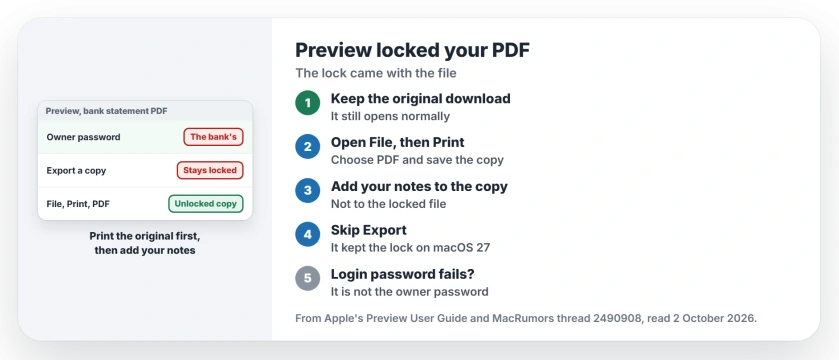
Status: checked 2 October 2026. On macOS 27, Preview kept a bank's owner password when one owner saved and exported a statement. Printing it to PDF made an unlocked copy.
1. Know whose password it is
Apple's guide explains how a PDF gets an owner password. The person who protects the file decides which actions need it, and Apple says they can "allow printing or changes without the owner password".
So the password belongs to whoever made the PDF, here the bank. That is why your Mac login password does not open it.
2. Keep the original download
Do not delete the file you downloaded. It still opens and still shows everything, so it is your safe copy.
If your marked-up version is now locked, you have lost your notes, not the statement. You can redo them on a fresh copy.
3. Print a copy to PDF
This is the step that worked. The owner wrote that when they used Print and chose PDF, "the resulting PDF is saved unlocked and File/Edit Permissions menu is useable".
Open your original download, choose File, then Print, open the PDF menu in the print window, and save the copy as a PDF. It works when the bank allows printing, which this bank did.
4. Add your notes to the printed copy
Order matters for your notes. The owner printed after marking up, and found that "the file cannot then be re-edited to modify the change".
Ours: print the clean original first, then mark up the unlocked copy. That order follows from the owner's test, but without a Mac here we could not try it ourselves.
5. Do not count on Export
Export used to clear the lock for this owner on older macOS. On macOS 27 it does not, and this is user-reported: "Looks like the Export function now preserves the password protection, whereas Print to PDF does not."
So skip Export for your protected statements. Print is the route that gave them a free copy.
If the print window itself fails on macOS 27, the printer page starts with the Rosetta fix. And if a PDF arrives by email from your bank when you did not expect one, the phishing signs page helps you check it first.
Why does Preview ask for an owner password I never set?
The PDF came protected, here by a bank. On macOS 27, one owner found Preview kept that protection when they saved or exported the marked-up file.
How do I unlock a PDF that Preview locked?
Open the original download and print it to PDF. One owner got an unlocked copy that way, with Edit Permissions working again.
Is my Mac password the owner password?
No. Apple's guide shows the owner password is set by whoever protects the PDF, so your login password does not open it.
The Short Version
- The owner password came with the PDF.
- Often it belongs to the bank that sent it.
- Your Mac login password will not open it.
- Keep the original download untouched.
- Use File, Print, PDF to save an unlocked copy.
- Print first, then add your notes.
- Do not rely on Export on macOS 27.
Where to Next
Find the original statement in your Downloads folder and print it to PDF now. Then add your notes to that copy and keep the original as it is.
If Print also keeps the lock on your PDF, tell me which bank or app the file came from in a comment. Those reports shape the next update here.

Isaac Smith is the founder and editor of PC Glance, a website that covers computers, laptops, and technology. He is a tech enthusiast and a computer geek who loves to share his insights and help his readers make smart choices when buying tech gadgets or laptops. He is always curious and updated about the latest tech trends.