

You click Sleep, the screens go dark, and a nudge of the mouse shows your desktop still running. Or the PC simply ignores the sleep timer you set in Settings, hour after hour. It is frustrating, because nothing on screen says why.
I would ask Windows directly. One command lists what is holding your PC awake, and owners fixed theirs with a mouse setting and a clean graphics driver.
Two Microsoft Q&A threads on it carry 100+ and 200+ people with the same problem.
Why Windows stays awake
Programs and drivers can ask Windows to stay on, and Windows listens.
Microsoft says these Power Requests are exactly what blocks sleep: "Power Requests prevent the computer from automatically powering off the display or entering a low-power sleep mode".
A video tab, an audio stream, a sync app or a driver can all hold one. Your sleep settings lose every time. Nothing warns you.
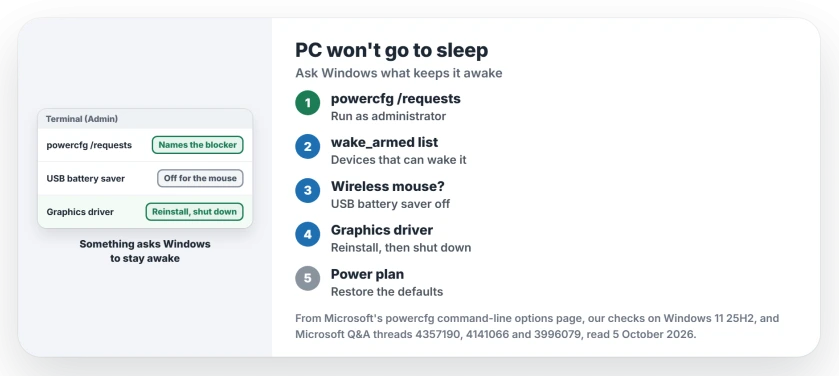
Status: checked 5 October 2026. Owners got sleep back by switching off USB battery saver for a wireless mouse, and by reinstalling the Intel graphics driver after a full shutdown.
1. Ask what is holding it awake
Open Terminal as administrator, then type:
powercfg /requestsOurs: without administrator rights it refuses, so right-click and choose Run as administrator. Anything listed under DISPLAY, SYSTEM or AWAYMODE is keeping your PC up right now, whatever your settings say.
The asker on the 100+ thread did exactly this, then turned services off in System Configuration until sleep worked again. That pointed them at one service. It worked.
2. Check what can wake it
This command needs no administrator rights:
powercfg /devicequery wake_armedOurs: on the PC we checked, it listed six mice and keyboards, which is normal for a desktop with a receiver or two plugged in. A 24H2 owner used it, then switched off waking for devices they did not want with powercfg /devicedisablewake.
3. Wireless mouse? Turn off USB battery saver
One owner found the culprit in a USB setting: "If you have a wireless mouse installed, this was what was causing my problem". Their fix was to "Turn Off USB Battery Saver".
The switch lives in Settings, Bluetooth and devices, USB. Ours: a mouse receiver that never quite sleeps can keep the whole PC awake. Try it first.
4. Reinstall the graphics driver, then shut down fully
The owner of another 100+ thread got sleep back this way. In their words: "Reinstalling the Intel graphics driver with a hard boot works".
Ours: a hard boot means a full shutdown and a cold start, not a restart. Get the driver from your PC maker's support page first, rather than from Windows Update.
5. Try the default power settings
That same asker noticed a pattern before the fix: "if I reset power options to the default, the unit does go to sleep". So a single changed setting deep in a plan can be the whole problem.
In Control Panel, Power Options, open your plan and choose Restore default settings for this plan. Then set your sleep time again.
What I would not do
A 24H2 owner got sleep back by switching off Modern Standby in the registry. Ours: that changes how your laptop sleeps at a hardware level, and not every PC supports the older mode. I would leave it alone.
Disabling Windows Management Instrumentation, as the first asker did to make sleep work, also works against you in the long run. Other parts of Windows rely on that service.
And when it wakes again by itself?
That is the other half of the problem, and devices allowed to wake your PC are usually behind it. The wake_armed list from step 2 is the place to start.
Does sleep differ from turning the screen off?
Yes. The screen can switch off while the PC keeps running. A power request for the display alone keeps it from sleeping, while the screen still goes dark.
Why did it break after an update?
An update can change a driver or bring a new background app. Ours: run powercfg /requests again after every big update, because the list changes with them. If the update itself never finishes, that is a different job.
The Short Version
- Programs and drivers can hold your PC awake with power requests.
- Run powercfg /requests as administrator to name them.
- powercfg /devicequery wake_armed lists what can wake it.
- Wireless mouse? Turn off USB battery saver.
- Reinstall the graphics driver, then shut down fully.
- Restore the default power plan and set sleep again.
Where to Next
Run powercfg /requests the next time your PC refuses to sleep. Whatever it names is your first suspect.
What did the command show on your PC? Paste the line in the comments, because one name often fixes a dozen other readers' PCs.

Isaac Smith is the founder and editor of PC Glance, a website that covers computers, laptops, and technology. He is a tech enthusiast and a computer geek who loves to share his insights and help his readers make smart choices when buying tech gadgets or laptops. He is always curious and updated about the latest tech trends.