

OneDrive says Looking for changes, then Up to date, then Looking for changes again, all day. Each loop costs CPU. On a small laptop the fan never stops, and one owner measured 30 to 50 percent extra CPU from it.
I would look for a program writing into your OneDrive folder before you reset anything. That owner found a script making and deleting a temp file in a synced folder, so OneDrive kept checking and never found a change.
Microsoft Q&A threads on the same loop carry "Same question" counts of 20+ and 10+.
Why the loop never ends
OneDrive reacts when something touches a file in its folders, and the Super User owner's script wrote a temp file, then "deleted it right after". In their words: "It explains why OneDrive started to sync but never found anything".
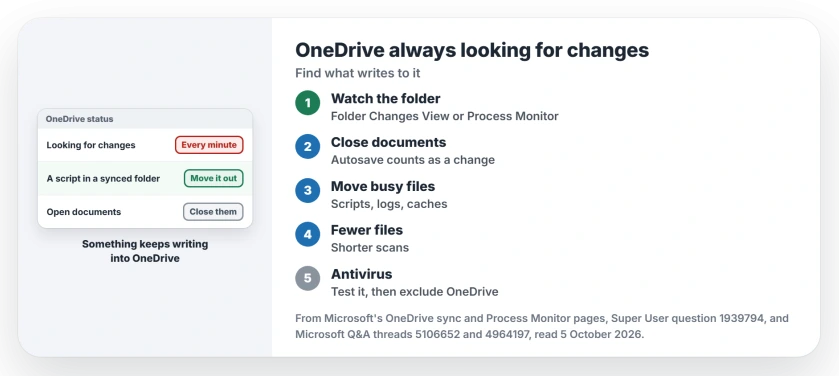
Status: checked 5 October 2026. OneDrive kept looping on Looking for changes with high CPU. One owner found a script writing temp files in a synced folder; another cut the loop with fewer files.
Microsoft's stuck syncing page lists the causes, and two of them are "you have a OneDrive file open" and "you have added a lot of files to your OneDrive". Both showed up in owner reports.
1. Catch the program that writes
The owner used NirSoft's Folder Changes View. It is a free tool that lists changes inside a folder as they happen, and it pointed straight at their script.
Ours: Process Monitor, from Microsoft, does the same. Microsoft says it shows "real-time file system, Registry and process/thread activity".
Add a filter for Path begins with your OneDrive folder, then read the Process Name column for a few minutes while the loop happens. A program that keeps appearing is your suspect.
2. Close documents you are not editing
A member on the same thread warned that "an open Word or Writer document may be saved every few minutes, even if you're not editing it". Microsoft's advice for an open file is short: "Close the file once you finish editing".
Close everything that sits in OneDrive. Wait a few minutes and watch the icon. If the loop stops, you found the cause.
3. Move the busy files out of OneDrive
If the writer is a script, a log or an app cache, move it or point its temp folder somewhere outside OneDrive. Ours: OneDrive has no reason to back up files that live for one second.
A member's test on the same thread works too: stop syncing your folders, sync an empty one, and add folders back one at a time. The loop returns with the folder that holds the writer.
4. Fewer files means shorter loops
A Microsoft Q&A owner with about 65,000 files saw each scan take more than 5 minutes. They wrote: "I pulled about 30,000 files off of the OD in the last hour". After that, each scan took about 45 seconds.
Ours: I would archive old project folders or move them to a drive outside OneDrive. Microsoft's stuck syncing page also suggests choosing not to sync folders with very large files.
5. Check your antivirus while it scans
The same owner saw a Trend Micro service, Unauthorized Change Prevention Service, spike every time OneDrive scanned. They wrote: "so I disabled the service and re-tested".
With that service off and fewer files, each scan took 15 to 30 seconds. Ours: turn such a feature off only to test, then ask your antivirus maker how to exclude the OneDrive folder.
For Defender's own CPU use, see Antimalware Service Executable high CPU.
What did not help
The Super User owner reset and reinstalled OneDrive. The loop stayed. They also moved to the slower Deferred update ring, but the app updated itself straight back.
Ours: a reset rebuilds the sync from scratch, which makes the CPU work harder for a while. It cannot stop a program that keeps writing.
Where your Pictures folder points
An older Q&A owner noticed their Pictures folder location pointed into a OneDrive folder, while trying a fix from another thread. Afterward they wrote: "for now i haven't seen the high CPU usage".
Ours: check where Pictures, Documents and Desktop point if you moved them by hand. For files that refuse to sync at all, OneDrive not syncing covers names, limits and long paths.
Does Looking for changes mean something is wrong?
Not always. A short scan after adding files is normal. A scan that repeats every minute with nothing new is the fault this page covers.
Is this the same on a Mac?
Q&A has Mac threads with the same loop, but the owner fixes on this page all came from Windows PCs. On a Mac, look for a program writing into the OneDrive folder the same way.
The Short Version
- OneDrive loops when something keeps touching files in a synced folder.
- Find the writer with Folder Changes View or Microsoft's Process Monitor.
- Close documents that sit in OneDrive and autosave.
- Move scripts, logs and caches outside OneDrive.
- Fewer synced files cut one owner's scan from 5 minutes to 45 seconds.
- An antivirus feature can slow every scan; test it, then exclude OneDrive.
Where to Next
Close every open document and watch the OneDrive icon for five minutes. If it still loops, run Process Monitor with the OneDrive path filter.
Which program was writing into your OneDrive? Name it in the comments.

Isaac Smith is the founder and editor of PC Glance, a website that covers computers, laptops, and technology. He is a tech enthusiast and a computer geek who loves to share his insights and help his readers make smart choices when buying tech gadgets or laptops. He is always curious and updated about the latest tech trends.