
You open the memory page in Task Manager and a big slice of your RAM is marked Hardware reserved, sometimes half of it. Windows only gets what is left, and the PC feels it.
I would rule out a 32-bit Windows and a capped msconfig box before opening the case. Asked on Super User in January 2020, after a new 8 GB stick went unused, the question has 89,013 views.
What hardware reserved means
It is memory claimed before Windows starts: the firmware takes some, devices take some, and integrated graphics borrow some. Task Manager shows the total under Performance, Memory. Resource Monitor's Memory tab shows the same figure.
The accepted answer on a 2017 Microsoft Q&A question puts it this way: "The Hardware Reserve is a memory that is reserved for use by the BIOS and some drivers for other peripherals".
Some is normal: the asker there listed a 64-bit PC with 16 GB at a "Hardware Reserve of 52 MB". Gigabytes are not normal. They point to a cap, a slot or a setting.
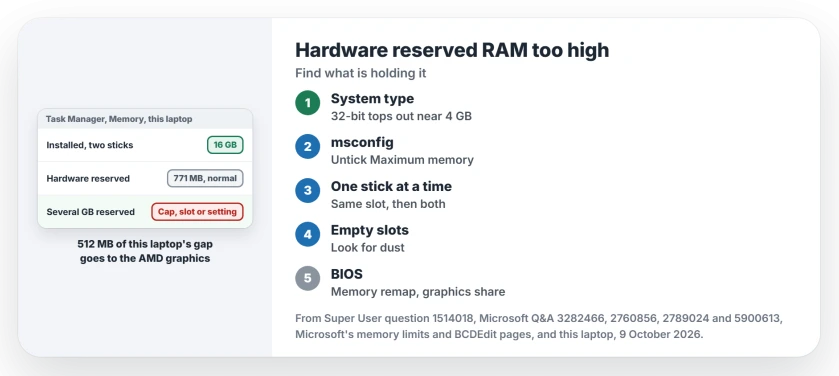
Status: checked 9 October 2026 on a 16 GB ASUS laptop. Windows 11 25H2 can use 15.25 GB of it, and 771 MB is held back, 512 MB of that for the AMD integrated graphics.
Ours: both 8 GB sticks run at 4800 MT/s and both show up. The NVIDIA chip has its own 4 GB, so it takes nothing from the 16. A gap under 1 GB is what a laptop like this should show.
First, is your Windows 32-bit?
Open Settings, System, About and read System type. Does it say 32-bit operating system? Then Windows will not use much past 4 GB, whatever you fit, and our PC specs page shows where Task Manager lists what is installed.
Microsoft's memory limits table gives 4 GB for every 32-bit edition of Windows 10. The 64-bit Home edition gets 128 GB. Windows 11 appears there only as x64 and ARM64.
So a 32-bit Windows with 8 GB fitted will always show you a big reserve. Moving to 64-bit means a clean install, so back up your files first.
1. Untick Maximum memory in msconfig
Press Windows key + R, type msconfig and open the Boot tab. Click Advanced options. Is Maximum memory ticked with a number in it? Then Windows uses only that much, so untick it, click OK and restart.
Owners report this one a lot: on a Q&A question with 300+ Same question clicks, the asker's box showed 3328 with 8 GB fitted.
One owner there turned the box off and on, restarting after each, and found "max memory is now at 8000".
The same cap can come from a command line, and Microsoft documents two bcdedit options for it. One, removememory, "Removes memory from the total available memory that the operating system can use".
The other, truncatememory, "Limits the amount of physical memory available to Windows". If your msconfig looks clean, run bcdedit /enum in an admin Command Prompt, where either one shows up by name if someone set it.
2. Test each stick on its own
Did the count go wrong right after you added RAM? Then test your sticks one at a time. Shut down, unplug, and take one out. Start up and read Hardware reserved. Then try the other stick in the same slot.
An owner with 8 GB fitted and 4.6 GB reserved did exactly that, then put both sticks back in, after which the reserve dropped and they wrote "I now have 583 MB in hardware reserve".
Look into the empty slots while you are there. On Super User, dust in one slot was the whole fault for one owner: "a tiny amount of dust". They cleaned it and wrote "Everything back to normal now".
Mixed speeds can cause it too. An owner with four 8 GB sticks saw half of them reported as reserved. Two were rated faster, so they booted on those alone, then added the slower pair back: "All memory is now available".
I would run these tests before buying any new RAM, because a stick that keeps failing may simply be faulty, and our MEMORY_MANAGEMENT page covers the free Windows Memory Diagnostic.
Commenters on Super User suggest a MemTest run from a USB stick for a longer check.
3. Check the BIOS
On desktop boards, an adviser on Q&A points to a setting called memory remap, or Memory Remapping Feature, because with remapping off, memory past the 4 GB mark can go missing.
On laptops with integrated graphics, look for UMA Frame Buffer Size or a shared graphics memory setting. That is the slice the graphics chip borrows. A large value comes straight out of your usable RAM.
Many consumer laptops hide both. An HP Pavilion owner with 10.1 GB reserved in May 2026 found no such option. Linux showed them the same reserve.
An answer there was blunt: "You made clear it isn't a Windows issue when you found the same with another OS".
So when Linux shows you the same gap, a BIOS update or the maker's support is next, which is also what the accepted answer on the 2017 question says.
What does not change it
A bigger page file does not. Virtual memory lives on your drive. It cannot touch what the firmware keeps, though advisers keep suggesting it. I would skip it.
Neither does a registry tweak from a video. The owner with 4.6 GB reserved had tried one. They had also tried the msconfig box several times. The one-stick test is what fixed it.
Is 1 GB reserved normal?
On a laptop with integrated graphics, yes. This one holds back 771 MB, mostly for the graphics. Is your usable memory right, while Task Manager still shows it nearly full? Our page on high memory use explains why that is usually fine.
The Short Version
- Settings, System, About: 32-bit Windows tops out near 4 GB.
- Untick Maximum memory in msconfig, Boot, Advanced options, and restart.
- Test each stick alone in the same slot, and clean the slots.
- Mixed speeds? Boot on the faster sticks first, then add the rest.
- Same gap under Linux: BIOS update or the maker.
Where to Next
How much RAM does your PC hold back, and how much is fitted? Tell us both figures and the laptop or board model in the comments.

Isaac Smith is the founder and editor of PC Glance, a website that covers computers, laptops, and technology. He is a tech enthusiast and a computer geek who loves to share his insights and help his readers make smart choices when buying tech gadgets or laptops. He is always curious and updated about the latest tech trends.