
Removing RAM from a running desktop or laptop is unsafe. Pulling memory in use can stop the system, lose unsaved work or damage hardware. Shut down and follow the model's power-disconnection procedure first.
A sleeping computer is not ready for a memory upgrade either. Even after shutdown, a connected power supply or laptop battery can keep parts of the machine powered.
Power must be disconnected before touching the modules
Dell says equipment with standby power must be unplugged before servicing. Its service precautions explain why a system can still draw power while apparently off.
That is why a black screen, stopped fan or closed laptop lid is not permission to release the memory clips. Use the service instructions for the exact computer or motherboard, including its battery and residual-power steps.
Status: RAM-service precautions checked November 1, 2026, against Dell manuals and Windows shutdown guidance. No memory module was removed and no live-removal experiment was performed.
For an upgrade, first confirm that the RAM is removable and the replacement is compatible. The RAM capacity and compatibility guide covers that purchase decision. A soldered memory chip is not a removable module.
Prepare a desktop or laptop for memory work
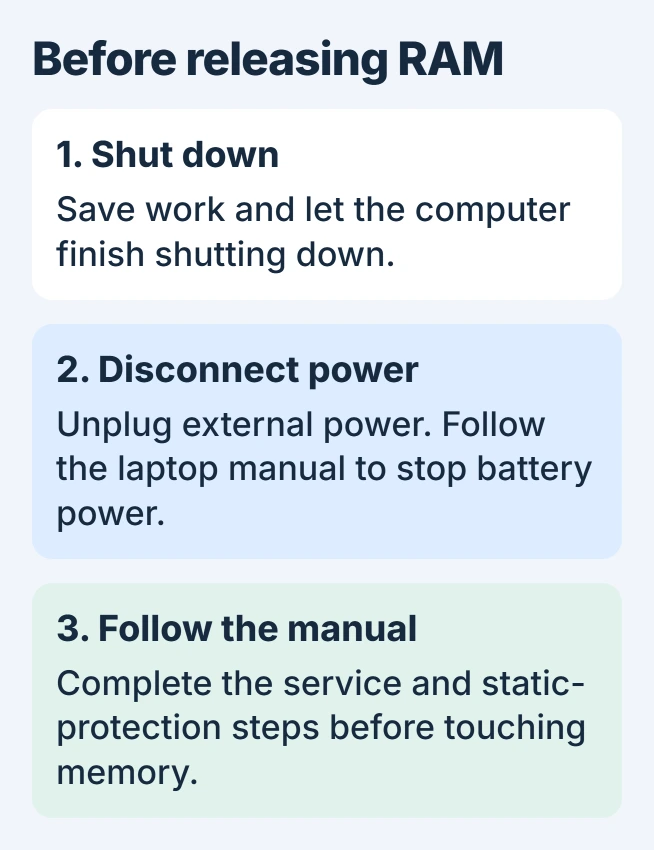
Save open documents and close applications. In Windows, choose Start > Power > Shut down, as Microsoft's power instructions describe, and let shutdown complete.
Disconnect external power and attached devices according to the computer manual. For a desktop, remove its power cable; for a laptop, unplug the charger and any dock supplying power. Then follow the manual's procedure for battery power.
Some laptops use a service mode; others require a battery connector to be disconnected. An internal battery can still supply power after the charger is removed. Follow the model's sequence before touching RAM.
For example, Service Mode is documented by Dell for the Inspiron 14 5440. Its before-service procedure electrically disconnects the battery without unplugging its cable.
That example is model-specific. Another laptop's key combination cannot replace its own service instructions. If disconnecting battery power or opening the case is unclear, have a repair technician handle the replacement.
Handle the memory only after the machine is ready
Use the manufacturer's required static protection. Dell warns that electrostatic discharge can cause immediate failure or memory problems that appear later. A successful first startup does not rule out all damage.
Hold a removable module at its edges, clear of its contacts and components. Release the retaining mechanism as the model's manual shows. Laptop modules and desktop DIMMs do not necessarily come out at the same angle.
After reinstalling the compatible module, finish reassembly before restoring power. Check whether the firmware and Windows recognize the expected capacity. A remaining gap in usable memory needs the hardware-reserved RAM checks.
If RAM was already pulled while the PC was on
Stop handling the components. Turn the computer off and disconnect its power using the appropriate service procedure before attempting to put anything back. Do not press a loose module into a powered socket.
No screen message can establish that the stick and motherboard escaped damage. If there are scorched contacts, an unusual smell or a damaged socket, leave the computer disconnected and arrange a hardware inspection.
For a machine that no longer starts, give the technician the model and a precise description of what happened. Our recommendation is to avoid repeated power-on attempts with uncertain seating or visible damage.
Unsaved work may be lost when the system stops. Removing RAM does not itself erase files already stored on an SSD, but an interrupted write can damage a file that was being saved. Check recovered documents after a successful restart.
The Short Version
Do not unplug RAM during use. Shut down and disconnect external and battery power as the service manual requires before releasing a module. Seek hardware help if live removal has already caused a fault.

Isaac Smith is the founder and editor of PC Glance, a website that covers computers, laptops, and technology. He is a tech enthusiast and a computer geek who loves to share his insights and help his readers make smart choices when buying tech gadgets or laptops. He is always curious and updated about the latest tech trends.