
You double-click a picture and Windows Photo Viewer says it "can't display this picture because there might not be enough memory available on your computer". Your PC has gigabytes free. A restart changes nothing.
I would ignore the memory part of that message. On Super User, the December 2019 thread about it has 331,980 views, and its answers trace the error to color profiles: one inside the picture, one set for your screen.
What the error is really about
The pictures that fail carry an embedded ICC color profile.
The accepted answer found the problem "related to included Profile-icc in that JPG file", while a later one blamed files "made with invalid ICC profiles (such as Android 9+ screenshots)".
That is why one of your pictures opens and the next does not. An owner on Microsoft Q&A saw it only with screenshots from one phone, and their verdict was short: "The issue is not the memory".
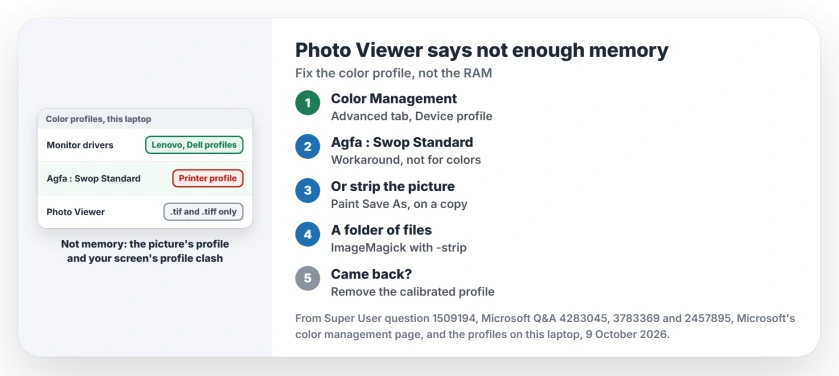
Status: owners confirmed two fixes, a new screen profile or a stripped picture profile, and Microsoft documents the profile settings. Profiles on our test laptop examined 9 October 2026.
Ours: the Agfa : Swop Standard entry is RSWOP.icm on this laptop, and its own header marks it as a printer profile for CMYK. So treat it as a workaround that dodges the error, not a real profile for your screen.
Why your screen has a profile you never set
Monitor drivers bring their own. Here, the Lenovo P32p-20 and Dell U2312HM entries each carry a profile of the same name, and I never picked either of them.
Calibrating adds one too. Microsoft says Calibrate display will "create a new color profile for the display where the calibration tool is located", which Photo Viewer then uses whether you meant it or not.
1. Switch the display to Agfa : Swop Standard
Press Start, type color management and open it. On the Advanced tab, set Device profile to Agfa : Swop Standard, as the Super User answer with 25 votes says: "select Agfa:Swop Standard for the Device Profile".
Grayed out? Click Change system defaults at the bottom, then make the same choice in the window that opens.
A 2010 Q&A thread with 200+ on Same question went another way. On the Devices tab, tick Use my settings for this device, then remove the profile tied to your display.
One owner there had none listed, which is when the Advanced tab route helps. Then open your picture again, after closing Photo Viewer fully.
2. Strip the profile from the picture instead
The screen trick changes nothing in your files. Would you rather leave your screen alone? Take the profile out of the pictures that fail, working on copies.
The simplest route is Paint. One commenter found "you can just open the image in MS Paint then Save As a new jpeg", which drops the extra data.
Another wrote that "The Paint trick from @ETL did not work for me", so test it on one file before you do a whole folder.
For a folder of files, the accepted answer used ImageMagick's -strip option, which removes every profile and comment. With ImageMagick 7 installed, run this in that folder:
magick mogrify -path C:\fixed -strip *.jpgMake the C:\fixed folder first. Mogrify writes the cleaned copies there and leaves your originals alone.
Owners report the same result from other tools. One on Q&A found "it's something to do with the metadata", and once they removed it, their files opened.
3. The two-byte edit, if you are careful
An answer with 24 votes edits the file itself. Open it in Notepad++ and "Find ICC_PROFILE inside the text and replace to ICC_PROFILX", which renames the marker so the profile is no longer recognized.
I would do this on a copy only. One wrong keystroke in a picture file and it may not open anywhere.
Calibrated your screen? That is why it came back
A Q&A owner fixed it with the Agfa profile, then calibrated to a warmer tint, and the error came back. Calibration had attached its own profile again.
Their question was how to tint the screen without a profile. My suggestion: use your monitor's own buttons or your graphics app for the tint, and leave Windows calibration off. That part is ours, not theirs.
On Windows 11, Microsoft's color management page shows the Color profile page in Settings. There you can "add or remove color profiles", so remove the calibrated one.
Photo Viewer is not even the default any more
On this 25H2 laptop, Photo Viewer registers only for .tif and .tiff files. If it opens your JPG files, it was added back at some point, and owners in these threads say they kept it on purpose.
The Photos app opens these pictures without complaint. Want a different viewer for JPG only? Our default apps page sets one per file type.
A wrong screen profile shows up in browsers too. Pages turning yellow in Edge or Chrome is a profile problem with an sRGB fix.
The Short Version
- The error is not about memory: the picture's ICC profile and your screen's profile clash.
- Quick fix: Color Management, Advanced tab, Agfa : Swop Standard as the device profile.
- Leave the screen alone: strip the profile with Paint Save As or ImageMagick, on copies.
- Error back after calibrating: remove the calibrated profile in Settings.
Where to Next
Which pictures failed for you: phone screenshots, or something else? Leave a comment and say which fix worked.

Isaac Smith is the founder and editor of PC Glance, a website that covers computers, laptops, and technology. He is a tech enthusiast and a computer geek who loves to share his insights and help his readers make smart choices when buying tech gadgets or laptops. He is always curious and updated about the latest tech trends.