
You close classic Outlook, and its icon stays in the notification area with a tooltip that says Outlook is closing. It never finishes, and clicking Outlook again does nothing until you restart the PC.
I end the stuck process first, then look for whatever held it open. On Microsoft Q&A, a 2022 thread titled Outlook is stuck on closing has 60+ people with the same question. Super User's copy of the fault has 99,449 views.
Outlook waits for its work before it exits
When you close Outlook, it finishes what it was doing first: a sync, an add-in, a data file. If one of those never ends, your window is gone but OUTLOOK.EXE keeps running.
Microsoft's page on classic Outlook freezing says that during a big job, "it might appear to be stuck". Its advice for you: "Give Outlook a few minutes to finish the process and it should start to work again".
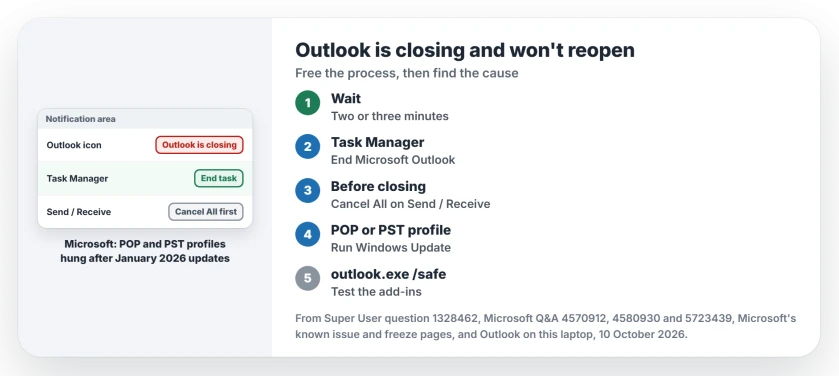
Status: Microsoft documents the January 2026 POP and PST hang, its fix and safe mode. The task and sync fixes come from owners. Outlook on this laptop inspected 10 October 2026.
Ours: classic Outlook 16.0.20430.20092, 64-bit, sits on this laptop with five add-ins set to load at every start, Teams and OneNote among them. It keeps no PST file inside OneDrive.
1. Wait a minute, then end it
Give it two or three minutes first, in case it is finishing a real job. Then press Ctrl, Shift and Esc to open Task Manager. Find Microsoft Outlook and select End task.
If it is not there, open the Users tab and expand your own name. One owner found Outlook.exe only there. Readers confirmed it on Outlook 16, and one said that this time only that route worked.
You can also end it from Command Prompt. One owner found the plain command did nothing until they added the force switch.
taskkill /f /im outlook.exeOurs: taskkill's own help says /F "Specifies to forcefully terminate the process(es)". Anything you had not yet saved or sent can be lost, so wait first.
2. Cancel Send and Receive before you close
When it happens again and again, suspect a sync first. One Super User owner tried safe mode and removing every add-in, and it still hung. What worked: cancelling the sync before closing.
In Outlook, open the Send / Receive tab and select Cancel All. You can also click the Send and Receive progress in the status bar and cancel it there, then close Outlook. A reader said it "saved 10 hours of work".
On Q&A, an owner traced theirs to one IMAP account that could not sync. In their words: "This problem only shows up with ATT's yahoo imap implementation". If one of your accounts hangs, fix that account or remove it.
3. POP account or PST files? Update Windows
Here the trouble started with a Windows update, not with Outlook. After the 13 January 2026 updates, Microsoft says "users with Outlook POP account profiles and profiles with PST files report that Outlook hangs and does not exit properly".
Its symptom list may sound familiar: "Inability to reopen Outlook without ending its process in Task Manager or restarting the computer". It adds that this "may occur for any Outlook profile that has PSTs stored on OneDrive".
Microsoft has since fixed it, so the answer is to "run Windows Update until you see" that you are up to date, restarting whenever it asks.
A Q&A owner whose Outlook stayed open in Task Manager from 16 January, after a repair and safe mode, fits that window. I would update Windows before anything harder.
Still having trouble after updating? Microsoft's next step is repairing the profile.
Its earlier workaround was moving PSTs out of OneDrive, so check where yours live: select File, Account Settings, Account Settings again, then the Data Files tab.
4. Test add-ins in safe mode
An add-in that does not let go can hold Outlook open too. Close Outlook, end it if needed, then press Windows and R. Type outlook.exe /safe and press Enter. Safe mode starts Outlook without your add-ins.
Close it again. If it exited cleanly this time, open File, Options, Add-ins, set Manage to COM Add-ins and select Go. Untick them all, and enable them again in pairs until the hang returns.
The Teams Meeting Add-in has caused other Outlook faults this year, see the Need Password page. Outlook still refusing to start once the process is gone? Outlook won't open covers that.
When it stops Windows shutting down
A January 2026 Q&A asker could not shut their laptop down, because Windows reported Outlook was still closing. An adviser suggested the safe mode test from step 4 to tell an add-in from a data file.
The same order works for you there: end Microsoft Outlook in Task Manager, then shut down. Then work through steps 2 to 4.
If the blocker on that screen is Task Host Window rather than Outlook, read the task path it lists, then check two Windows switches.
The Short Version
- Wait two or three minutes, then end Microsoft Outlook in Task Manager.
- Not listed? Check the Users tab, or use taskkill.
- Cancel All on Send / Receive before you close.
- POP or PST profile: run Windows Update until it is up to date.
- Then test add-ins with outlook.exe /safe.
Where to Next
Is your profile POP, IMAP or Exchange, and does it hang every time? Put both answers in the comments, and I'll point you at the next test.

Isaac Smith is the founder and editor of PC Glance, a website that covers computers, laptops, and technology. He is a tech enthusiast and a computer geek who loves to share his insights and help his readers make smart choices when buying tech gadgets or laptops. He is always curious and updated about the latest tech trends.