

The Galaxy J7 software update menu depends on its model and installed Android version. Start by recording the model number, then check its update menu. An older J7 may already have the last release available for that variant.
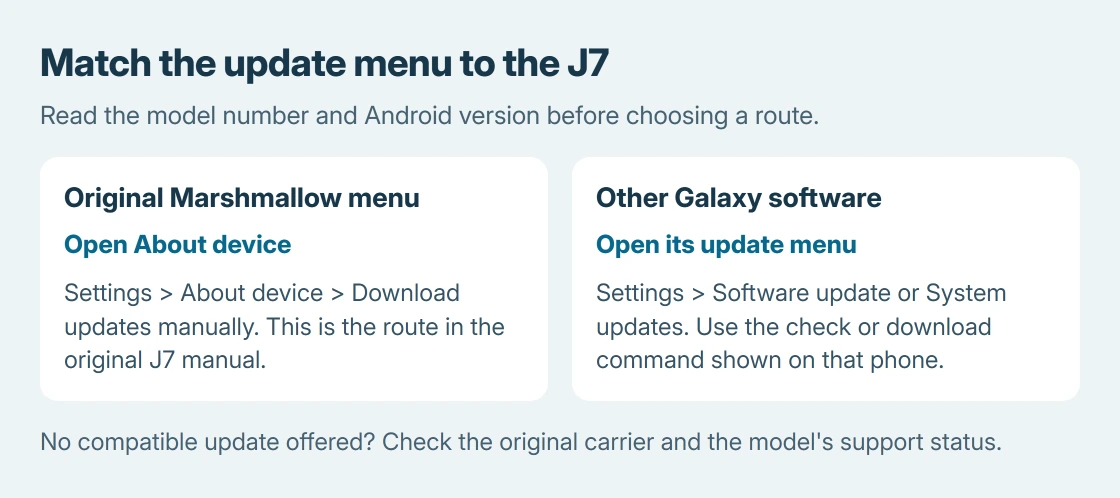
Samsung's original Marshmallow manual uses Settings > About device > Download updates manually. Other Galaxy software uses Software update or System updates. A current phone's menu is not a reliable map for every J7.
In this guide
Identify the J7 before looking for a newer release
Open Settings > About device or About phone and record the model number. Check the Android version and build number there, or under Software information if that submenu exists.
Galaxy J7 is a family name. Samsung's SM-J700H support page includes manuals for the original model; J7 variants sold by other carriers can have different software and update controls.
Status: Samsung's J7 manual, update instructions and current security-support list reviewed October 26, 2026. No J7 was updated, and no new release is promised.
Preserve important files before installing anything. Our Android backup guide explains which data needs a separate copy. Connect to Wi-Fi and charge the phone before continuing.
Google recommends a charge of at least 75% in its Android update preparation. Keep the phone available until calls and other active work are finished; installation interrupts ordinary use.
Request the update through the menu on that phone
For the original J7 running the software covered by Samsung's Marshmallow manual, open the Apps screen, then Settings > About device > Download updates manually. Let the check finish and follow any offered installation prompts.
Samsung says its later Galaxy update menus vary with the carrier, software and model. Where Software update or System updates exists, open it and select the displayed download or check command.
Do not switch to a factory reset because the menu uses different wording. A reset deletes data and does not create an Android upgrade that Samsung has not released for that device.
Once an offered installation finishes and the phone restarts, revisit the version information. Record the new build. Run another update check if the phone offers a sequence of releases rather than a single package.
Check the original carrier when an expected update is missing
Confirm that the release actually applies to the exact model and its original sales channel. An update announced for a J7 in another country or on another network is not evidence that this phone should receive it.
Samsung advises checking the original carrier for a carrier-branded phone, even after a SIM unlock. Its missing-update guidance says some such devices may need that carrier's SIM to download updates.
Use this check only when a matching release is documented. Changing SIM cards at random will not extend the J7's software support.
For another handset, check the Android 10 update route by model instead of following the J7 menu names.
Try Smart Switch if a compatible update is offered
Samsung's J7 manual also documents updating with Smart Switch on a computer. Install it from Samsung's download page, open it and attach the phone with a USB data cable.
If Smart Switch offers Update, follow its instructions. Samsung recommends keeping the computer on and the cable connected during installation. Wait for the update and expected restart to finish before unplugging.
No update button can simply mean there is no package available for that connected device. Smart Switch is an official delivery route, not a way to make another J7 model's firmware compatible.
For a storage error, free the space requested by the update. For a failed download, reconnect to a working network and retry the download. An installation that leaves the phone unable to start needs Samsung or carrier service.
Recognize the end of regular J7 security support
Samsung's current security-update scope does not list Galaxy J7 models among its regularly supported phones. A successful update check therefore does not mean the phone has current security patches.
The seven-year support policy advertised for selected newer Galaxy devices does not add seven years to an old J7. Keep app updates separate too: a Play Store update does not replace the phone's Android security patch.
If the reason for updating is a suspected infection, use the Android malware checks for the actual symptoms. A missing system update alone does not establish malware.
Ask Samsung or the original carrier about the recorded model and build if their release history disagrees with the phone. For continued regular security updates, a supported replacement is the practical next step.
The Short Version
Find the J7 model, use its update command and verify the build after restarting. Smart Switch can deliver a compatible release. Neither route guarantees a newer Android version or renewed security support.
 If you have any business, I can build it online






