

Apple ID Verification Failed can appear when your device can't reach Apple's sign-in service, even with the right password. Check for an outage, then try another internet connection before changing your password.
Apple now calls Apple ID an Apple Account, so you may see either name. Read the whole message: trouble connecting to a server, a rejected verification code and a locked account each need a different fix.
In this guide
1. Check the service and the exact error
Open Apple's iCloud sign-in guidance and follow its link to System Status. Check the affected service, such as Apple Account or iCloud, for an outage or maintenance notice.
Apple says to check service status before trying other iCloud fixes. If it lists a problem with the service you're using, wait for it to recover, then try again. Changing your password won't fix an outage.
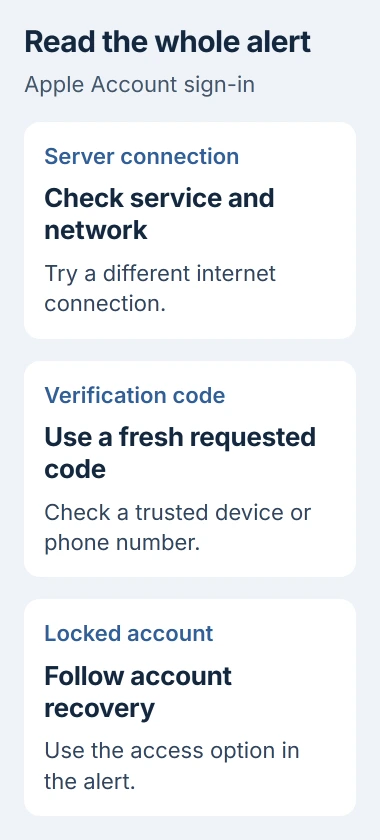
Status: checked November 3, 2026. Apple's guidance covers connection failures, verification codes and locked accounts separately. The steps here focus on iPhone and iPad sign-in.
Write down the full alert and where you see it. An error when you open the App Store is different from one that appears while adding your account in Settings, even if both mention verification.
For a Settings alert stuck on Continue, separate the spinning request from a screen asking for an older device's unlock code.
A spinner during new-phone setup has its own Apple ID setup checks, including the later sign-in choice when setup offers it.
If the alert says the account is locked or disabled, go directly to the account-access section later in this guide. For an alert about connecting to a server, continue with the network check.
2. Try a connection that can reach Apple
Open Safari and load a familiar webpage. If nothing loads, check another device using the same Wi-Fi. When both fail, restart your router and contact your internet provider if the connection stays down.
A hotel, airport or cafe network may ask you to complete a welcome page before you can use the internet. Do that first. The Wi-Fi symbol shows you're connected wirelessly, but some internet services may still be out of reach.
On an iPhone with an active cellular plan, turn Wi-Fi off briefly and retry the same sign-in over cellular. Open Settings > Cellular and confirm cellular data is enabled. The menu name can vary with region.
Apple documents checking cellular access when iCloud sign-in fails away from Wi-Fi. For a Wi-Fi-only iPad, use another trusted wireless network instead of looking for a cellular switch the device doesn't have.
If you can sign in on the second connection, focus on the first network. Tell its administrator which Apple service failed and when. Keep the password that worked on the second network.
If neither connection works, check apps that filter your device's internet traffic next. I'd try another network before resetting saved Wi-Fi details because it's easier to undo.
3. Pause a VPN or filter you control
A VPN sends network traffic through another connection. Antivirus, parental-control and content-filter apps can also affect access to Apple services. Apple names these as possible causes of connection trouble.
Open the relevant app and temporarily turn its filtering or VPN feature off, then repeat the sign-in. If you don't remember installing one, search Settings for VPN, profile or filter.
Use the app's own controls if possible. Turning off a switch elsewhere may let the app reconnect automatically. If sign-in still fails after you've changed those settings, restart your device.
If your employer or school manages the device, ask its administrator before removing a profile, which holds settings it supplied. You may need that profile to use its network and apps.
If sign-in works with the filter paused, turn your protection back on and ask the app's maker to help update it or change its settings. Work on that app before considering a phone reset, since it affected the connection.
4. Correct the clock and install available updates
Check Settings > General > Date & Time and turn on Set Automatically. Check that the date, local time and time zone are correct. Apple's connection guidance includes correcting these settings.
If automatic time is on but the clock is wrong, follow Apple's date-and-time help for your device and region. Screen Time restrictions or a profile that manages your device's settings can prevent you from changing that switch.
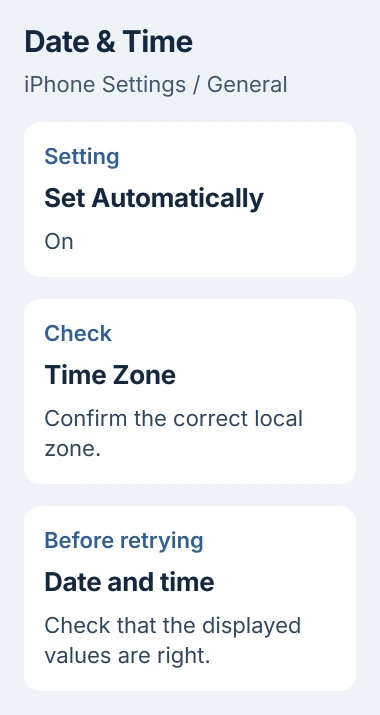
For a Mac showing this error, search System Settings for Date & Time and check the automatic date, time and time-zone options. Check the clock on the device showing the error, even if your iPhone's time is correct.
Next, open Settings > General > Software Update on your iPhone or iPad. If an update is available, back up and connect to power as directed before installing it. Then try the sign-in again where it first failed.
Apple states that updating your device is one of its iCloud sign-in checks. If your device is supported and up to date but the error remains, follow the account or code instructions that match the message.
5. Use a fresh verification code when one is requested
Two-factor sign-in can ask for your password plus a six-digit code. When you're asked for that code, look for a sign-in notification on a trusted Apple device, one that's already signed in to your account.
Approve the sign-in only if you started it, then type the displayed code on the device you're signing in to. Enter it in the verification field, separate from your password.
If a trusted device isn't available, select Didn't Get a Code? or Can't get to your devices? on the code screen. Choose the offered text-message or phone-call option for your trusted number.
Check Messages' unknown-sender area if the text doesn't appear in your main conversation list. For a broader delivery problem, the iPhone code-delivery checks cover missing texts.
If you permanently lost access to every trusted device and number, use Can't use [phone number] when offered to start Apple's account-recovery process. Apple says recovery can take days or longer, and support can't shorten it.
Use these steps when the screen asks for a verification code. If a server-connection error stops you before that screen appears, return to the service and network checks.
6. Follow the account message instead of guessing passwords
For an account disabled or locked for security reasons, Apple directs you to reset the password. The Apple password-recovery options explain the trusted-device and recovery routes.
An alert that says locked or not active may instead offer Request Access. If Media & Purchases has been disabled, follow its Continue prompt or Apple's reactivation process for that specific account service.
Follow the instructions for the message you see. A new account won't bring back purchases or data from your original account, and repeated password guesses can make access harder to recover.
If you've changed your password elsewhere, use that new password here too. Check which email or phone number the sign-in screen shows so you're using the password for the right account.
If verification still fails
Contact Apple with the complete error, the device model and software version, and the app or Settings screen where it happens. Include whether service status showed a problem and whether another network changed the result.
Stay signed in wherever your account still works. That trusted device may help you verify a sign-in or recover your password. If only one service fails, signing out everywhere makes that help harder to use.
The Short Version
Use the full alert to choose your next step: check the connection for a server error, get a fresh code if one was rejected, or follow Apple's recovery steps for a locked account. Keep a working trusted device available.
 If you have any business, I can build it online






