Yes, iOS 16.7.13 was paused after network trouble affected some iPhone 8, 8 Plus and X devices in Australia. Use Wi-Fi to install the newer compatible iOS offered in Software Update, then accept any carrier-settings update.
This was a specific network incident. Telstra published a carrier fix, and iOS 16.7.14 later addressed emergency-service connectivity. Newer iOS 16 releases have followed; the warning doesn't apply to every iPhone running iOS 16.
In this guide
1. Check the model and installed version
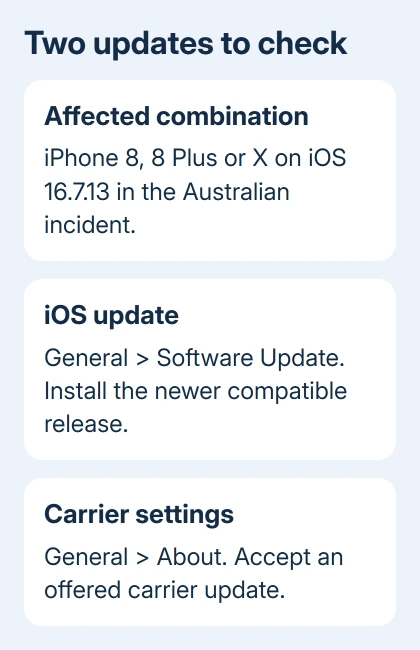
Open Settings > General > About and read Model Name and iOS Version. The January 2026 Telstra notice names iPhone 8, iPhone 8 Plus and iPhone X running 16.7.13.
That combination matters. An iPhone on a different release, or a newer model with a different fault, needs its own checks. Give your carrier the exact version number rather than calling it only the latest update.
The carrier's incident history says the affected software releases were paused while it checked the problem. A withdrawn update disappearing from Software Update doesn't remove a copy already installed on a phone.
If this phone is currently unreliable for calls, keep another working phone available. Don't make a test call to emergency services. In a real emergency, use an available working phone to reach 000 in Australia.
2. Install the newer compatible iOS release
Back up the iPhone before updating. Connect it to working Wi-Fi and power, then open Settings > General > Software Update. Install the newer release offered for that model and finish the on-screen steps.
iOS 16.7.14 was the replacement that addressed the original incident. Apple's regional iOS 16 release notes describe its fix for connecting iPhone X and iPhone 8 models to emergency services in Australia.
That isn't a reason to hunt for 16.7.14 now. The current release history also lists 16.7.15 and 16.7.16. Use the newer compatible version the phone offers rather than trying to reinstall the withdrawn release.
The iPhone 8, 8 Plus and X remain on their supported iOS 16 branch. A newer major iOS release advertised for other iPhones won't necessarily appear on these models. Check what Software Update offers on your iPhone.
After installation, check the version shown in About. A completed download isn't an installed update; the phone still has to finish installation and restart before its version changes.
If installation gives an unavailable message, use the iPhone update availability checks. Record the exact message if the phone offers no newer update or refuses to install it.
3. Check the carrier update on Wi-Fi
A carrier settings update is separate from iOS. It changes the settings your phone uses with your mobile network. Open Settings > General > About while the phone has working Wi-Fi and accept an offered carrier update.
Telstra's incident notice gives the historical fix: accept the update with OK, then check the Service Provider version. Its January 29 target was Telstra 54.1.
That was the version used for the original repair. Don't downgrade newer carrier settings to match it. If the phone already has a newer carrier version, keep it. Give support the version shown today if service is still failing.
For another Australian provider, use its advice rather than trying to install Telstra's settings. Providers using the same underlying network can still have different customer support and configuration details.
If no prompt appears, check the carrier update procedure and confirm the phone is connected to the internet. The carrier update might already be installed, so a missing prompt alone doesn't mean the carrier software failed.
4. Compare normal calling after both updates
Once the updates finish, try a normal call to a person you know. Check an incoming call too, with their help. Then turn Wi-Fi off briefly and see whether a normal webpage loads over cellular data.
These checks tell you which everyday services work. A successful ordinary call doesn't tell you whether emergency calling works. Don't call 000 just to check the update.
For ongoing call failures, look for a service outage and ask the provider to check your account and SIM. Apple's call failure steps separate carrier/account problems from settings on the phone.
If SOS, No Service or Searching stays in the status bar, use the iPhone network connection checks for the general carrier and coverage checks. The old update incident isn't the cause of every later outage.
Avoid erasing the phone as the first response to a failed call. I'd have the carrier confirm the account, coverage and current carrier settings before considering a reset that creates more setup work.
5. Use a computer when the phone can't finish updating
If the wireless update won't install, connect the backed-up phone to a computer. On a current Mac, use Finder. On Windows, use Apple Devices; some older setups use iTunes.
Select the iPhone, check for an update and choose Update when offered. Follow the iPhone update instructions for the computer route. Restore is a separate operation that erases the phone.
An iPhone 8 or 8 Plus has a Home button; iPhone X doesn't. The software-update path is the same on these three models, so installing an available release doesn't require model-specific reset button sequences.
Ask the carrier about the remaining call failure
If calling remains unreliable, give your carrier the model, installed iOS, carrier version, location and whether incoming calls, outgoing calls or cellular data fail. Mention the original 16.7.13 incident if that version was installed.
Ask for current service and emergency-calling guidance for your model on that network. If your carrier finds no account or network problem but updating still fails, give Apple Support the exact installation error and ask for help updating.
The Short Version
iOS 16.7.13 was paused during an Australian network incident. Install the newer compatible iOS on Wi-Fi and check About for a carrier update. Telstra 54.1 was the original fix; keep newer settings and ask the carrier about lasting failures.
Checked November 10, 2026.