

BASN in-ear monitors can play music through a cable without a microphone. Check the cable you're using for an inline mic first. The BASN MMCX package has separate mic and silver-plated cables; changing cables can change whether voice works.
Sound in both ears doesn't confirm that the computer or phone receives your voice. A headphone-only socket, an unsuitable adapter or the wrong input selection can let you hear sound while recordings stay silent.
In this guide
1. Check which cable is actually attached
Follow the cable to its plug and look for a small inline mic housing. Don't assume the microphone is inside an earpiece. In-ear monitor, or IEM, describes the earphones; it doesn't mean every included cable supports calls.
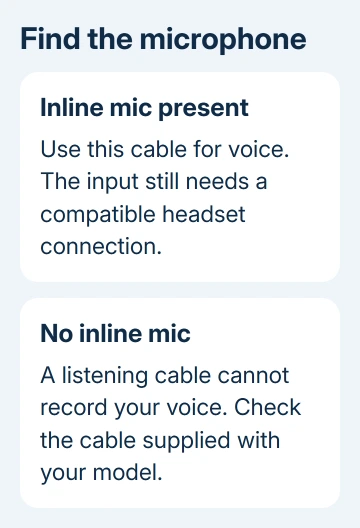
BASN's MMCX cable description lists a microphone cable and a separate upgraded silver-plated cable. Other BASN models and bundles can differ, so check your order's contents and the cable you actually have.
If the cable lacks a mic, fit the compatible microphone cable supplied with your set. New earpieces won't add a mic to a listening-only cable. I'd check this before audio drivers; it takes less time and may explain the silence.
Match replacement cables to your exact model's connector. A cable listed for one BASN set won't necessarily fit another. Ask the seller for the model and connector match if the original cable is missing.
2. Use an input connection, not just a headphone output
Push the 3.5 mm plug fully into the headset socket you want to use. A phone case or a shallow adapter can stop it seating completely. Unplug and reconnect once, then make a short recording to check whether the input returns.
Many laptops combine listening and microphone connections in one headset socket. Desktops often have separate sockets. The headphone socket alone can play sound without receiving the headset microphone.
A four-contact headset plug is called TRRS. Separate desktop sockets need a compatible headset splitter for listening and microphone connections. A splitter designed for two pairs of headphones won't perform that job.
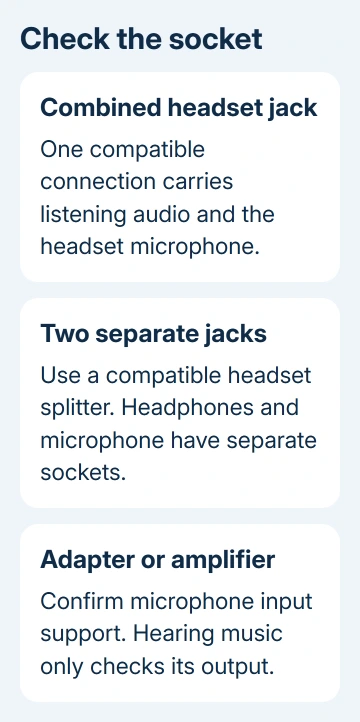
Check the computer or adapter manual for headset microphone input support. An output-only headphone amplifier, monitor headphone jack or 6.3 mm listening adapter doesn't become a microphone input because the plug fits.
For USB-C or Lightning phones, use an adapter that supports a headset microphone as well as audio output. A successful music test checks only the output. Keep the adapter in the comparison when deciding whether the cable has failed.
For socket-specific Windows behavior, the PC headphone connection guide explains why front-panel jacks and combined laptop sockets need different checks. Then return to input selection rather than changing playback settings.
3. Select the computer's headset input
On Windows 11, open Start > Settings > System > Sound and find Input. Select the microphone associated with the connected headset or audio adapter. An analog headset can appear under the computer's audio hardware name rather than BASN.
Open that microphone's properties and use Start test. Speak into the inline mic, stop the test and listen to the recorded sample if available. Hearing that recording confirms that Windows receives the signal through the selected input.
On Windows 10, open Settings > System > Sound. Under Input, select the intended device in Choose your input device. Speak and watch Test your microphone for movement. A silent meter means the problem still exists before the meeting app.
If asked what you plugged in, choose Headset for this connection. Choosing headphones alone can leave the input unused. That question comes from the computer's audio software and won't appear on every machine.
Mac users can select the external device in System Settings > Sound > Input and watch Input level while speaking. If only the built-in mic appears, check whether the Mac or adapter supports headset microphone input.
4. Permit recording in the app
If your computer's input meter moves but one app stays silent, check that app's permissions and microphone choice. In its audio settings, select the microphone that passed your computer's input check. Check the app's mute control too.
In Windows 11, open Settings > Privacy & security > Microphone. Turn on Microphone access, Let apps access your microphone, and the permission for the app when listed. Desktop programs also need Let desktop apps access your microphone.
Windows 10 places these controls under Settings > Privacy > Microphone. Check the device permission and both the app and desktop-program controls there. Microsoft says input selection and microphone access need separate checks.
On a Mac, use System Settings > Privacy & Security > Microphone and allow the calling or recording app. In a browser call, check both the browser's system permission and the website's microphone permission.
On an iPhone, microphone permissions are in Settings > Privacy & Security > Microphone. On Android, open the app's App info > Permissions > Microphone and allow use while the app is in use. Device wording varies by Android maker.
5. Compare the cable and adapter separately
Try the BASN microphone cable on another device whose headset input supports it. Make a recording rather than relying on sound in the earpieces. Then try another working headset through the original socket or adapter.
If both headsets fail through one adapter but work elsewhere, replace or troubleshoot that adapter. If the BASN mic cable fails on both compatible inputs while the other headset works, the problem is with the cable or its inline mic.
For a phone whose own microphones also record poorly, use the phone microphone checks to separate a phone problem from the connected headset. Test with accessories disconnected for that comparison.
Ask for the right replacement
Send BASN or the seller your model, order and cable comparison results. Ask which microphone cable and connector fit before ordering. Mention whether listening still works and which adapters you used.
Avoid opening the inline microphone housing or forcing an unfamiliar earpiece connector. Ask about a replacement cable or warranty repair when the same microphone fails through two compatible inputs.
The Short Version
Use a BASN cable that actually has an inline microphone, connect it to a microphone-capable headset input, and select that input in your device and app. Compare another compatible input and adapter before replacing the cable or earphones.
Checked November 10, 2026.
 If you have any business, I can build it online






