To stop an app's notifications on iPhone, open Settings > Notifications, select the app, and switch off Allow Notifications. For a temporary break from several apps, turn on Do Not Disturb instead.
Silencing sounds, hiding previews and clearing the notification list each change something different.
In this guide
Decide whether to stop alerts or just quiet them
For an app that keeps sending promotions, change its notification permission. For a busy afternoon, use temporary silence. Keeping those choices separate saves you from disabling messages you want again tomorrow.
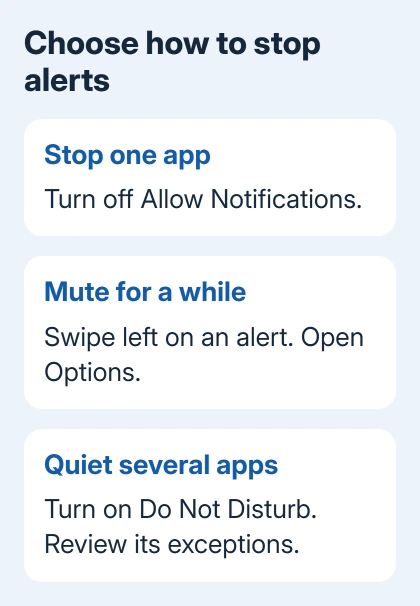
Turning off Allow Notifications stops that app's system notifications. It doesn't delete the app or stop messages from reaching its inbox. Open the app later to check its content yourself.
Do Not Disturb temporarily silences notifications according to its rules. Some people or apps can still interrupt when you've allowed them, so a Focus name alone doesn't tell you what will stay quiet.
Changing Show Previews hides message content, while clearing Notification Center removes alerts already delivered. Neither is the same as stopping the next notification. Pick the setting for the interruption you want gone.
For alerts that have already arrived, clear the iPhone notification list separately from changing permission for future alerts.
1. Turn off notifications for the app
Open Settings > Notifications. Under Notification Style, tap the app that's interrupting you, then turn off Allow Notifications. Repeat for other apps only when you also want their alerts stopped.
The main switch applies to that app as a whole. Use it for something like a game or shopping app when none of its notifications deserve your attention.
For a mixed-use app, check its own notification settings first. A retailer might separate order updates from offers, or a social app might separate direct messages from suggested content. Those categories depend on the app.
Keep the iPhone's main permission on if you want some of those categories delivered. Then turn off the unwanted categories inside the app, rather than blocking every useful alert along with the promotions.
Swipe left on an alert, tap Options, then Turn Off. Apple lists this shortcut in its notification controls. Use it when the alert makes the app easy to identify.
2. Pause an app's interruptions temporarily
Swipe left on an alert or its notification group in Notification Center. Tap Options, then choose Mute for 1 Hour or Mute for Today. This is a temporary choice for that app.
It's handy during a busy group conversation or an app's unusually active afternoon. You don't have to remember which permission switch to restore after the interruption has passed.
Use View Settings from the same menu if the app needs a longer-term change. That takes you to its notification controls, where you can choose the delivery style instead of continuing to mute it each day.
If the alert isn't on screen anymore, open Notification Center on your iPhone. The Lock Screen's recent alerts and the older history aren't always the same visible list.
3. Use Do Not Disturb for a temporary break
Open Control Center. For Face ID models, pull down from the display's upper-right corner. For Home button models, begin at the bottom and swipe upward. Tap Focus, then Do Not Disturb.
That turns on the Focus, but its allowed interruptions still matter. Go to Settings > Focus > Do Not Disturb and review People and Apps before depending on it for a quiet meeting or recording.
Check whether each list allows selected notifications or silences them. An empty allow list and an empty silence list have different results. Read the choice at the top before removing names or apps.
Review call exceptions and repeated calls in the People settings. Under Apps, check whether Time Sensitive Notifications are permitted. Those exceptions can explain an alert that arrives while ordinary notifications stay quiet.
On supported versions and models, Intelligent Breakthrough & Silencing can allow important notifications through. Turn it off for this Focus if you want it to follow your ordinary rules without automatically choosing exceptions.
I'd keep one dependable way for urgent family calls to reach you, then silence the apps that don't need an immediate answer. The useful setup is the one whose exceptions you've actually chosen.
4. Remove sounds, banners or Lock Screen alerts separately
Go back to Settings > Notifications > the app and leave Allow Notifications on. Change the individual alert controls when you still want a sign that something arrived.
Turn off Sounds to remove the app's notification sound. Deselect Banners if the interruption across the top of the screen is the problem. Deselect Lock Screen to keep that app's alerts off the locked display.
To keep audible alerts with a different tone, choose an iPhone notification sound instead of disabling Sounds.
Keep Notification Center selected if you want a quiet place to review those notifications later. The Badges switch controls the indicator on the app icon, which you can change separately.
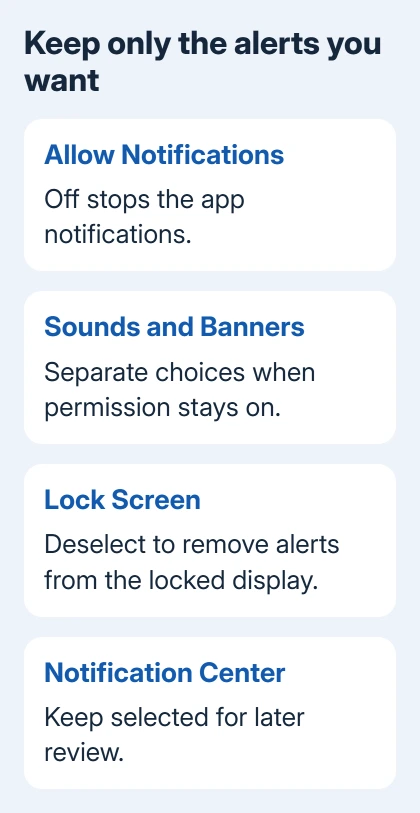
For private message content, use Show Previews and choose When Unlocked or Never, depending on the options shown. That changes what the alert reveals, rather than whether the app can send it.
When sounds are the only problem across several apps, the iPhone notification-volume controls explain the separate sound setting. Lowering it won't remove banners or badges.
5. Bundle less urgent apps into Scheduled Summary
Open Settings > Notifications > Scheduled Summary and turn it on. Select the apps to include and choose the times when their notification summaries should arrive.
This suits newsletters, news or other content you want to catch up with later. Keep anything you need immediately out of that group. Scheduled delivery is different from disabling an app's alerts altogether.
Don't confuse Scheduled Summary with Summarize Notifications. The first changes delivery timing. The second uses Apple Intelligence to shorten notification text on supported iPhones; it isn't the switch that stops notifications arriving.
When notifications still break through
Look at the app name on the unexpected alert. If you disabled one app but the new alert belongs to another, change that app's settings. Similar-looking promotions can come from different apps.
If a Focus is active, review its People, Apps and time-sensitive exceptions. Also check Share Across Devices in Focus settings if changing Focus on another Apple device changes this phone's behavior.
Government and emergency alerts have separate options near the end of Settings > Notifications, depending on your region. The ordinary app switches don't control every kind of system or emergency alert.
For an app that ignores its disabled permission, restart the phone and check the permission again. If it persists, report the app name and iOS version to Apple Support and whether the interruption is a banner, sound or an in-app message.
The Short Version
Turn off Allow Notifications for one app. Use its alert's Options menu for a temporary mute, or Do Not Disturb for broader silence. Adjust sounds, banners and previews separately to keep the quiet notifications you want.
Checked November 10, 2026.