

An iPhone 7 stuck on iMessage verification needs a force restart when the message blocks Settings. Hold the side and volume-down buttons together. Release both buttons when the Apple logo appears, then check activation after startup.
A responsive phone showing Waiting for activation needs connection and carrier SMS checks. Restart activation once, then allow up to 24 hours. Repeatedly switching iMessage off and on won't speed that up.
In this guide
1. Restart the iPhone 7 without opening Settings
Hold volume down and the side button together. Keep both pressed until the Apple logo shows, even if it takes longer than 10 seconds. Release them at the logo and let startup finish.
This is the iPhone 7 and iPhone 7 Plus button combination. Holding Home with the side button is for older models. The volume up, volume down, then side-button sequence belongs to iPhone 8 and later.
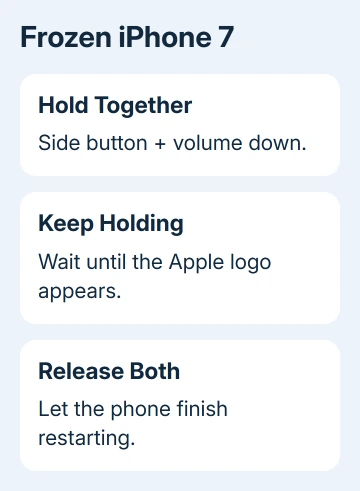
Enter your passcode after the restart, then open Settings from the Home Screen. The point of this step is to get control of the phone again. It doesn't complete the carrier's verification of your number.
I'd do this before changing an account password or considering an erase. You can't check activation while the screen is stuck, but these buttons let you restart without opening Settings.
If the screen is black and the phone doesn't start, connect it to power for an hour and try the same buttons again. A phone that still won't start needs the hardware checks in the iPhone black-screen guide.
2. Identify the message once the phone responds
Open Settings > Messages on the iPhone 7. On this model's supported software, Messages is directly in Settings. Instructions that send you through Settings > Apps > Messages describe newer iPhones and won't match this model's menus.
Look at the wording. Waiting for activation or Activation unsuccessful means Messages or FaceTime hasn't activated. An Apple Account password prompt asks you to sign in. Note the wording before changing anything else.
Try another part of Settings, such as General, and another app. If only the account prompt is stuck, tell support that the rest of the phone works. That helps them understand the problem better than saying the whole phone is frozen.
An iPhone 7 doesn't support the newer iMessage Contact Key Verification feature. Advice to turn that feature off on a recent iPhone isn't a fix for this model. Likewise, newer eSIM activation instructions don't apply to its physical SIM.
If Settings becomes usable but shows an ordinary activation error, continue through the carrier checks. If a full-screen prompt keeps blocking every app after the restart, ask Apple Support to help clear that prompt.
3. Check internet access, date and ordinary text messages
Open Safari and load a fresh page over Wi-Fi or cellular data. A Wi-Fi symbol can remain visible without working internet. Complete any network sign-in page before trying activation on that connection.
Next, open Settings > General > Date & Time and check the time zone. Correct an obviously wrong date or zone. The activation service needs a working connection and the right time, not just a phone that can display saved messages.
Send an ordinary SMS to a contact who can receive one and ask for a reply. Blue iMessages sent from an email address don't check the same service. Phone-number activation needs SMS through your mobile carrier.
Apple's activation instructions say to check that your line supports outgoing and incoming international SMS. A local text won't tell you whether international SMS works, so ask the carrier directly if your number still won't verify.
On a prepaid line, ask whether your current balance and plan permit those activation texts. When the phone asks permission for a possible SMS charge, choose Turn On if you want to activate the number.
If normal SMS fails, stop adjusting Messages settings and have the carrier restore texting on the line. Tell them the physical SIM is in an iPhone 7 and whether outgoing texts, incoming texts or both fail.
4. Restart iMessage and FaceTime once
With Settings accessible and the connection working, open Settings > Messages and turn iMessage off. Return to Settings, open FaceTime, and turn that off too. Then restart the phone normally.
For a normal iPhone 7 restart, use a long side-button press to show the power slider. Slide it off, then start it again with the side button. Save the two-button restart for a frozen screen.
Return to the same two settings pages and switch both services back on. Accept the activation SMS prompt if it appears. Check Settings > General > Software Update too and install any update offered for this iPhone after backing up.
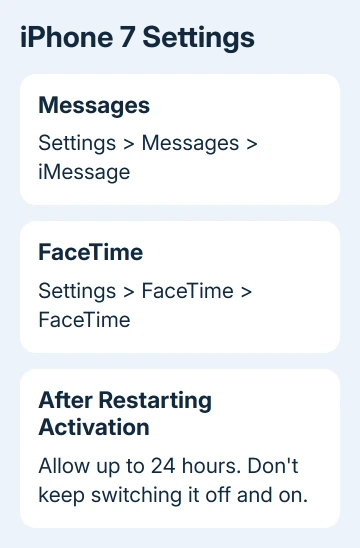
Now allow up to 24 hours for the carrier to verify the phone number. A spinning indicator beside your number means it's already trying to activate. Keep iMessage enabled instead of starting the same process again every few minutes.
The iMessage activation guide explains the general activation process. Its newer dual-SIM and eSIM branches aren't steps for an iPhone 7.
5. Check the selected address and choose the right support
Open Settings > Messages > Send & Receive and look for a check beside your number. An email address can work while the number is still waiting. Check the selected address instead of relying on a blue bubble.
If you have a verified email address available, choose it to use iMessage while the carrier sorts out your number. Contacts may see a separate conversation from that address. This doesn't complete number activation.
After 24 hours, ask the carrier to check international SMS and activation messaging on your line. Give them the time of your last attempt, your number and the exact error. Ask whether those activation messages can go through.
If the carrier confirms the line works but activation still fails, contact Apple Support through the activation page. Mention the iPhone 7, its installed iOS version, the carrier's answer and whether your email address works.
If the prompt still blocks Settings, make that clear and ask for help getting back in without erasing your data. Support needs to know that you can't use the phone, rather than just that your number hasn't activated.
The Short Version
For an unresponsive iPhone 7, hold volume down and the side button together until its logo shows. Then check internet, time zone and carrier SMS. Restart Messages and FaceTime activation once and allow up to 24 hours.
Checked November 10, 2026.
 If you have any business, I can build it online






