A personal Microsoft account uses account.microsoft.com: open that site, select Sign in, and enter the linked email or phone number. Complete the password or other sign-in method the page offers.
For work or school, start at myaccount.microsoft.com instead. Either website can be used without converting your Windows login or signing into Word, so choose the destination you actually need.
In this guide
Choose the account and destination first
A personal account can hold Outlook.com mail, Xbox purchases, OneDrive files or a personal Microsoft 365 subscription. A work or school account belongs to an organization and can have its own sign-in requirements.
Microsoft explains the separate personal and work/school routes in its account sign-in instructions. An address in one system doesn't automatically give access to the other.
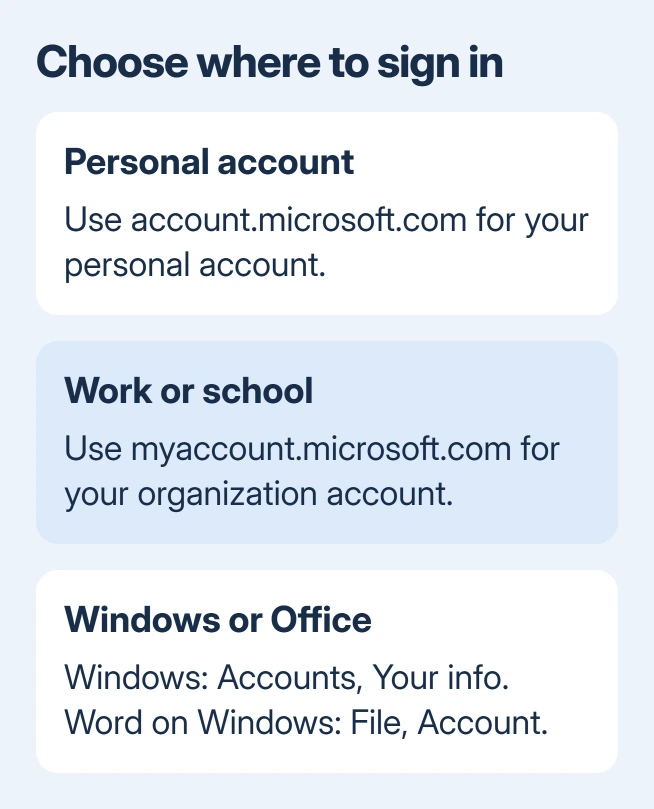
If the picker offers Personal account and Work or school account, choose the one that has the service or files you need. If the account looks empty, you may have signed into the wrong one; your files haven't necessarily been deleted.
I'd check the address against a known purchase receipt or an already signed-in app before creating another account. A new account won't bring your existing subscription or saved files with it.
If you haven't created an account yet, use the Microsoft account creation steps. Creation and sign-in are different tasks; don't use signup as a way around a forgotten password.
Sign into the personal account website
Enter account.microsoft.com in your browser's address bar. Select Sign in, enter the account's email address or phone number, then select Next. Enter the password if the page asks for it and choose Sign in.
Any email alias already attached to that personal account can be used to sign in. Those aliases share the account's password. An unrelated address that happens to forward mail to your inbox isn't automatically an alias.
Follow any verification request using a method you recognize. Only use a code or approve a request for the sign-in you're completing; don't approve an unexpected request that arrived before you tried to sign in.
When the account page opens, check the displayed email address or profile. That confirms you're in the right account, especially if the browser remembered a family member's sign-in and opened their account without asking.
On a shared computer, sign out from the profile menu when finished. Closing a browser tab can leave the website session active, so use the site's sign-out control rather than assuming the closed page ended access.
Complete a passwordless sign-in when it's offered
Some personal accounts have no password. Their sign-in can use Microsoft Authenticator, Windows Hello, a security key or a code instead. A password box can be missing because your account doesn't use one.
Choose one of your existing sign-in methods. If you can't use it, open the page's other sign-in choices to see what's available. Follow its prompts on the device or account that receives the request.
The passwordless account explanation lists the supported alternatives. A Windows Hello PIN belongs to the device using it; it isn't a universal password to type into every account website.
If none of the offered methods is available, move to account recovery. Repeating the same unavailable method won't get you further, and creating a new account would leave the old account's contents behind.
Sign into a work or school account
Open myaccount.microsoft.com and enter the address supplied by your school or employer. Complete the organization's password, verification or device prompts. Use the account they gave you, even if your personal inbox has a similar address.
The account page lets you manage things like security information and connected organizations. Access to an individual app or document can still depend on the permissions and license your organization has assigned.
If the page says the account doesn't exist, check the complete address with your administrator. If the password works but an approval or organization policy blocks access, give IT the full message with its time.
Don't try to fix an organization's restriction by registering its address as a new personal account. Ask IT to check the work or school identity and the service you're trying to open.
Connect an existing Windows profile to the account
In Windows 11, open Settings > Accounts > Your info. Windows 10 uses that same path. Select Sign in with a Microsoft account instead when offered, then complete its prompts.
That link appears for a local Windows account. If Your info already shows a Microsoft account, the current Windows profile is already connected. That link doesn't need to appear, and its absence doesn't mean the account website is broken.
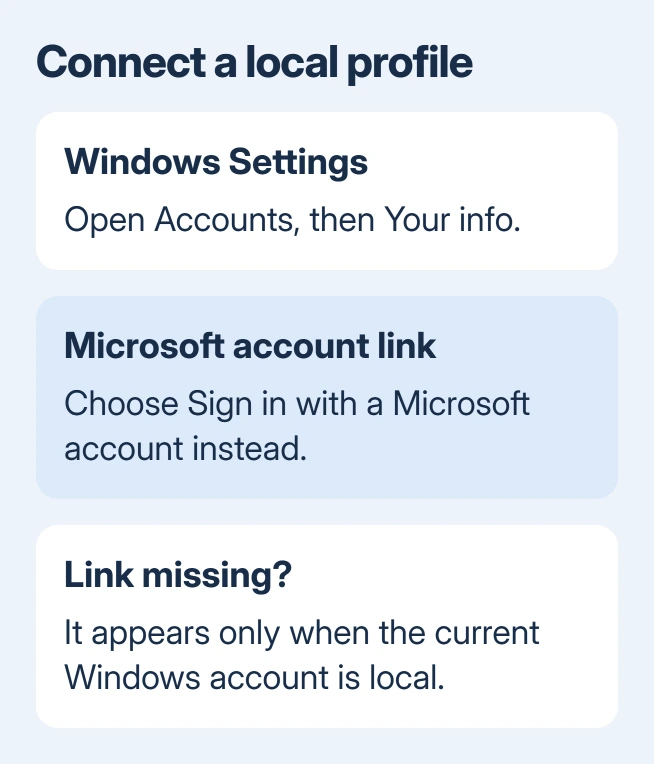
The local-to-Microsoft account procedure changes which account you use with that Windows profile. Read the prompts carefully, including which account's password is requested.
To give someone else their own desktop, use the Windows user-account procedure. Converting your own profile isn't the same as adding a new user.
Sign into Word or Excel, then handle a failed login
In a Windows Microsoft 365 app such as Word, open File > Account > Sign In. On Mac, open Word or Excel and use Sign In. Enter the account associated with the Office product or subscription you need.
The Microsoft 365 sign-in steps cover those app controls. Check which account the app shows afterward if you still can't edit or find your cloud files.
For a personal account that won't accept sign-in, use the Sign-in helper linked from the main account instructions. Enter your account details and choose the route for the error shown, rather than changing Windows settings first.
If it sends you to support, choose Get Help, then Contact Support when offered. For an organization account, give IT the affected app and exact error. Personal account support and your IT team handle different accounts.
The Short Version
Use account.microsoft.com for personal accounts and myaccount.microsoft.com for work or school. Finish verification and check the signed-in address. Windows Your info and Office's account controls handle their own sign-ins.
Checked November 10, 2026.